
A while back I wrote about how to sort an array in Power Automate and I used an Azure function to do the job. One of the annoying things of that approach is that you will need to use a premium licence.
But what if you don’t have a premium licence available?
I’m aware of the user voice created by Laura Graham-Brown asking for a sort function. But that hasn’t been implemented yet.
Also John Liu’s option option for sorting can work, but in this post I’m going to reduce the number of steps needed.
My array
I’ve created an array of data with number in random order.
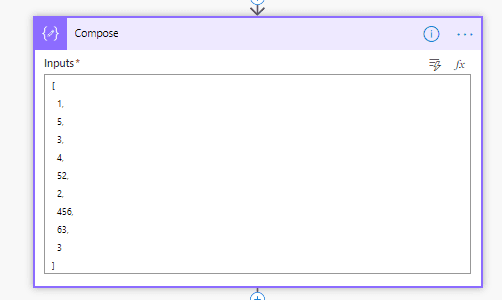
In my example I wanted to keep my data simple. It is however possible to create more complex arrays of data and then sort the array of data using the method described this post.
Add rows of data to Excel
Now that I’ve got my array I will add rows to a table that I created in an Excel file. The table only had one column, but there is no reason why I couldn’t use multiple columns in this case.

This is going to be slow as each Add a row into a table action will take a few seconds. Just to add 9 items to an Excel table takes about 16 seconds!
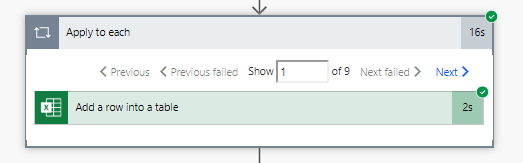
When you have larger arrays this isn’t going to work very well. We will need to speed this up!
Concurrency control
But there is hope!
I set the concurrency control on the Apply to each to a maximum of 50.

Now we are down to 2 seconds! That is more like it!
I’m happy with this performance and I on top of that I noticed that my Excel file doesn’t get locked at all. I expected this to go wrong, but the Excel connector must have been improved a lot!
Wow, time is flying when we’re having fun!

Now that the data is in my Excel file all I need to do is collect the data back.
Sort an Array using Excel in Power Automate
The a Excel connector as an action called List rows present in a table. This action collects all the rows in a given table and in the advanced option there are filtering and sorting options available.

In this post I will use the Order by option to sort my data. In my table I only have one column. If you have multiple columns then you might want to Order by one or more columns.
At this stage you could even apply a filter but you might as well do that with the filter action in flow.
Cleaning up the table
If you want to reuse the excel file every time you run your flow then you migth want to clean up the table.
Remember to enable the Concurrency control setting! Otherwise your Delete a row actions will be very slow again.
Cleanup the Result
The List rows present in a table action will create an array with a bit of junk. Power Automate’s Excel connector simply ads some information that it uses to structure the data.
I’m cleaning up the data by pushing the data returned into a compose action set to the following expression:
body('List_rows_present_in_a_table')?['value']
We could of course skip this Compose step, however for debugging purposes I do sometimes add some additional Compose actions so that I can very quickly get to the elements in the json that I’m interested in.
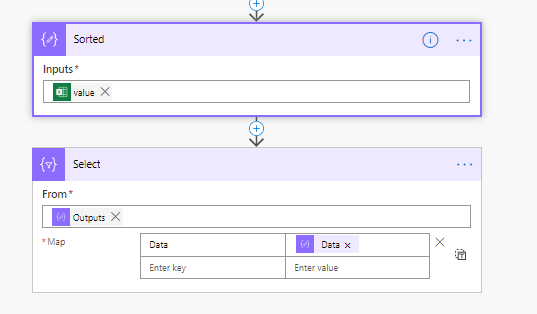
Then finally I use the Select to just select the information that I’m interested in:
item()?['Data']
This results in a nice clean array with my numbers ordered
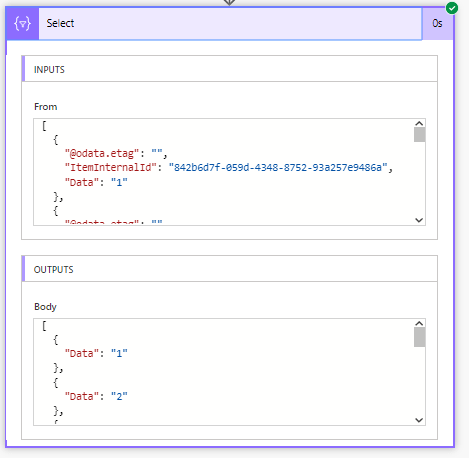
So now we have an easy way to sort an array, using all standard features within Power Automate.
Pieter Veenstra

Is your business still running on paper trails, sprawling Excel files, or ageing Access databases? There’s a better way — and I can show you exactly what it looks like. I’m the Technical Director of Vantage 365, a Microsoft solutions consultancy working with clients across the UK, the Netherlands, and worldwide. For over 30 years I’ve been turning messy, manual business processes into clean, automated systems that save time, reduce errors, and give teams the visibility they need to make better decisions. SharePains is not just any blog run by a Microsoft MVP. Have you ever used Try-Catch in Power Automate? The original post about Try-Catch in Power Automate can still be found on this site, https://staging.sharepains.com/2018/02/07/try-catch-finally-in-power-automate-flow/ Or have you ever used the Pieter’s method to avoid variables and speed up your flows? https://staging.sharepains.com/2020/03/11/pieters-method-for-advanced-in-flows/ You can contact me using contact@staging.sharepains.com


Leave a Reply
You must be logged in to post a comment.