Today, I’m comparing Microsoft Teams within and Educational tenant and a business tenant.
Business tenant vs Educational tenant
Well in case you didn’t know yet, Microsoft Teams is very different from Microsoft Teams.
I’ve got 2 Office 365 tenants to play around with:
- My business tenant
- An educational tenant
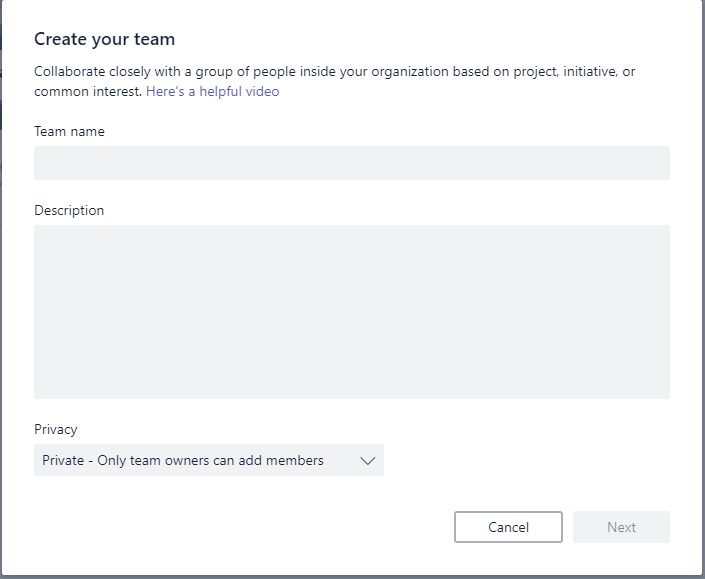
When I create a new team in my business tenant I get the expected dialog that we are all used to.
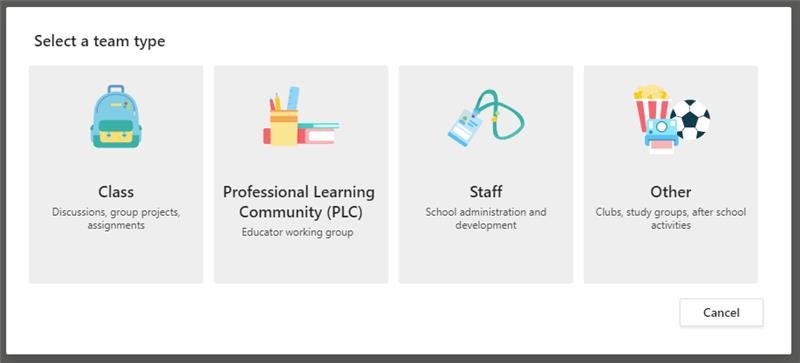
But when you create a team in the education site you get some very different dialogs.
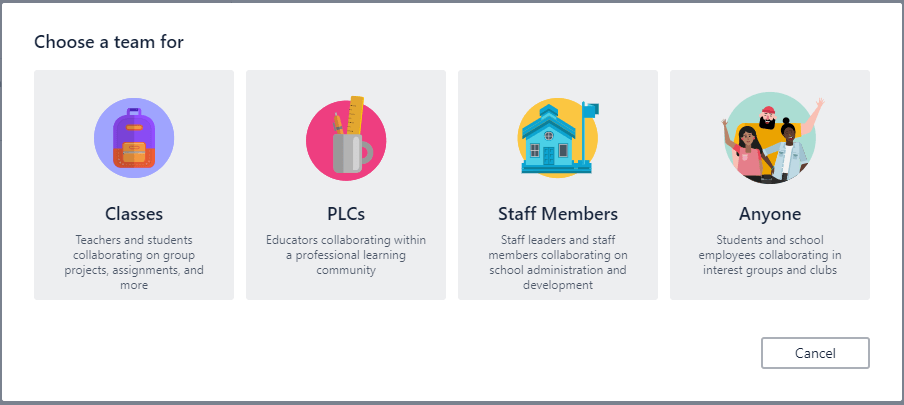
So there are 4 different type of teams sites in the educational tenant.
- Classes
- PLCs (Professional Learning Communities)
- Staff Members
- Anyone
So what is the difference?
Classes
Class teams have an additional notebook and options for assignments.
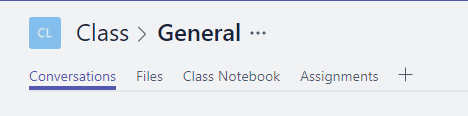
Class notebook
In the educational tenant when I click on the Class notebook in the tabs a quick overview is presented.
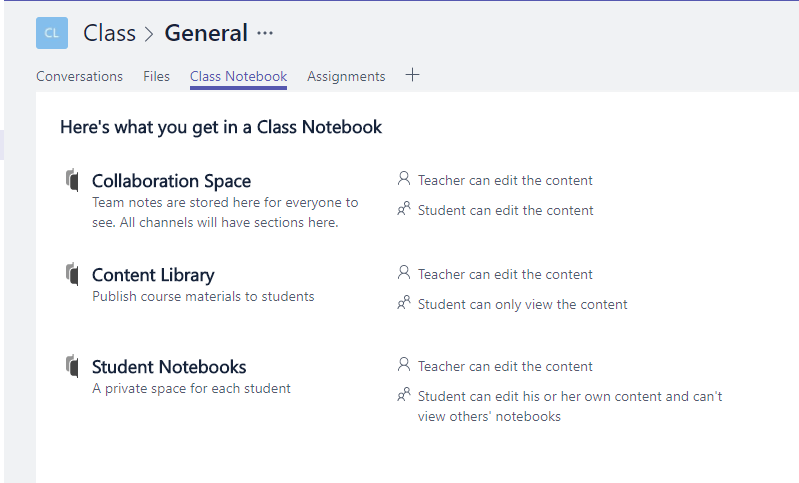
Then you can specify which sections you want in your notebook:
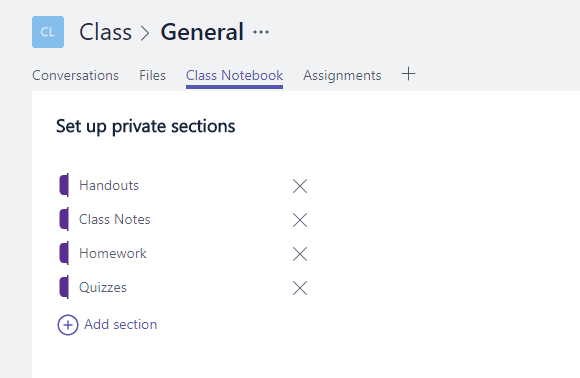
And then Microsoft teams will get things ready for you:
And then your notebook is ready:
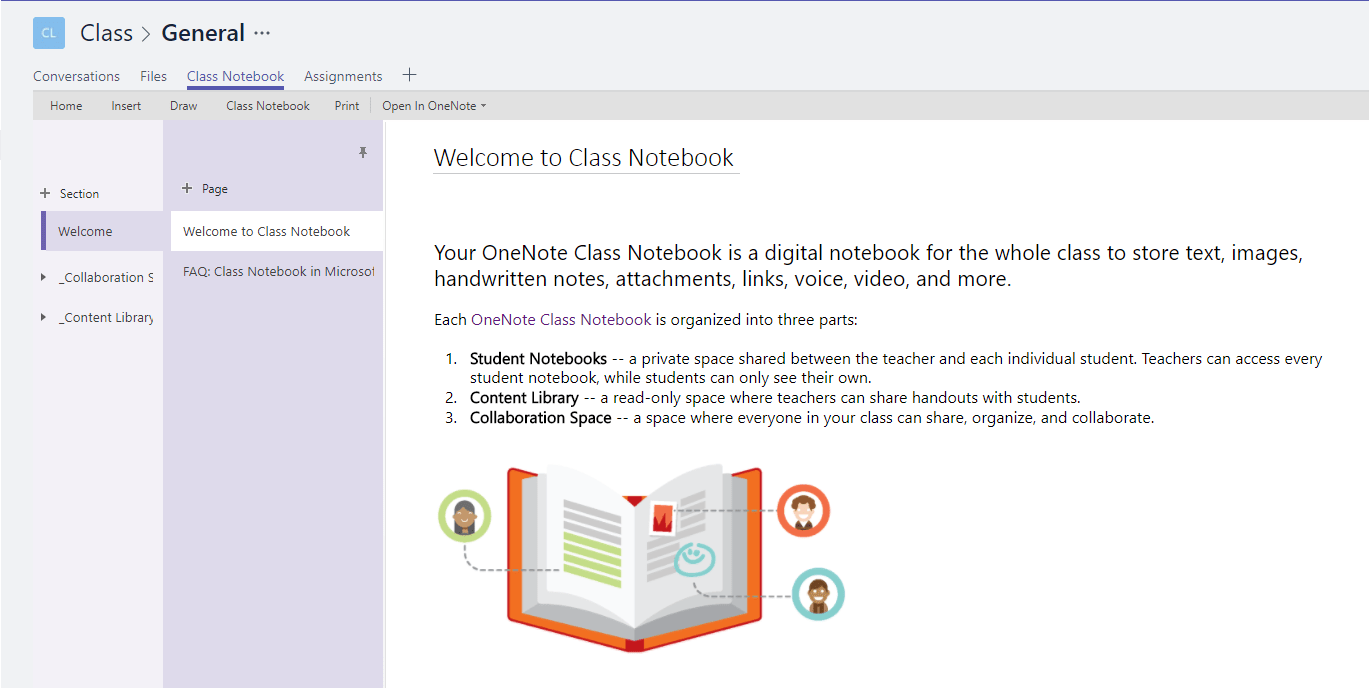
Now you have many options available within the ribbon:
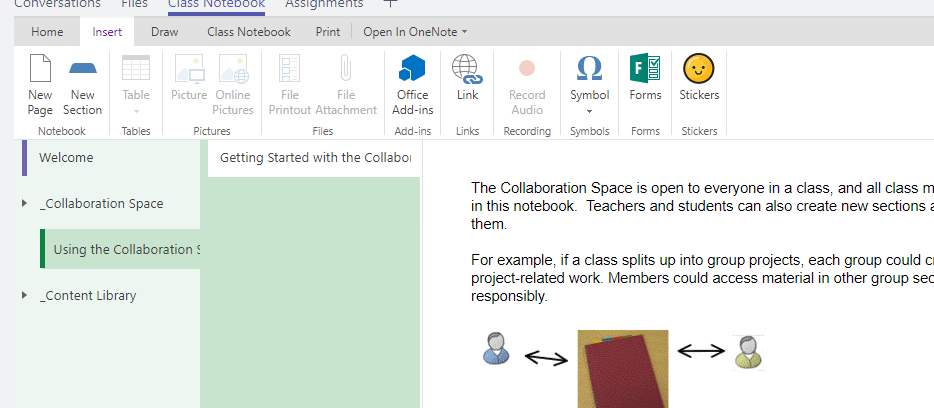
Options like Microsoft Forms can simply be selected from the ribbon.
But that is not all. How about reviewing students work:

So a lot of new stuff there all making sharing class notes easier. When logged in a as a student a smaller subset of notebooks will be available. This is a great new way to manage all those notes. And you can even share your notes, just like that.
Assignments
In the Assignments section, teachers can create new assignments for students:
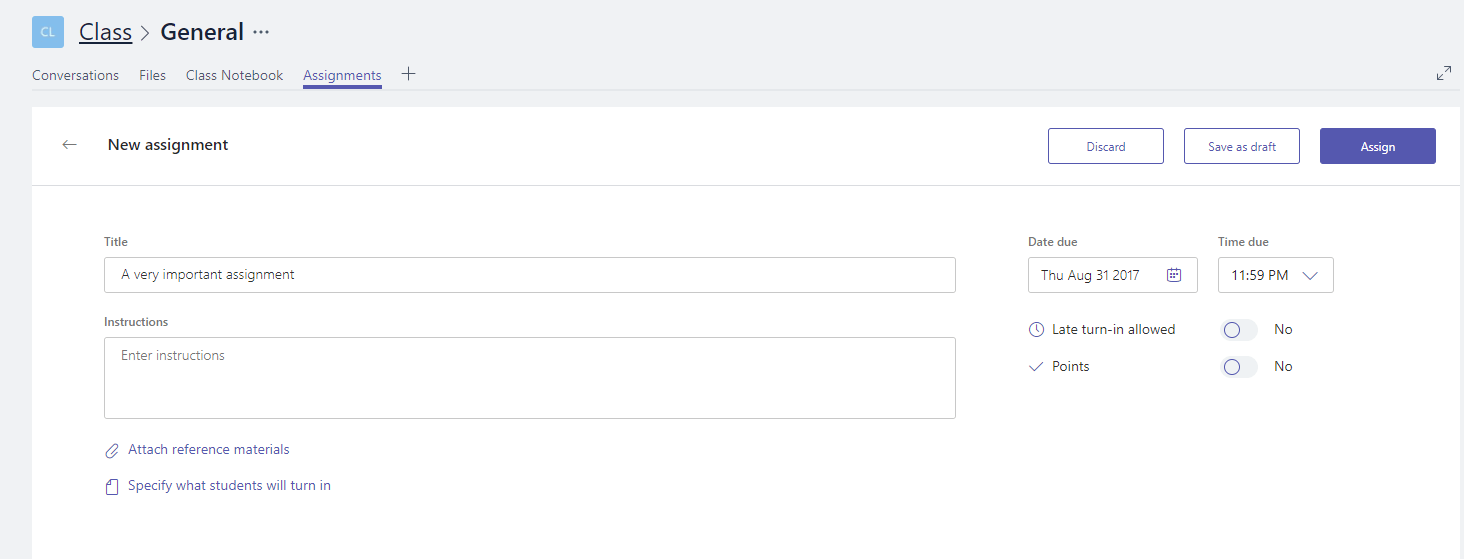

Reference materials can be included, due dates can be specified. Isn’t this great! No need to collect you assignments you can do this directly from the comfort of your home or where every you may be.
Do you want to get an overview of all your assignments? Well they are only one click away:
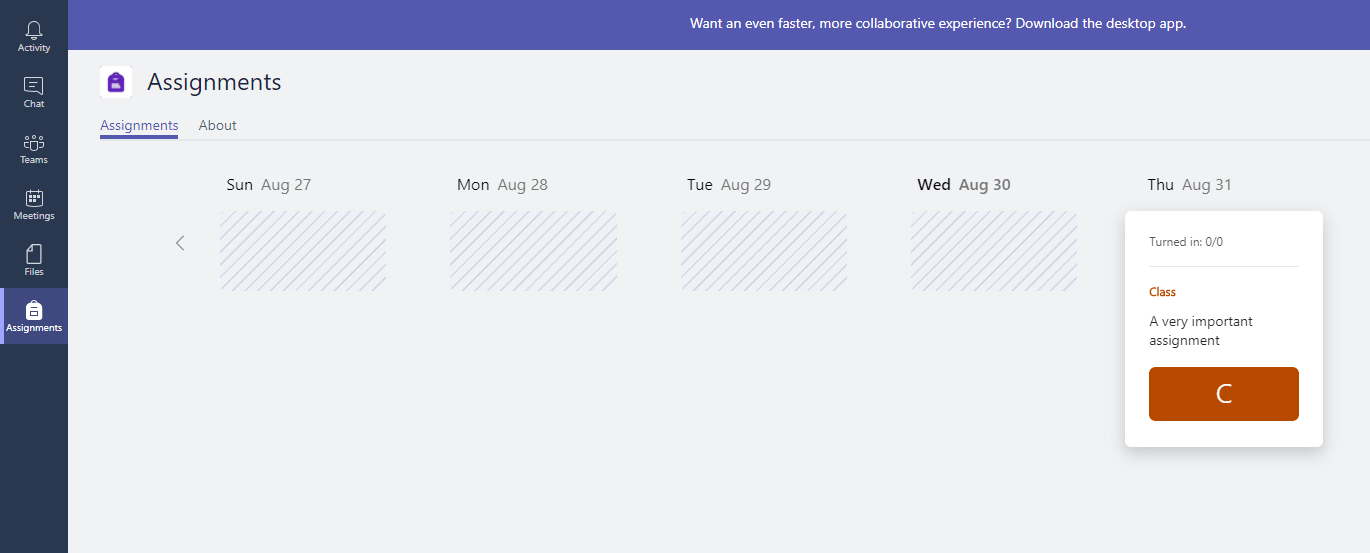
The here above mentioned PLCs, Staff Members and Anyone teams are similar team sites. They only don’t have the Assignments section available. Also the notebooks have been replaced by notebooks for each area.
Pieter Veenstra

Is your business still running on paper trails, sprawling Excel files, or ageing Access databases? There’s a better way — and I can show you exactly what it looks like. I’m the Technical Director of Vantage 365, a Microsoft solutions consultancy working with clients across the UK, the Netherlands, and worldwide. For over 30 years I’ve been turning messy, manual business processes into clean, automated systems that save time, reduce errors, and give teams the visibility they need to make better decisions. SharePains is not just any blog run by a Microsoft MVP. Have you ever used Try-Catch in Power Automate? The original post about Try-Catch in Power Automate can still be found on this site, https://staging.sharepains.com/2018/02/07/try-catch-finally-in-power-automate-flow/ Or have you ever used the Pieter’s method to avoid variables and speed up your flows? https://staging.sharepains.com/2020/03/11/pieters-method-for-advanced-in-flows/ You can contact me using contact@staging.sharepains.com




Leave a Reply
You must be logged in to post a comment.