
3 Ways to add a column to an array in Power Automate

3 Ways

3 Ways to add a column to an array in Power Automate

By:

Date:

When you have an array in Power Automate and you would like to add a column, you have 3 ways of doing this.

Arrays in Power Automate

In some of my posts in the past I already looked at arrays. In this post I will look at the different ways of adding a column to my array. I’ve found a number of ways of doing this and they all have their advantages.

  • Constructing raw json
  • Using AddProperty
  • Using a select action

In my examples I’m going to use a compose action to create my initial array. But the arrays can really come from any other data source. This could be a SharePoint list, a SQL database or a table in Dataverse or anything else. Arrays are everywhere.

Creating the initial array

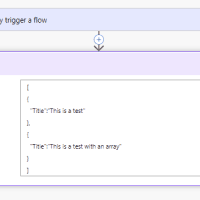
I’m creating the initial array, with two objects
3 Ways to add a column to an array in Power Automate

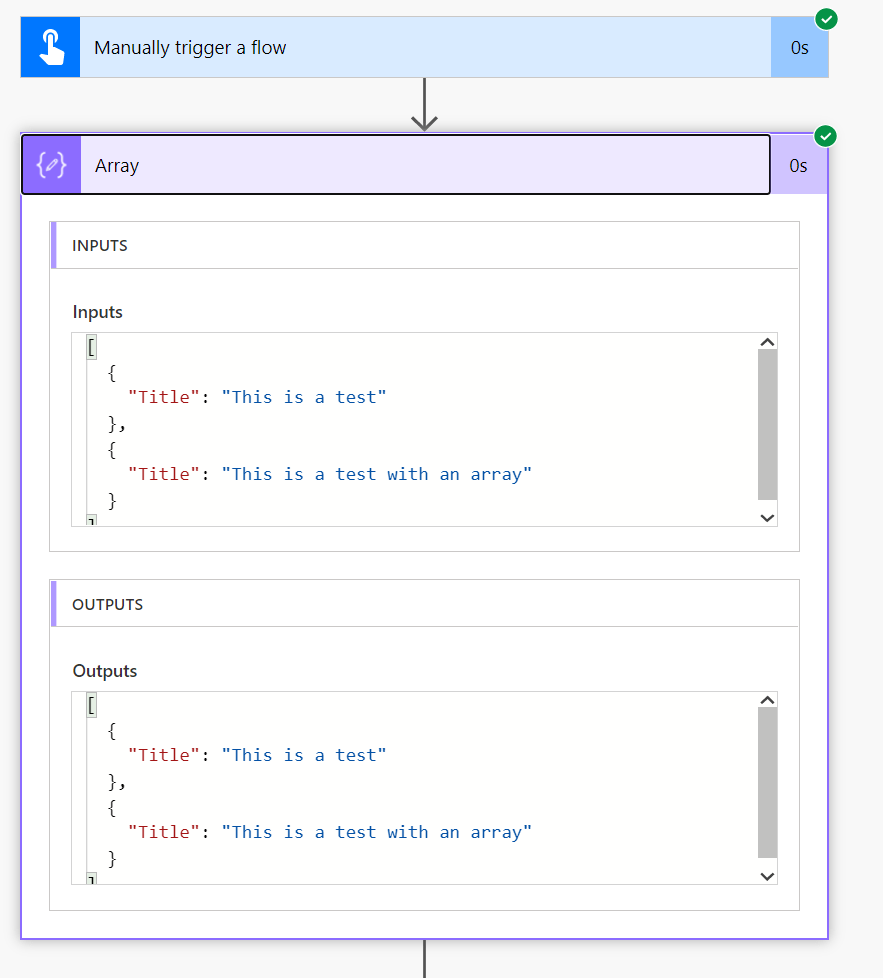
Then as a run my flow I’m getting an array
3 Ways to add a column to an array in Power Automate

Ok, that is good. Now I want to add the length of each title to the array.

Add a column to an array

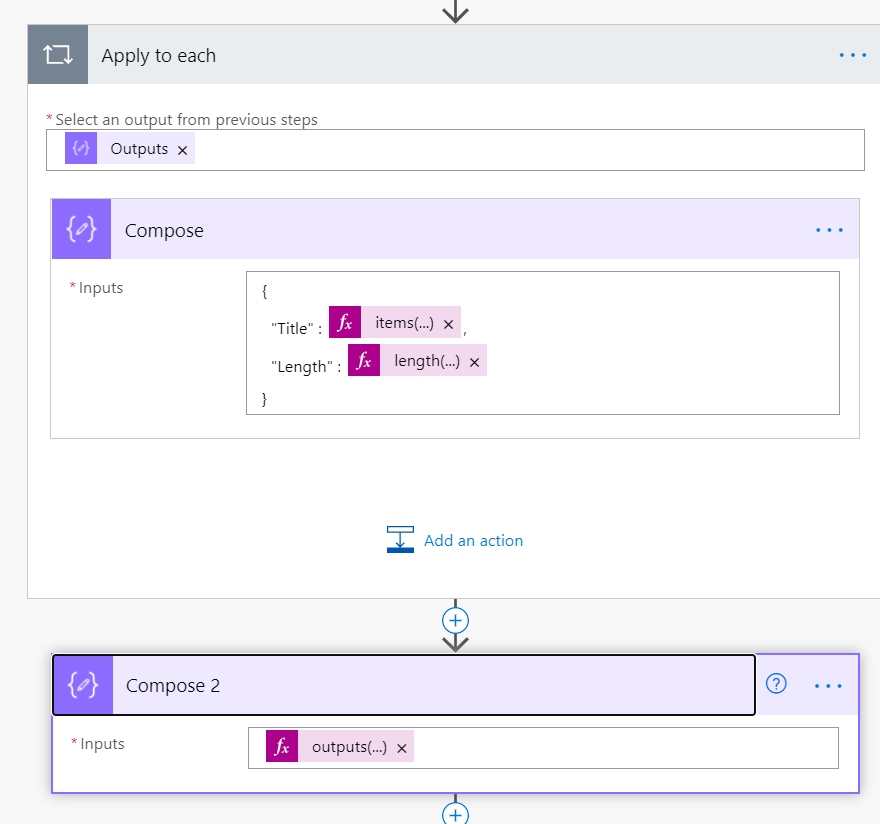
The first option is to construct the objects inside an apply to each and then adding the Length property followed by an expression that calculates the length.

length(items('Apply_to_each')?['Title'])
3 Ways to add a column to an array in Power Automate

That is easy enough when you only have one property to replicate and it also work probably when you have an array that has predictable propeties, but not every object in each array has to be the same, so this might be some thing that doesn’t always work.

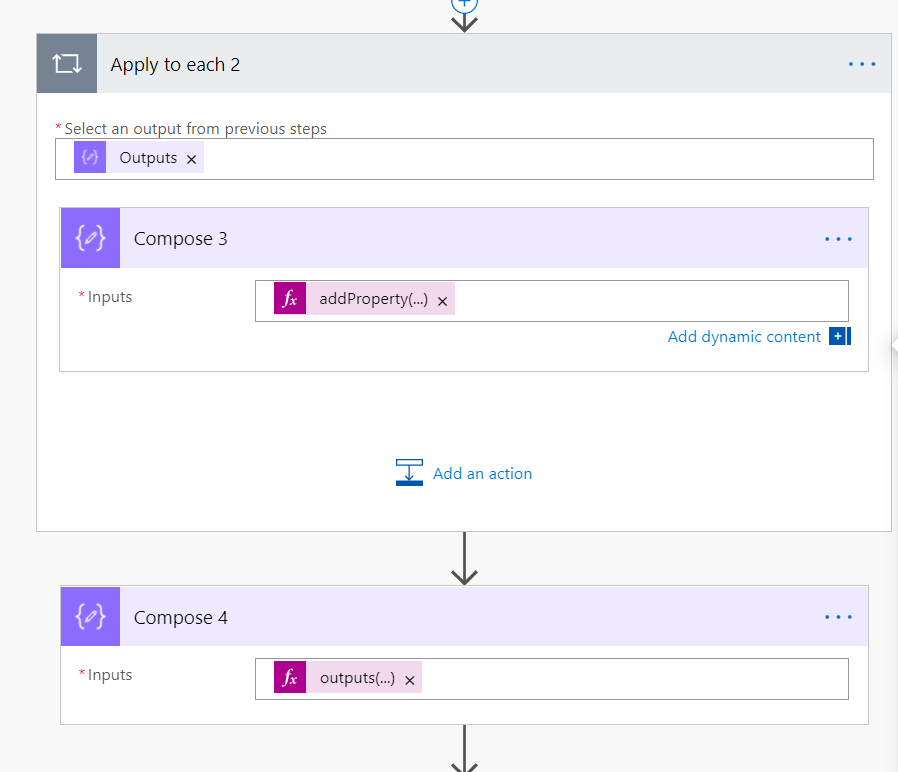
If you have many unpredictable properties in your array you could consider the AddProperty function

AddProperty
3 Ways to add a column to an array in Power Automate

Using the following expression you can add a column to whatever object you want. Giving the same result.

addProperty(items('Apply_to_each_2'),'Length', length(items('Apply_to_each_2')?['Title']))

The fast road to an additional column

Now you could use a select action and replicate all the properties, but that has got that same problem again of managing optional properties.
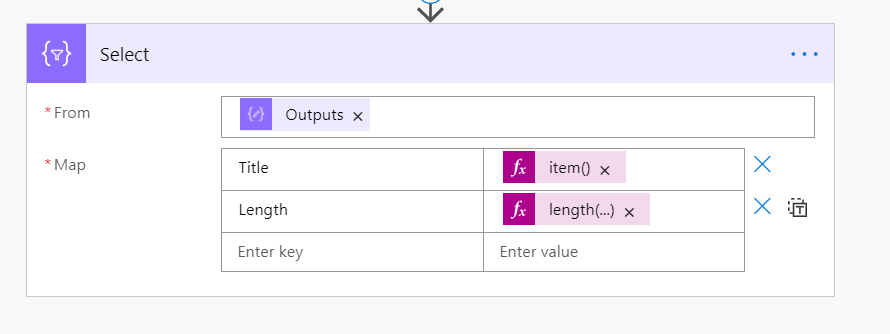
3 Ways to add a column to an array in Power Automate

Using the addProperty in the select can be really powerful.
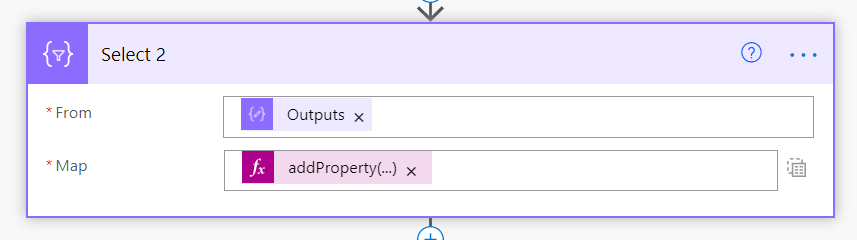
Add a column to an array

With the following expression we’re taking each item in the array and adding our property.

addProperty(item(),'Length', length(item()?['Title']))

Advantages of this last option. Only 1 action used, it is fast and it is easy to understand.
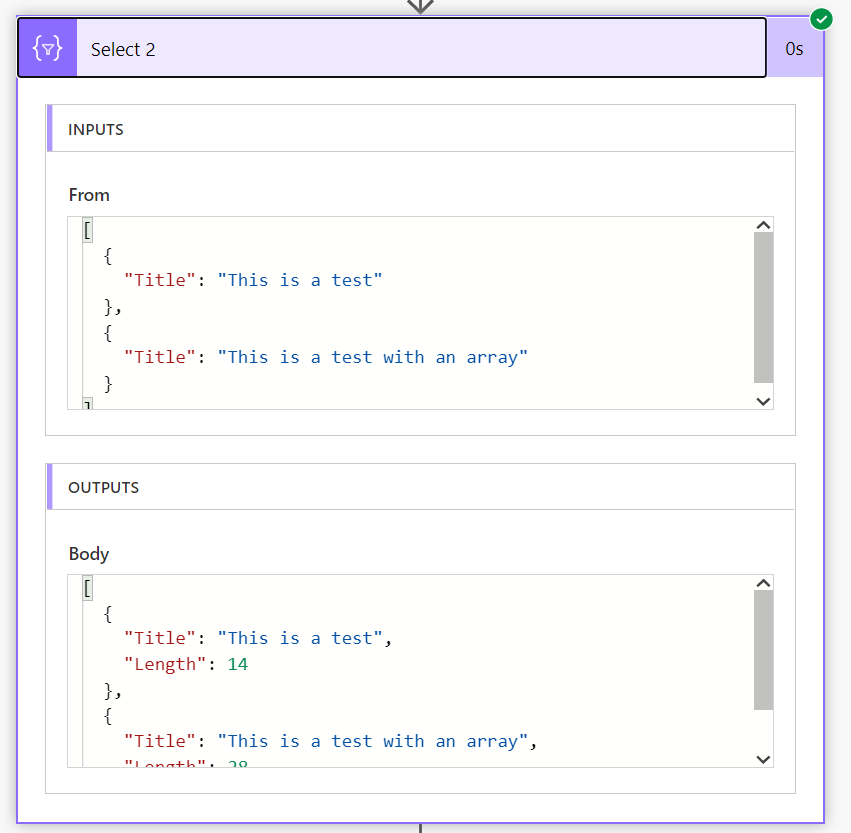
3 Ways to add a column to an array in Power Automate

Is your business still running on paper trails, sprawling Excel files, or ageing Access databases? There’s a better way — and I can show you exactly what it looks like. I’m the Technical Director of Vantage 365, a Microsoft solutions consultancy working with clients across the UK, the Netherlands, and worldwide. For over 30 years I’ve been turning messy, manual business processes into clean, automated systems that save time, reduce errors, and give teams the visibility they need to make better decisions. SharePains is not just any blog run by a Microsoft MVP. Have you ever used Try-Catch in Power Automate? The original post about Try-Catch in Power Automate can still be found on this site, https://staging.sharepains.com/2018/02/07/try-catch-finally-in-power-automate-flow/ Or have you ever used the Pieter’s method to avoid variables and speed up your flows? https://staging.sharepains.com/2020/03/11/pieters-method-for-advanced-in-flows/ You can contact me using contact@staging.sharepains.com

Tags:

7 responses to “3 Ways to add a column to an array in Power Automate”

  1. Buddha Manandhar Avatar

    Hi Peter, Great article. I have always found your blogs very helpful. I am dealing with strange issue with my flow when concurrency control is enabled for the “Apply to each”. I am wondering if you are able to assist me.

    I have a flow that processes approximately 3,000 records every night. Let’s assume that these records are in an array like below:

    [
    {
    “ID”: 1,
    “Name”: “John Walker”
    },
    {
    “ID”: 2,
    “Name”: “Mary Flynn”
    },
    …
    …
    {
    “ID”: 3000,
    “Name”: “Jane Doe”
    }
    ]

    I need to lookup for all phone numbers available for each record, and update the above array or create new array like the following:

    [
    {
    “ID”: 1,
    “Name”: “John Walker”,
    “Home Phone”: “415-897-0998”,
    “Work Phone”: “650-098-3443”,
    “Mobile Phone”: “210-783-9098”
    },
    {
    “ID”: 2,
    “Name”: “Mary Flynn”,
    “Home Phone”: “453-873-0833”,
    “Work Phone”: “515-212-4532”,
    “Mobile Phone”: “301-463-7897”
    },
    …
    …
    {
    “ID”: 3000,
    “Name”: “Jane Doe”,
    “Home Phone”: “415-897-0998”,
    “Work Phone”: “650-098-3443”,
    “Mobile Phone”: “210-783-9098”
    }
    ]

    Phone numbers are in a separate array in the following format:

    [
    {
    “ID”: 1,
    “Phone Number”: “415-897-0998”,
    “Type”: “Home Phone”
    },
    {
    “ID”: 1,
    “Phone Number”: “650-098-3443”,
    “Type”: “Work Phone”
    },
    {
    “ID”: 1,
    “Phone Number”: “210-783-9098”,
    “Type”: “Mobile Phone”
    },
    {
    “ID”: 2,
    “Phone Number”: “453-873-0833”,
    “Type”: “Home Phone”
    },
    {
    “ID”: 2,
    “Phone Number”: “515-212-4532”,
    “Type”: “Work Phone”
    },
    {
    “ID”: 2,
    “Phone Number”: “301-463-7897”,
    “Type”: “Mobile Phone”
    },
    {
    “ID”: 3000,
    “Phone Number”: “415-897-0998”,
    “Type”: “Home Phone”
    },
    {
    “ID”: 3000,
    “Phone Number”: “650-098-3443”,
    “Type”: “Work Phone”
    },
    {
    “ID”: 3000,
    “Phone Number”: “210-783-9098”,
    “Type”: “Mobile Phone”
    }
    ]

    My flow works fine if the concurrency control is disabled but it takes approximately 6 hours to complete the run. If concurrency control is enabled with degree of parallelism of 50, it takes about 1 hour. But the results are not accurate as the phone numbers are mixed up between the records. i.e. Mary’s home phone is listed for John’s mobile, John’s work phone is listed for Jane’s work..etc.. Any idea on how I can build an array that has the following:

    ID:
    Name:
    Home Phone:
    Work Phone:
    Mobile Phone:

    Thank you!

    1. Pieter Veenstra Avatar

      This is the post that you are looking for:
      https://staging.sharepains.com/2020/03/20/create-joins-in-power-automate/

      My guess is that the join can be done within seconds or maybe a few minutes.

      1. Buddha Manandhar Avatar

        Thank you for your prompt response, Pieter. The post you referenced is exactly how I wrote my flow. I read the post and learnt from it. The only difference is that my flow has nested “Apply to each” loop after filtering the array. The filter array in my case returns multiple records. I need to use “Apply to each” to go through each record to extract phone number and type. Again, my flow works fine with no concurrency enabled but it takes very long time to finish the job. Any idea what might be the problem?

      2. Pieter Veenstra Avatar

        Hi Buddha, If all you are doing is reshaping the data then you can use a select action instead of an apply to each. Select actions are a lot faster.

      3. Buddha Manandhar Avatar

        Hi Pieter,

        I am struggling to figure this out with the Select action. How would I convert the following array into something like this? If you have any posts, please refer. I would greatly appreciate your idea on this.

        Desired Array:
        [
        {
        “Name”: “John Doe”,
        “Home Phone”: “”,
        “Work Phone”: “334-233-2323”,
        “Mobile Phone”: “”
        },
        {
        “Name”: “Jane Doe”,
        “Home Phone”: “455-234-1212”,
        “Work Phone”: “565-234-1212”,
        “Mobile Phone”: “121-222-1212”
        }
        ]

        Source Array1:

        [
        {
        “Name”: “John Doe”
        },
        {
        “Name”: “Jane Doe”
        }
        ]

        Source Array2:
        [
        {
        “Name”: “John Doe”,
        “Type”: “Work Phone”,
        “Number”: “334-233-2323”
        },
        {
        “Name”: “Jane Doe”,
        “Type”: “Home Phone”,
        “Number”: “455-234-1212”
        },
        “Name”: “Jane Doe”,
        “Type”: “Work Phone”,
        “Number”: “565-234-1212”
        },
        “Name”: “Jane Doe”,
        “Type”: “Mobile Phone”,
        “Number”: “121-222-1212”
        }
        ]

        Thanks,

        Buddha

  2. denniskuhn Avatar

    Awesomestness, thanks a lot for the easy to understand article with different pathways.

Leave a Reply

This site uses Akismet to reduce spam. Learn how your comment data is processed.