
Yesterday, on Reddit I saw a question asked about Nesting a Patch inside a ForAll loop. Is a Patch function inside a ForAll loop, to update many records, the most efficient way to update your records?
My Setup to test the ForAll Patch
I’ve created a simple SharePoint list with a number of fields and about 1000 item.
Then I added a text field to my list and I’m updating this field with a Patch function. The following code on the OnSelect will update my text field and that should all work quite well.
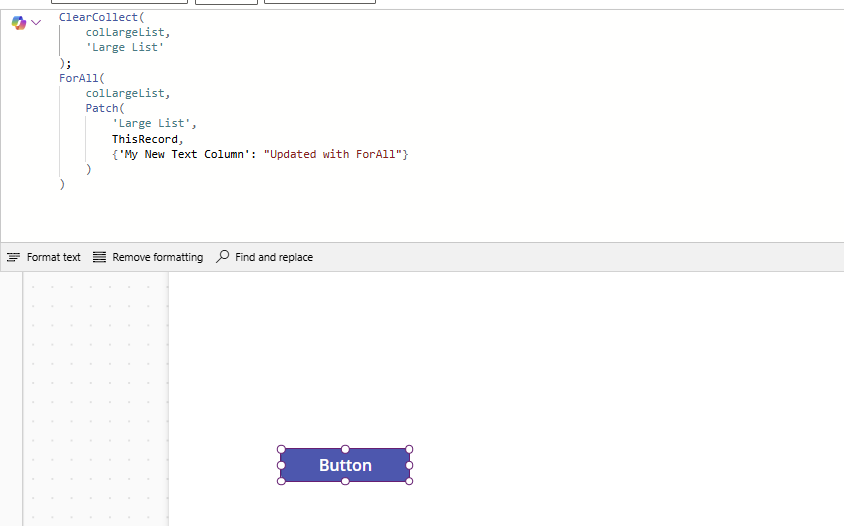
ClearCollect(
    colLargeList,
    'Large List'
);
ForAll(
    colLargeList,
    Patch(
        'Large List',
        ThisRecord,
        {'My New Text Column': "Updated with ForAll"}
    )
)
I have however seen recently that people complain that some records are not being updated. Now you will need to be careful that you don’t fall for the 500 item issue ( yes you can increase this 500 in your app settings of course.
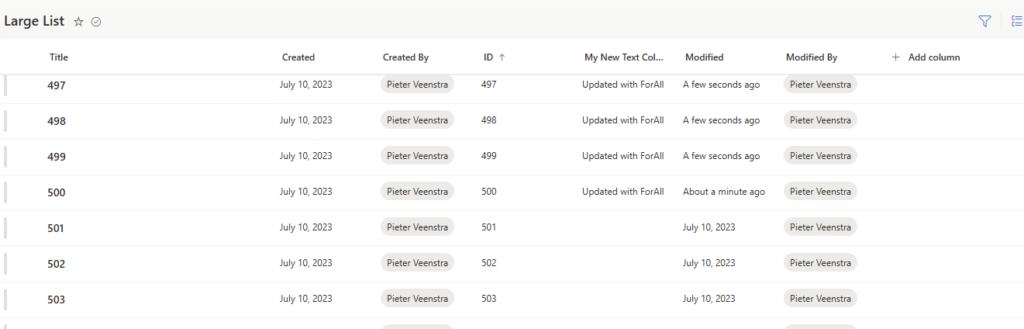
When we look at the performance of the Patch nested in the ForAll loop, we will find that it takes about 5 minutes to do 500 updates.
Alternative approach with just Patch
A lot faster is the approach where we don’t use a ForAll loop at all. Within seconds the following code will do the same update
ClearCollect(
    colLargeList,
    'Large List'
);

UpdateIf(colLargeList, true, {'My New Text Column':"Updated Collection"});


Patch(
    'Large List',
    colLargeList
)
The first line will give us a collection of the 500 items like in our ForAll approach. Then we update this collection before we update the data source with the updated collection. Still we only have 500 items being updated, but you could resolve that by reading all items into the collection.
ClearCollect(colLargeList, 'Large List');
Collect(colLargeList, Filter('Large List', Created > Last(colLargeList).Created));
Collect(colLargeList, Filter('Large List', Created > Last(colLargeList).Created));
Collect(colLargeList, Filter('Large List', Created > Last(colLargeList).Created));
Collect(colLargeList, Filter('Large List', Created > Last(colLargeList).Created));
Collect(colLargeList, Filter('Large List', Created > Last(colLargeList).Created));

UpdateIf(colLargeList, true, {'My New Text Column':"Updated Collection Again"});


Patch(
    'Large List',
    colLargeList
)
You do of course need to be careful here as Throttling issues may occur. It’s not just Power Automate that sees throttling issues.
In about 8 minutes, Power Apps managed to update 3000 records. Please remember to implement a progress bar if you are happy for your user to wait this long,
3rd Approach, UpdateIf
Now we could also consider using UpdateIf to update many records. Especially when you r updates are all the same Update If may quite well be a good option. And did you know that UpdateIf goes past the 500 item limit without you updating the limit within the app?
UpdateIf(
    'Large List',
    true,
    {'My New Text Column': "Updated with Update If"}
);
During my tests, processing 3000 items took 6 minutes.
And you can of course put all sorts of conditions in this code to select the items that you want to update. Be aware though that you may run into delegation warnings when you use more complicated conditions.
UpdateIf(
    'Large List',
    'My New Text Column' = Blank() ,
    {'My New Text Column': "Updated with Update If"}
);
Pieter Veenstra

Is your business still running on paper trails, sprawling Excel files, or ageing Access databases? There’s a better way — and I can show you exactly what it looks like. I’m the Technical Director of Vantage 365, a Microsoft solutions consultancy working with clients across the UK, the Netherlands, and worldwide. For over 30 years I’ve been turning messy, manual business processes into clean, automated systems that save time, reduce errors, and give teams the visibility they need to make better decisions. SharePains is not just any blog run by a Microsoft MVP. Have you ever used Try-Catch in Power Automate? The original post about Try-Catch in Power Automate can still be found on this site, https://staging.sharepains.com/2018/02/07/try-catch-finally-in-power-automate-flow/ Or have you ever used the Pieter’s method to avoid variables and speed up your flows? https://staging.sharepains.com/2020/03/11/pieters-method-for-advanced-in-flows/ You can contact me using contact@staging.sharepains.com
Leave a Reply
You must be logged in to post a comment.