A new feature in Power Apps is SQL Stored Procedures that can be called directly form the Power App. This will give you an UnTypedObject, but how do we type cast Tables? In this post the slow and the fast way.
SQL Server Stored Procedures
A while back I wrote about the upcoming SQL Server Stored Procedure feature, but now it is fully available within Power Apps.

Type casting SQL Stored Procedure tables
First I’m going to have a look at the slow approach. The first part of the code that we need is call the stored procedure and with the Table function we convert this untyped object into a table.
dev.dboSelectAllMyRecords is my stored procedure that I specified in my Power App. The Stored procedure takes two parameters. In my can Param1 and Param2. These parameters are being set with two variables, varValue1 and varValue2. The Stored procedure will return a table of data with two properties. R_ID and R_Description.
Set(QueryResult,
    Table(
       dev.dboSelectAllMyRecords({Param1: varValue1,
                                  Param2: varValue2 }
    ).ResultSets.Table1
);

ForAll(
    Table(QueryResult),
    Collect(
        colMyCollection,
        {
            R_ID: Value(ThisRecord.Value.R_ID),
            R_Description: Text(ThisRecord.Value.R_Description),
        }
    )
)
Then in the second part we convert each column to the type that we know the column should have. So in the above example, we have R_ID and R_Description being converted. R_ID is a number and R_Description is set to be a text property.
Yes this is the poor way of doing things, because if our Stored procedure returns 1000s of records a ForAll loop is the wrong thing to use.
Type cast tables faster
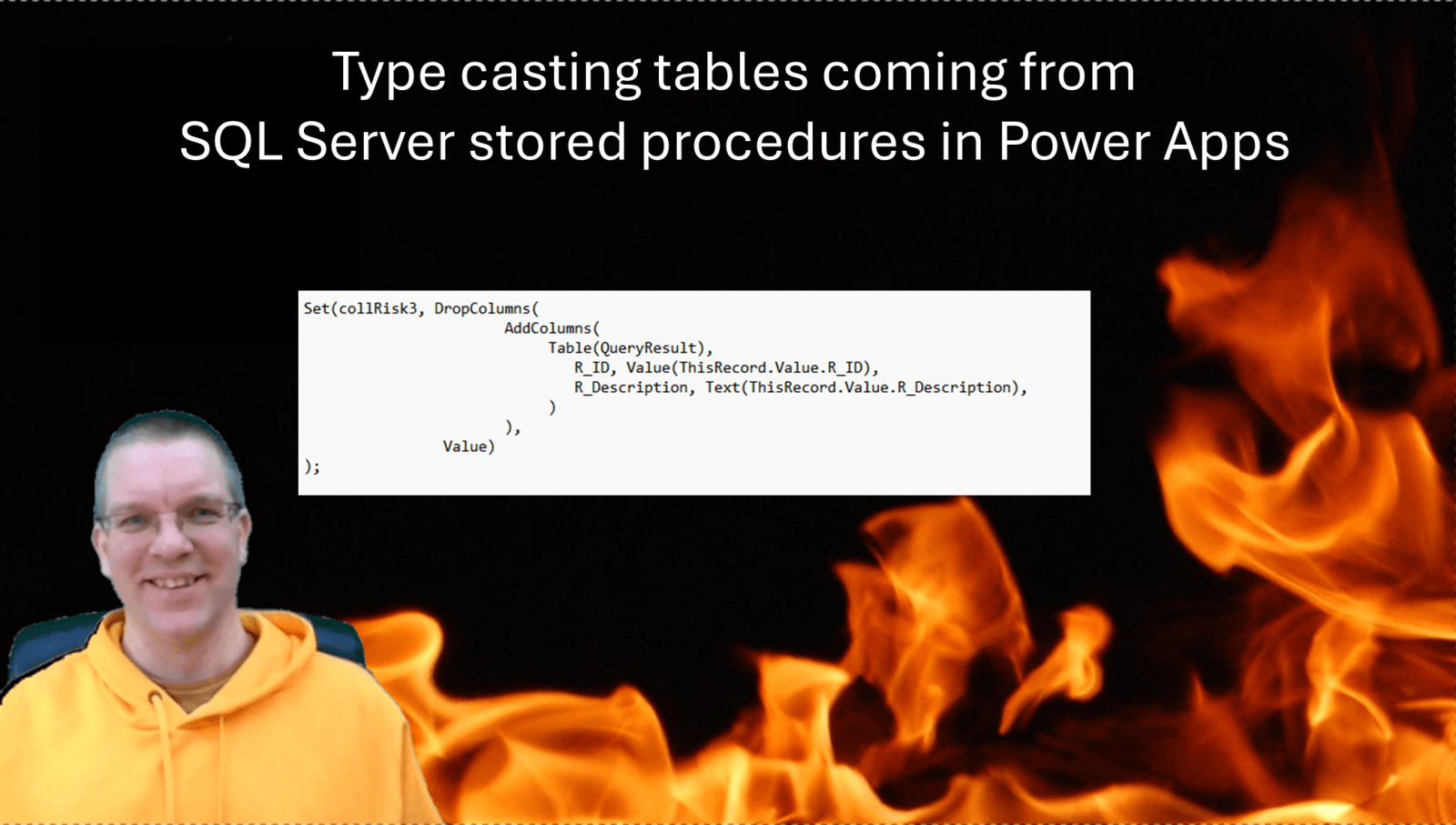
Using the AddColumns function we can type cast each column a lot faster. No looping through data, just copying the data structure and type casting it on the way is a lot faster.
Set(collRisk3, DropColumns(
                       AddColumns(
                            Table(QueryResult),
                               R_ID, Value(ThisRecord.Value.R_ID),
                               R_Description, Text(ThisRecord.Value.R_Description),
                            )
                       ),
                Value)
);
So how does this work?
Well one important note to take is that the unstructured objects appear within the Value property. Now with the above code we create new properties for each property of the objects in the Value array/collection/table. Then we create new properties and specify the expression as we did before. But this time we don’t use a ForAll, we use an AddColumns function.
Once all columns are created we drop the Value column, and now we have a formatted table.
So in this post we saw how to make Power Apps stored procedures return a table instead of an unformatted object.
Pieter Veenstra

Is your business still running on paper trails, sprawling Excel files, or ageing Access databases? There’s a better way — and I can show you exactly what it looks like. I’m the Technical Director of Vantage 365, a Microsoft solutions consultancy working with clients across the UK, the Netherlands, and worldwide. For over 30 years I’ve been turning messy, manual business processes into clean, automated systems that save time, reduce errors, and give teams the visibility they need to make better decisions. SharePains is not just any blog run by a Microsoft MVP. Have you ever used Try-Catch in Power Automate? The original post about Try-Catch in Power Automate can still be found on this site, https://staging.sharepains.com/2018/02/07/try-catch-finally-in-power-automate-flow/ Or have you ever used the Pieter’s method to avoid variables and speed up your flows? https://staging.sharepains.com/2020/03/11/pieters-method-for-advanced-in-flows/ You can contact me using contact@staging.sharepains.com


Leave a Reply
You must be logged in to post a comment.