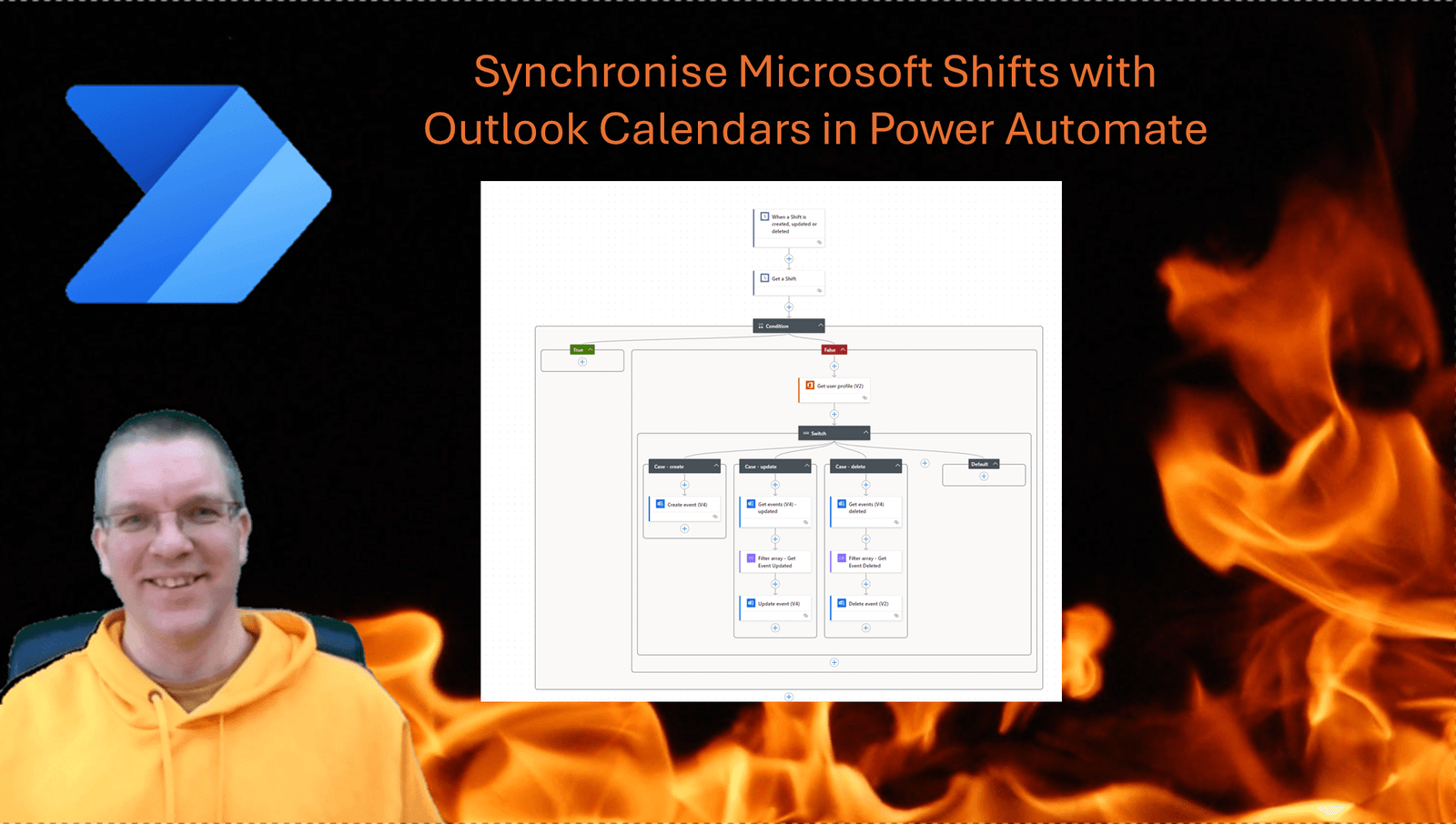
I’ve been planning to rewrite my Synchronise Microsoft Shifts with Outlook Calendars in Power Automate post for quite a while. This post will give you the new and more efficient way of implementing a synchronisation process between Shifts and Outlook.
Setup of Microsoft Shifts
If you want to download the solution described in this post please find the download link at the end of this post.
In Microsoft Teams I’ve added the Shifts app and I’ve added a number of shifts. But users may not go to shifts as they will not get alerted when a new shift is planned in.
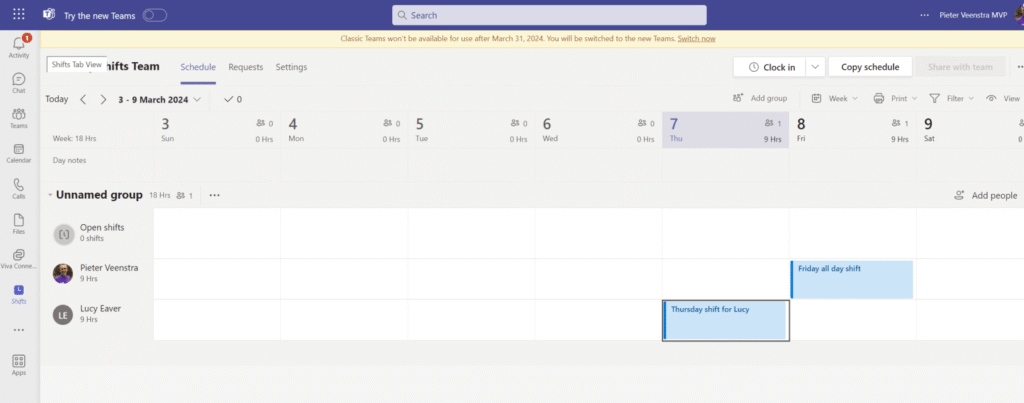
The need for synchronising shifts with Outlook Calendars has been a common one. In my earlier mentioned post many people for some help implementing the process. In this post the easy steps for you to build this process. If you need any help then feel free to open a chat of course.
In this post I will share the base process. To use this in a production environment you might want to add some error handling and some other small improvements. But as a base process the described flow will work.
Create the flow to synchronise Microsoft Shifts with Outlook Calendars
The process that we are going to create is best run using an account specific for resource scheduling. This account will need to have an Outlook Calendar so that invites can be added to that calendar and any Shift owners can be invited to those events.
I’m going to start with the When a shift is created, updated or deleted trigger. In the past I has to use a scheduled flow. This meant that ever so often calendars would be updated. Now the updates is near instant. This of course is a great improvement.
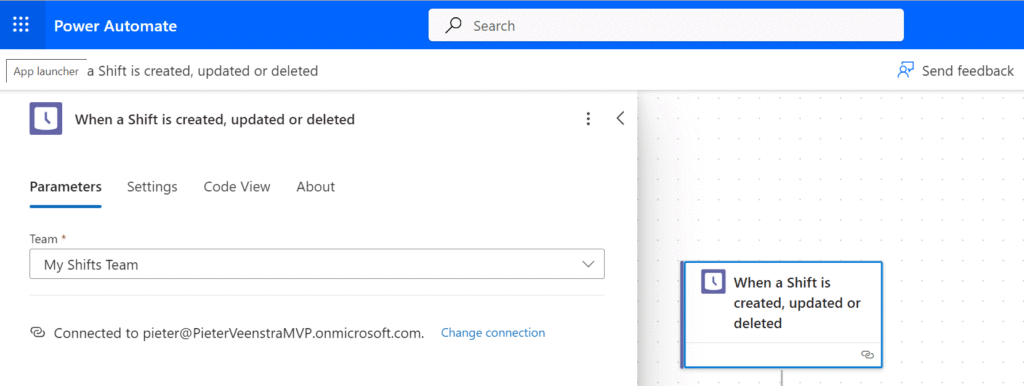
Within the trigger settings you will need to select the team that is hosting your Shifts.

Get the Shift details
The above mentioned trigger will start our flow and give us some basic details about the shift that triggered our flow. however the majority of the details will need to be collected with a different action.
We get get the shift details using the Get a shift action.

This Shift ID can be selected form the Dynamic content or by using the following expression:
triggerOutputs()?['body/resourceData/id']Shared shifts
In Microsoft shifts you can create a shift and once you are happy with it you have to share it with the rest of the team. A Get a shift action will supply a different structure of the data depending on if a shift has been shared or not.
In this flow I’m only going to handle Shared Shifts. We could of course also look at synchronising saves shifts and maybe make them appear in a different colour in outlook.

This condition uses two expressions:
outputs('Get_a_Shift')?['body/sharedShift']and
nullThe True branch of the above condition will remain empty. This is where we could implement the process around saved Shifts.
Get the assignee
In the False Branch we are going to get the user profile of the user who is assigned to the shift. We need this user to send an invite to.

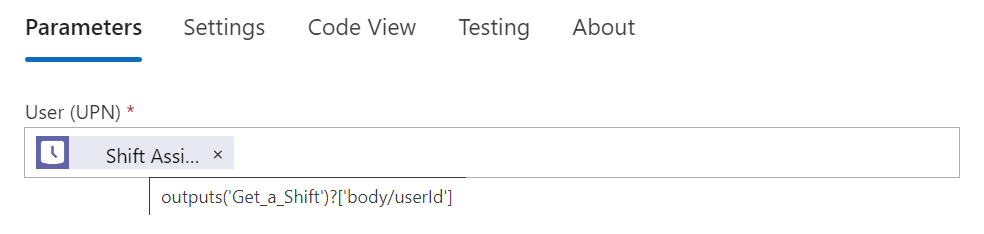
The Get user profile action will take the assignee from the Get a Shift action that we added earlier.
You can either select this user form the Dynamic content or use the following expression
outputs('Get_a_Shift')?['body/userId']
Create, Update and Delete events
As Shifts are Created, Updated and Deleted, we will need to flow into a different branch of a switch step.
The Switch Step works on the following expression, but you can also select this form Dynamic content of course.
triggerOutputs()?['body/changeType']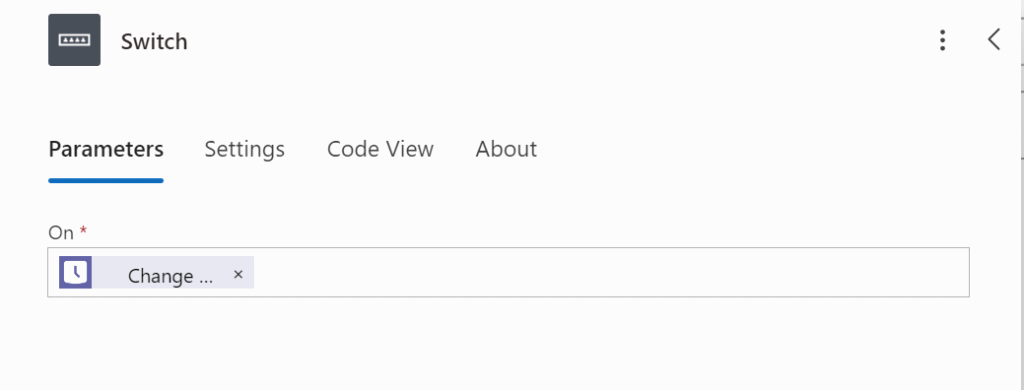
Now you need to create 3 branches for the Switch. Set the values of the branches to
- created
- updated
- deleted

Create Event
The Create event branch is the easiest of the three branches.
We Add a Create event(V4) action and select a Calendar that we ant to use to maintain all events. You might want to use an environment Variable for this. So that deployment form Dev -> Test -> Production is easier.
Then The Subject is set to the displayName of the Shift.
outputs('Get_a_Shift')?['body/sharedShift/displayName']
The Start and End Time properties are slightly tougher. Please have a look at my formatDateTime post for more details. The two expressions used are:
formatdatetime(outputs('Get_a_Shift')?['body/sharedShift/startDateTime'], 'yyyy-MM-ddTHH:mm:00')

formatdatetime(outputs('Get_a_Shift')?['body/sharedShift/endDateTime'], 'yyyy-MM-ddTHH:mm:00')
Notice that the Hours in the formatting are HH rather than hh. This is to ensure that we have a 24 hour clock.
Then the only thing left is the Required Attendees. This is where we get the Mail property form the earlier configured Get User Profile action.
That is the creation of the events done.
Update Events
Now the update events is slightly tricky. The filtering in the Get events(V4) action doesn’t work very well. Hence I’m collecting all the events ( by default this gives only events in the future. So that is fine for now.
Then The Filter Array action takes all the items from the Get Events and uses the following filter expression:
and(equals(item()?['start'],
           formatDateTime(outputs('Get_a_Shift')?['body/sharedShift/startDateTime'],
                          'yyyy-MM-ddTHH:mm:00.0000000')),
    equals(item()?['end'],
           formatDateTime(outputs('Get_a_Shift')?['body/sharedShift/endDateTime'],
           'yyyy-MM-ddTHH:mm:00.0000000')
))
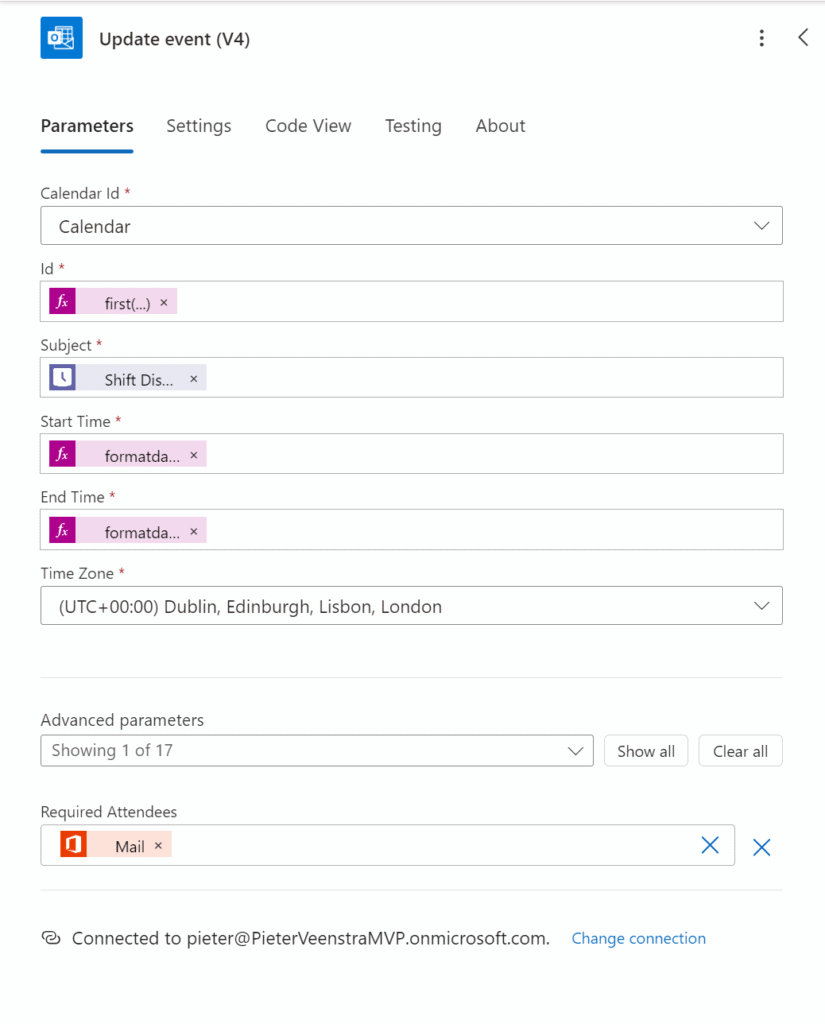
And then the Update event is pretty much the same as the create event action that we configured earlier. With the Id set tot he following expression:
first(outputs('Filter_Array_-_Get_Event_Updated')?['body'])?['Id']
This should now result in the Updated branch look like this:

Time zones within this solution
Now one important issue that has been in the download for a while is that when you are not living in the UTC time zone, the events in outlook are created at the wrong time.
To fix this please update the Create Event and Update events with the UTC time zone.
Delete Event
The delete Event branch is similar to the update branch. The only difference is that we replace the Update event with and Delete Event action.
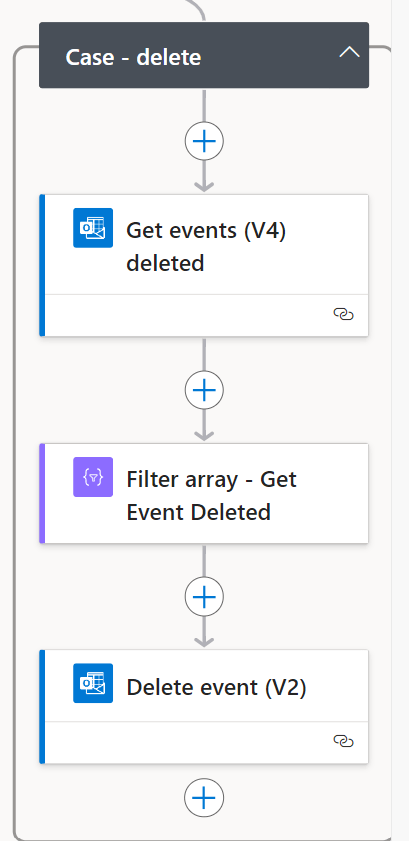
The 3 branches for create update and delete events, should now look like this:

And that is the whole process. Compared to the old process from a few years ago, this is now a lot simpler. The main reason for this is the addition of the trigger that we used in this flow
Handling Draft and Shared Shifts
Now to handle Shared shifts and Draft shifts in Microsoft shifts we need to make some more changes to the above flow.

To download the full solution please click on the link below:
Is there no option in Microsoft Shifts to Synchronise with my Outlook Calendar?
Microsoft Shift has indeed no option to synchronise your shifts to Outlook. To solve this issue you can use the downloadable solution available in this article: https://staging.sharepains.com/2024/03/07/synchronise-microsoft-shifts-outlook-calendars
FAQs
How can I copy my existing Shifts to Outlook
This post handles new shifts only, however the post referenced in the article could be used to get to the existing Shifts.
How do I install the download available in this post?
Visit make.powerapps.com and then click on solutions in the menu. Then import the downloaded solution to sync Microsoft Shifts with outlook.
Pieter Veenstra

Is your business still running on paper trails, sprawling Excel files, or ageing Access databases? There’s a better way — and I can show you exactly what it looks like. I’m the Technical Director of Vantage 365, a Microsoft solutions consultancy working with clients across the UK, the Netherlands, and worldwide. For over 30 years I’ve been turning messy, manual business processes into clean, automated systems that save time, reduce errors, and give teams the visibility they need to make better decisions. SharePains is not just any blog run by a Microsoft MVP. Have you ever used Try-Catch in Power Automate? The original post about Try-Catch in Power Automate can still be found on this site, https://staging.sharepains.com/2018/02/07/try-catch-finally-in-power-automate-flow/ Or have you ever used the Pieter’s method to avoid variables and speed up your flows? https://staging.sharepains.com/2020/03/11/pieters-method-for-advanced-in-flows/ You can contact me using contact@staging.sharepains.com


Leave a Reply
You must be logged in to post a comment.