Recently Microsoft released a new feature in the ultimate Power Apps user guide that will let you call SQL Stored procedures without needing to call a flow in Power Automate
What are SQL Server Stored Procedures?
A Stored Procedure is nothing more than a piece of code that will do something within your database. Well that is a great description!
The above mentioned feature links to Make direct calls to SQL Server stored procedures on Microsoft Learn. This article however isn’t much help if you want to get started with making your Power Apps solutions communicate faster with your data.
Maybe we should look at an example. Imagine that we have a table with cars and we want to select all cars that have a specific colour. The following procedure would do this give us an option to specify a colour and the required car records would be returned.
CREATE PROCEDURE PROC_GetColourCars
(
    -- Add the parameters for the stored procedure here
    @SelectedColour nvarchar(256) = NULL
)
AS
BEGIN

    SELECT *
       FROM Cars
       WHERE Colour = @SelectedColour
END
GO
Typically we would want to ask the user of an app to supply the colour and then get the stored procedure to return the relevant records to us.
Why would you use SQL Server Stored Procedures?
There are a few of reasons but the main reasons will be
- Performance
- Hiding complexity from your app
- Reliability and efficiency of the app
The above example was simple of course, but how about if we wanted to read data form multiple tables or if we wanted to update specific records or if we wanted to do anything else that we could easily do with SQL.
Dataverse or SQL Server
Of course, from a Power Platform perspective I would always prefer to use SQL Server, but if you have data that lives in SQL Server, why would you want to copy that between two different locations. You might as well access data where it currently resides rather than moving it all the time to ensure that two databases are always up to date.
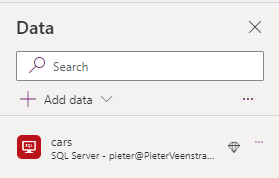
To use SQL Server connections in Power Apps, we just add a connection to our app and now we can use data from the table that we selected.
But how do we use Stored Procedures?
Creating SQL Server Stored procedures connections in Power Apps
So how can add a stored procedure as a datasource?
Like with the tables we select SQL Server

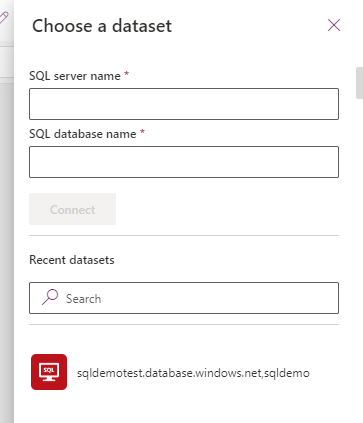
Then you can select either a Dataset or create a new dataset:
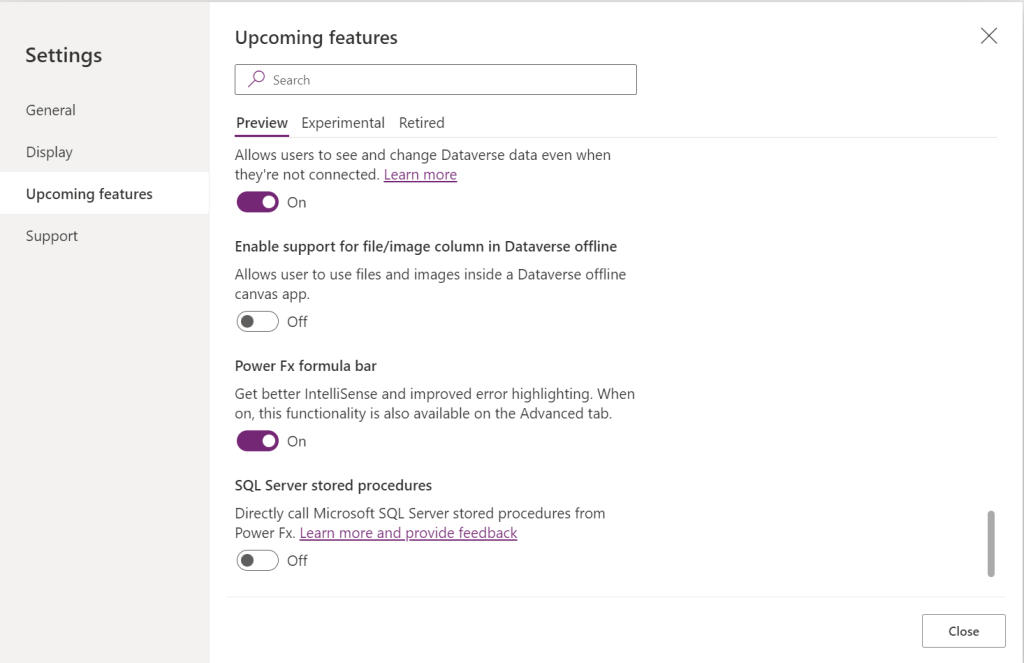
First make sure that you have enabled the preview feature.
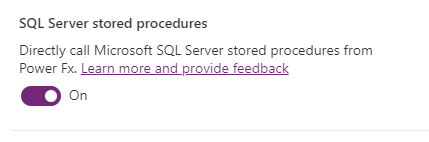
Now when you have enabled the preview feature to call SQL Server stored Procedures you will notice the Stored procedure tab:
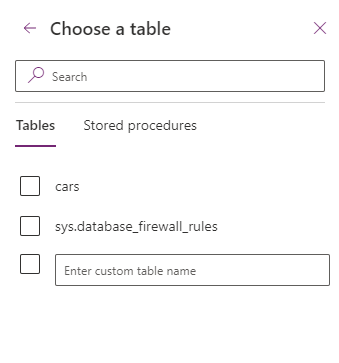
In the Stored Procedures we will find our stored procedure that we created earlier in out SQL Server Database.

Once we select the stored procedure we have to make an additional choice. Is this Stored Procedure safe to use in galleries and tables?
So for example, if you used this stored procedure and it does updates to tables, would you want this procedure to run within a gallery? Probably not. Unless of course you wanted to audit users accessing data.
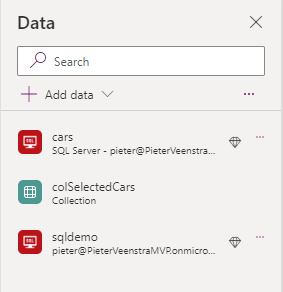
Ok, now we have a connection called after my database. Hmm, this could be confusing. WE better have a look at how this is going to work. Maybe Power Apps is going to surprise us. It looks like the connection asks us for one or more stored procedures. And we can access it through as database object. That looks quite nice and clean!
Calling SQL Server Stored procedures in Power Apps
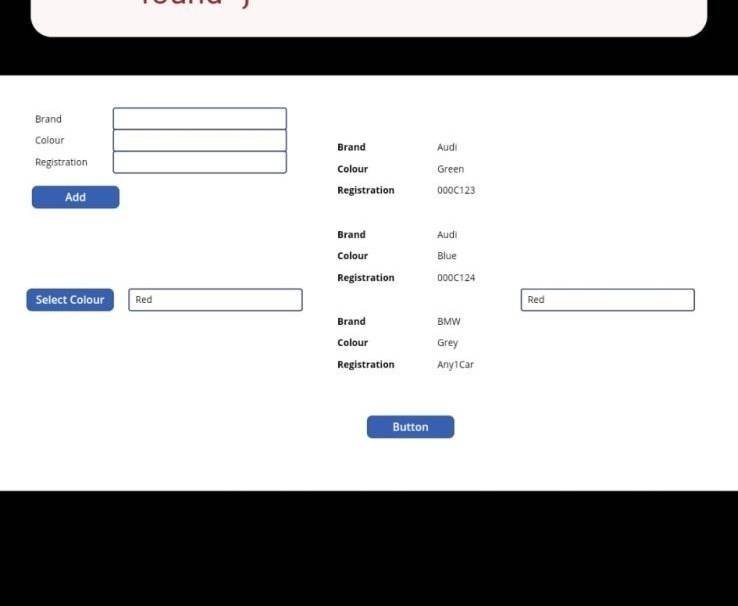
I created a little demo app. (Yes, it doesn’t look good and wouldn’t pass my QA tests). On the top left I can add cars. On the right I’m listing all cars in my table.
In the Items property of my gallery, displaying the Green cars, I only have to use the following line of code.
sqldemo.dboPROCGetColourCars({SelectedColour: TextInput2.Text}).ResultSets.Table1At the bottom left I can filter by colour. And my gallery will show just the Green cars.
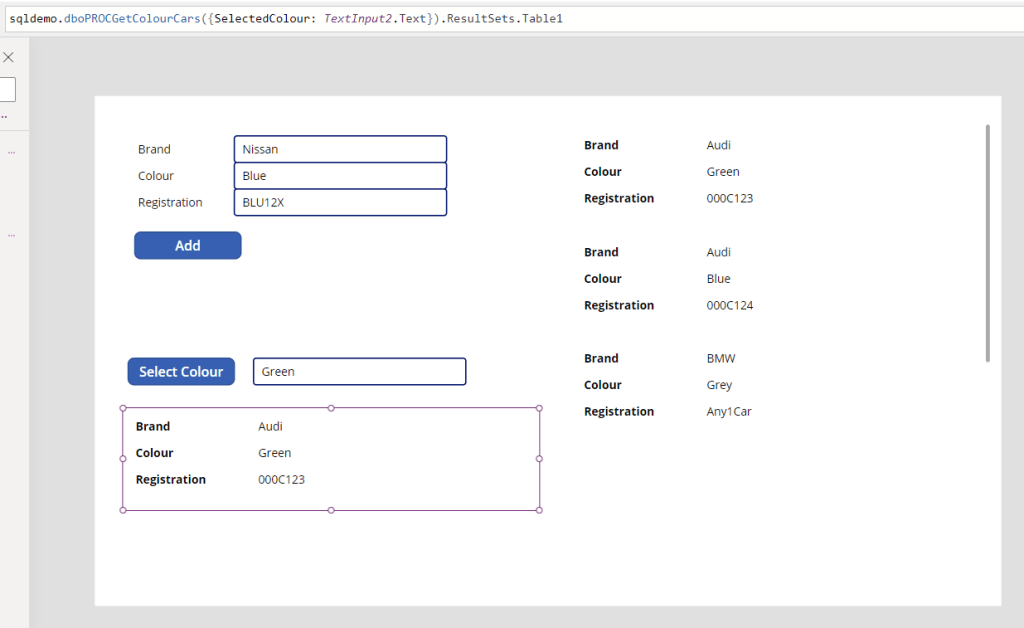
So now we have the option to populate galleries using data returned by the very efficient stored procedures in SQL Server. This will reducing the complexity of your app and make the data traffic between your app and your database more efficient.
Limitations
So far one of the limitation that I have found is that stored procedure cannot be called using the Mobile Power Apps app. Running a stored procedure on a mobile app results in “Resource not found” error messages.
Another thing to be aware of is that when you add additional stored procedures to your app, from the same database, you might want to remove the existing connection first. Otherwise you might end up with multiple connections as shown below.
Pieter Veenstra

Is your business still running on paper trails, sprawling Excel files, or ageing Access databases? There’s a better way — and I can show you exactly what it looks like. I’m the Technical Director of Vantage 365, a Microsoft solutions consultancy working with clients across the UK, the Netherlands, and worldwide. For over 30 years I’ve been turning messy, manual business processes into clean, automated systems that save time, reduce errors, and give teams the visibility they need to make better decisions. SharePains is not just any blog run by a Microsoft MVP. Have you ever used Try-Catch in Power Automate? The original post about Try-Catch in Power Automate can still be found on this site, https://staging.sharepains.com/2018/02/07/try-catch-finally-in-power-automate-flow/ Or have you ever used the Pieter’s method to avoid variables and speed up your flows? https://staging.sharepains.com/2020/03/11/pieters-method-for-advanced-in-flows/ You can contact me using contact@staging.sharepains.com


Leave a Reply
You must be logged in to post a comment.