Currently the new Power Automate Designer is only available in the US base Preview environments. But some point soon this new UI will become the new standard.
Things to get used to in the new Power Automate Designer
There are quite a few new things that you really will have to get used to in the new Power Automate Designer.
Updated Feature 1 – Copilot assistance
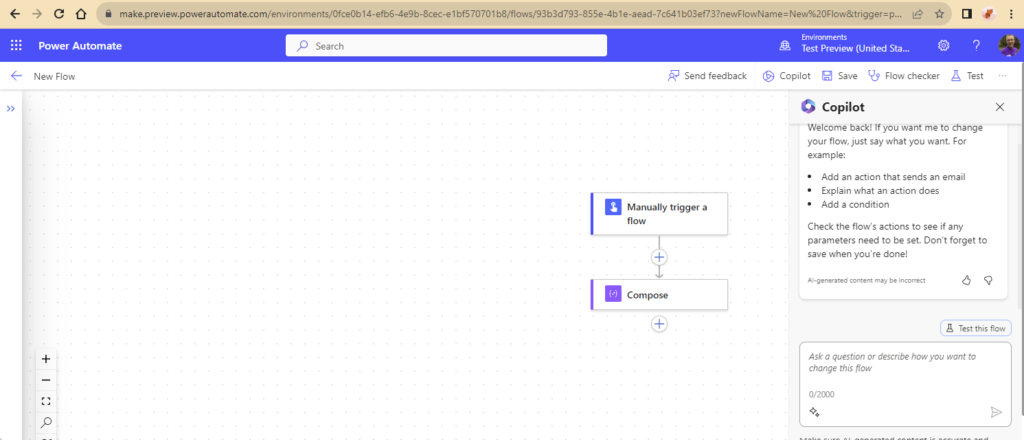
The first obvious change is that CoPilot is permanently there to help you on the side of your flows. You can make it disappear by clicking on the Copilot option next to the save icon.
Updated Feature 2 – Switching back to the classic designer
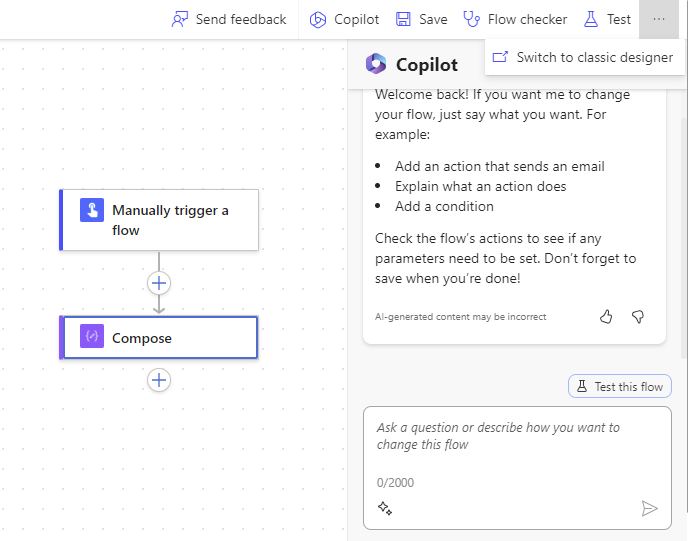
It is also quite important to be aware of the Switch to classic designer option. If you can’t find something while you get used to the new designer, then you can switch back to the old UI like this.,
Anyway, there are quite a few other things to get used to.
Updated Feature 3 – Edit properties
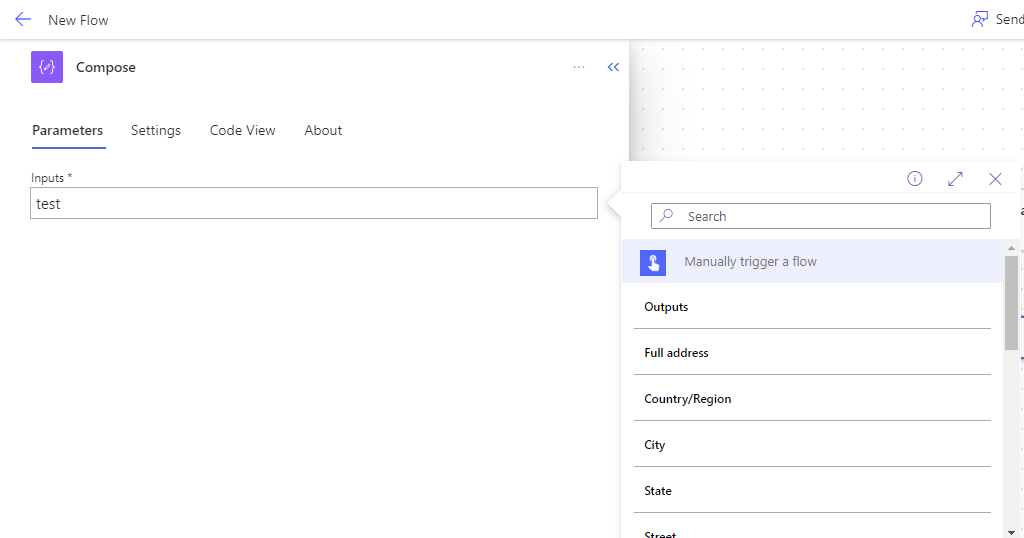
I’m going to start with a simple Compose action. When you click on the action you will get the configuration settings sliding in on the left hand side.

This is where you can add dynamic content
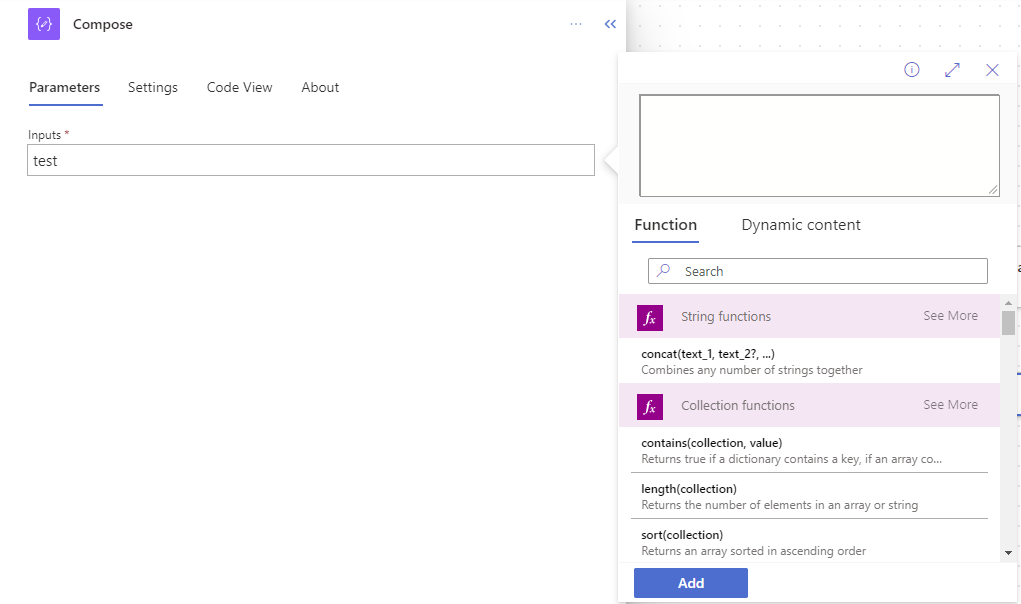
Or you could add expressions. Notice the bigger box for your expression.
Updated Feature 4 – Advanced parameters
When we look at more complicated actions, the changes in the way the advanced options are presented is very visible.

By clicking on the dropdown we can select which advanced options can be configured.
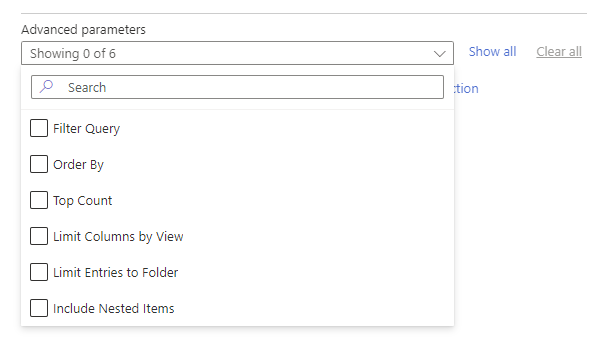
I actually quite like this as it means that there is more space available for the options that I want to configure as the options that I don’t need are hidden.
Updated Feature 5 – rename actions
Renaming actions will feel a bit different as well. You can rename actions by going to the property pane of the action and then click on the name. So you can rename it directly from the Flow diagram itself.

In the beginning this will take a bit of getting used to but it is actually quite a good design as this separate the process from the step configurations.
Updated Feature 6 – Adding steps
When you add steps, the search., filtering and connector grouping by connector has changed.
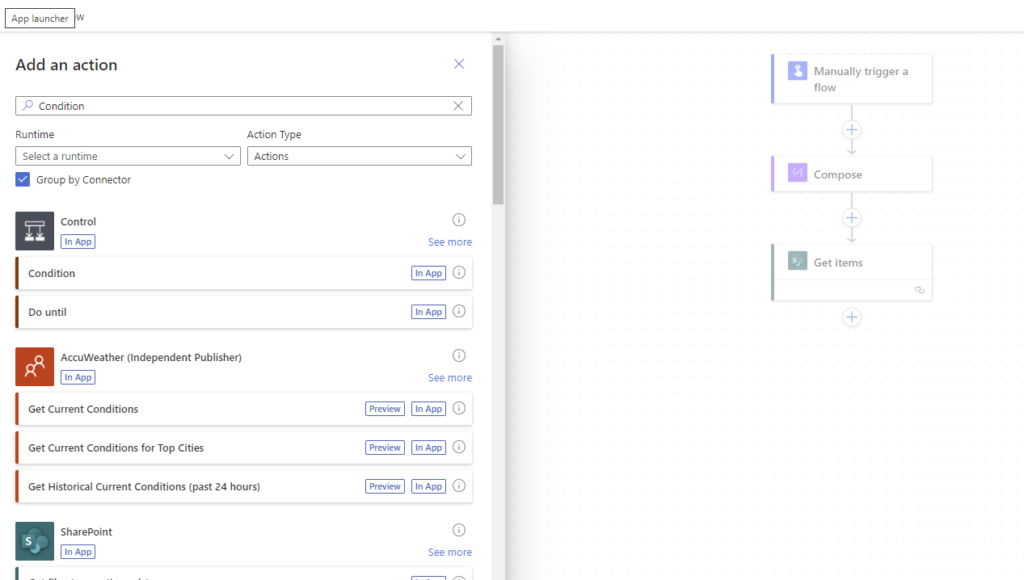
Updated Feature 7 – The flow diagram UI
The flow diagrams now look an awful lot better. The only small negative ( hey, this site is called “SharePains“) is the grid dots in the background. I really wish that I could switch those off.

Updated feature 8 – The copy paste has gone
This is probably the only really negative comment I can make on the new Power Automate Designer. It looks like copy/paste has disappeared. Hopefully one of my followers will tell me that it still exists.
Although the limitations of Copy/Paste have always been quite annoying. The quick way of replicating similar steps was always useful.
Updated Feature 9 – run after settings
The New run after setting are just, Wow! In the flow diagram it is now very clear which options have been selected.

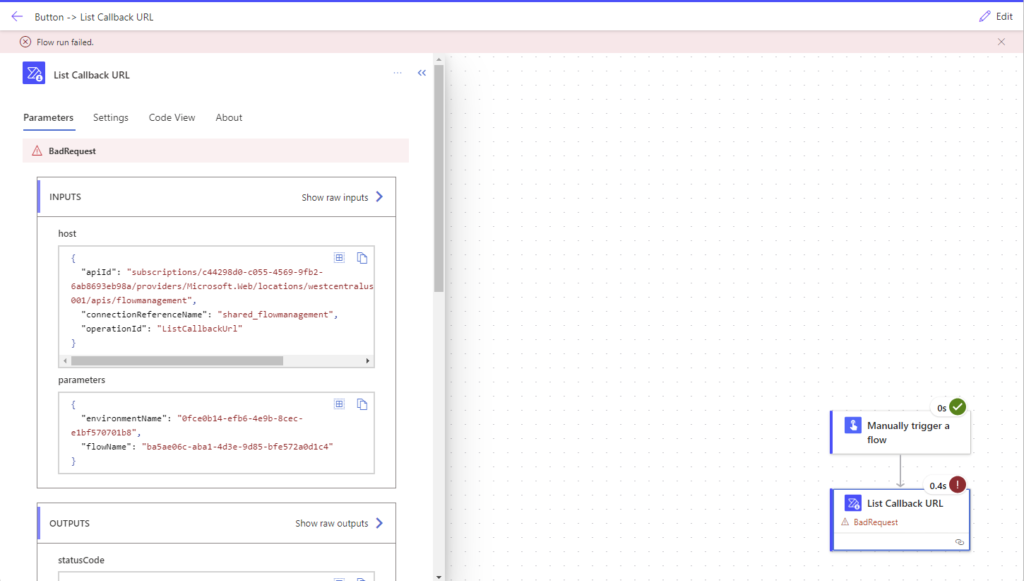
Updated Feature 10 – Flow runs
Something has also changed in the flow runs. As an action may fail, details are given about the failure in a similar way as before. However you can now click over to the settings tab or code view directly from the flow run.
Found any more features?
Have you found any more new features that you like, then please put a comment at the end of this post.
Pieter Veenstra

Is your business still running on paper trails, sprawling Excel files, or ageing Access databases? There’s a better way — and I can show you exactly what it looks like. I’m the Technical Director of Vantage 365, a Microsoft solutions consultancy working with clients across the UK, the Netherlands, and worldwide. For over 30 years I’ve been turning messy, manual business processes into clean, automated systems that save time, reduce errors, and give teams the visibility they need to make better decisions. SharePains is not just any blog run by a Microsoft MVP. Have you ever used Try-Catch in Power Automate? The original post about Try-Catch in Power Automate can still be found on this site, https://staging.sharepains.com/2018/02/07/try-catch-finally-in-power-automate-flow/ Or have you ever used the Pieter’s method to avoid variables and speed up your flows? https://staging.sharepains.com/2020/03/11/pieters-method-for-advanced-in-flows/ You can contact me using contact@staging.sharepains.com


Leave a Reply
You must be logged in to post a comment.