
Today I was asked how to implement in Power Apps calendar booking. In this post all the steps to get this done yourself
The calendar booking availability app
So I’m looking to create an app that will ask the user for some booking details, a start date and an end date for the booking period. Once you user has supplied those details we need to know if the slot is available or not.
You could sue this for calendar management in for example a room booking solution.
I’ve created an app in Power Apps that looks like this:
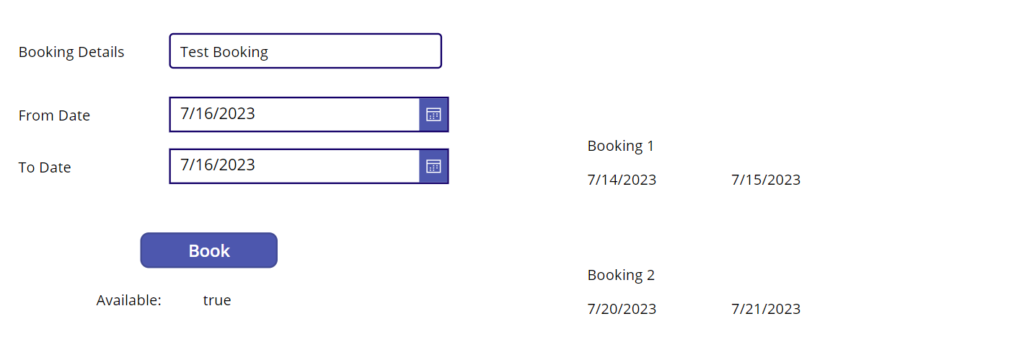
On the right I’m listing all the existing bookings and on the right I’m asking for the details and checking for the availability of my requested booking slot..
The data layer
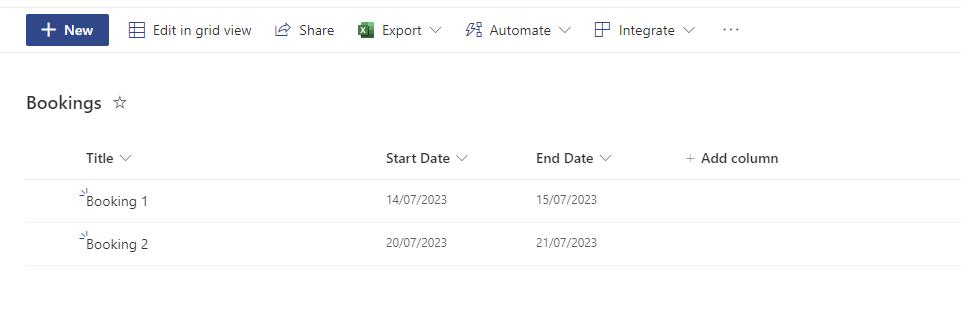
I’m using SharePoint to store all my bookings in a list. In my list I’ve created two bookings already.
So now we need to look at the code behind that button in the app.
Check the booking availability
So we have two date pickers in the app. One collects the from date and the other one collects the to Date
I will start by checking the number of day that is covered bin the period between the from and to dates. This can be done using the following line of code:
Set(varDays,DateDiff(DatePickerFrom.SelectedDate,
                     DatePickerTo.SelectedDate,TimeUnit.Days)+1);
Now I’m going to generate a range of numbers starting with 0
Set(varSequence, Sequence(varDays,0,1));The above should result in an array like 0,1,2,3 if there are 3 days between the two dates given. Notice that I need to include both the start and end date in this array. Hence the +1 earlier.
Compare the Booking slot with the existing bookings
Now we need to check the availability by going through all the dates in the requested period. If we find any of these dates covered by any of the records already in the bookings list then we have to reject the booking.
Set(varAllChecks,
   ForAll(varSequence,
     CountRows(Filter(Bookings,
           'Start Date' <= DateAdd(DatePickerFrom.SelectedDate, Value,TimeUnit.Days)
           And
           'End Date' >= DateAdd(DatePickerFrom.SelectedDate, Value,TimeUnit.Days)))
));
This will now give us an array telling us how many records were found for each date in the date range. So for an available period we should just get an array with 0s.
Now we need to count the not 0s found in the array using the following line of code:
Set(varAvailable, CountRows(Filter(varAllChecks, Value <>0))=0)The Full Code
The overall code behind the button should now look like this.
Set(varDays,DateDiff(DatePickerFrom.SelectedDate,
                     DatePickerTo.SelectedDate,TimeUnit.Days)+1);
Set(varSequence, Sequence(varDays,0,1));

Set(varAllChecks,
ForAll(varSequence,
    CountRows(Filter(Bookings, 'Start Date' <= DateAdd(DatePickerFrom.SelectedDate, Value,TimeUnit.Days) And 'End Date' >= DateAdd(DatePickerFrom.SelectedDate, Value,TimeUnit.Days)))
));

Set(varAvailable, CountRows(Filter(varAllChecks, Value <>0))=0)
Pieter Veenstra

Is your business still running on paper trails, sprawling Excel files, or ageing Access databases? There’s a better way — and I can show you exactly what it looks like. I’m the Technical Director of Vantage 365, a Microsoft solutions consultancy working with clients across the UK, the Netherlands, and worldwide. For over 30 years I’ve been turning messy, manual business processes into clean, automated systems that save time, reduce errors, and give teams the visibility they need to make better decisions. SharePains is not just any blog run by a Microsoft MVP. Have you ever used Try-Catch in Power Automate? The original post about Try-Catch in Power Automate can still be found on this site, https://staging.sharepains.com/2018/02/07/try-catch-finally-in-power-automate-flow/ Or have you ever used the Pieter’s method to avoid variables and speed up your flows? https://staging.sharepains.com/2020/03/11/pieters-method-for-advanced-in-flows/ You can contact me using contact@staging.sharepains.com


Leave a Reply
You must be logged in to post a comment.