
Within my series about Microsoft Graph in the Power Platform I’ve collected data using customer connectors and HTTP actions but how do we filter and select data in Microsoft Graph?
Filter Action
To filter our data that we get returned we could use the filter action. But that would mean collecting too much data before we select what we really want.
This of course isn’t a great approach.
Filtering data in Power Automate
Probably my most popular posts from a few years back are about the Filter options within the get items action and the even older post that shows the raw filter options without enabling the experimental features.
Before we look at Microsoft Graph’s filter and select options it is important to check out those two posts. One of the examples of filtering items that I gave before is the below filter:
(stringColumn eq 'string') and (numberColumn lt 123)With the syntax of fieldname operation value we can filter our items before they arrive.
Microsoft Graph and filtering
When we want to filter items we could first call the Graph API to collect our data and then filter the data. It doesn’t really matter if we use a custom connector here or if we use the raw HTTP action.
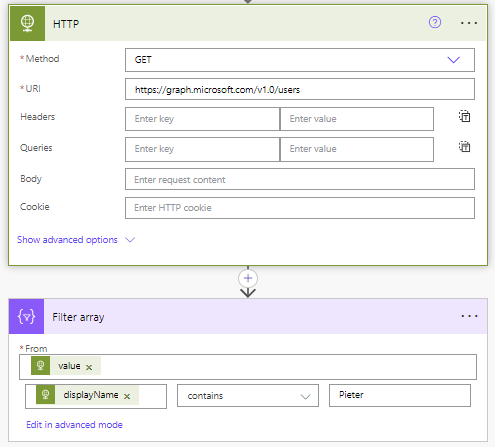
This would mean that we first collect the data before filtering the data. This may sometimes make sense. If we want to collect all the data once and then filter the data multiple times to get different subset of the overall data. Howevr in general it is better to filter the data before receiving the data.
In standard Graph/REST APIs we can use a $filter parameter in the URL.
We would potentially use something like this in our endpoint:
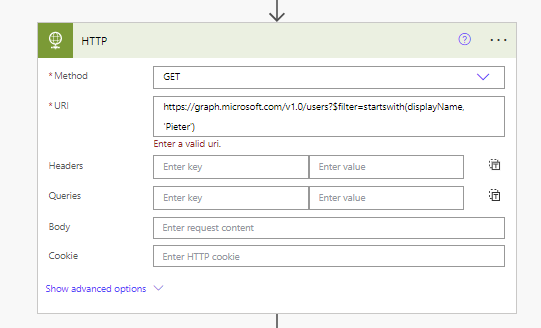
https://graph.microsoft.com/v1.0/users?$filter=startswith(displayName, 'Pieter')But Power Automate doesn’t like that.
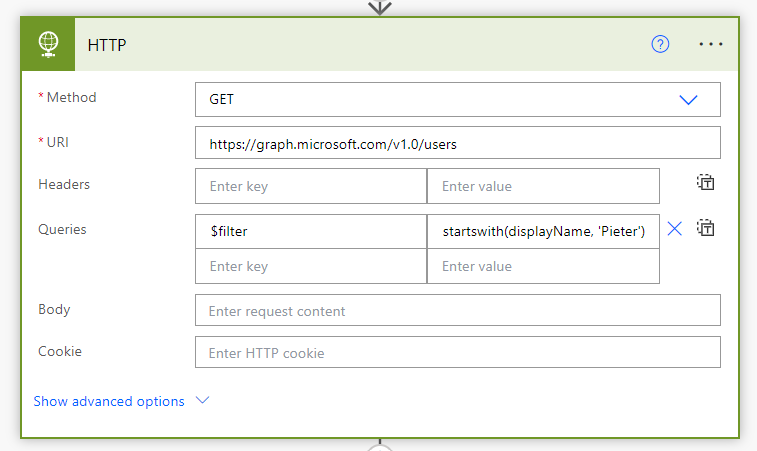
To get this done within the HTTP action we can specify a query.
In a similar way we can also add a select query, which will control which fields we will get returned.
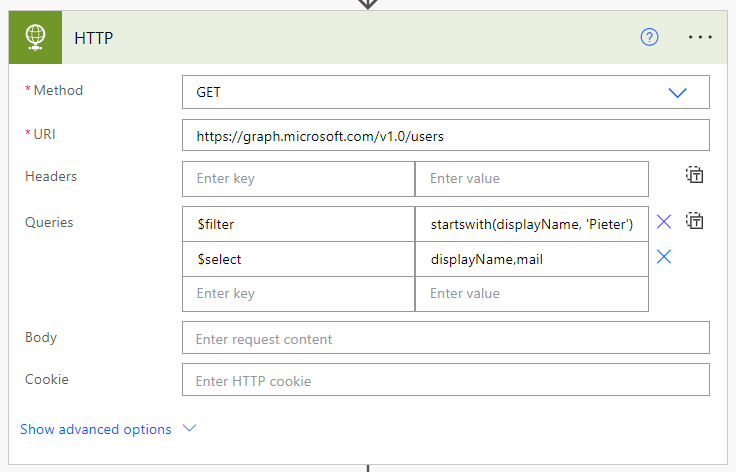
So now we can filter and select data coming from Microsoft Graph.
Pieter Veenstra

Is your business still running on paper trails, sprawling Excel files, or ageing Access databases? There’s a better way — and I can show you exactly what it looks like. I’m the Technical Director of Vantage 365, a Microsoft solutions consultancy working with clients across the UK, the Netherlands, and worldwide. For over 30 years I’ve been turning messy, manual business processes into clean, automated systems that save time, reduce errors, and give teams the visibility they need to make better decisions. SharePains is not just any blog run by a Microsoft MVP. Have you ever used Try-Catch in Power Automate? The original post about Try-Catch in Power Automate can still be found on this site, https://staging.sharepains.com/2018/02/07/try-catch-finally-in-power-automate-flow/ Or have you ever used the Pieter’s method to avoid variables and speed up your flows? https://staging.sharepains.com/2020/03/11/pieters-method-for-advanced-in-flows/ You can contact me using contact@staging.sharepains.com
Leave a Reply
You must be logged in to post a comment.