
So often people edit apps and flows in production environments just to make them work. In this post I will look at why you shouldn’t and how to disable editing.
Managed vs unmanaged solutions
Within the Power Platform we have managed and unmanaged solutions. And you migth already know that managed solutions stop you from making modifications to some things in solutions, however deploying managed solutions doesn’t stop anybody from editing your flows and apps.
If you don’t know the difference between managed and unmanaged solutions then please have a look through the Microsoft documentation on this subject.
Exporting and deploying a managed solution
Once I’ve exported my solution as a managed solution I can see version 1.0.0.3 in my solution store of my envrionment

When I open this solution i can se that I have an app and a flow inside:
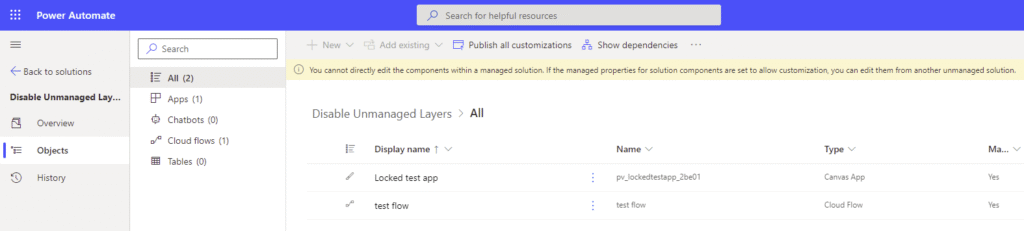
And there is even a yellow warning telling me:
You cannot directly edit the components within a managed solution. If the managed properties for solution components are set to allow customization, you can edit them from another unmanaged solution
First of all I would question if the message is right as we will see further down this post.
Editing the flow
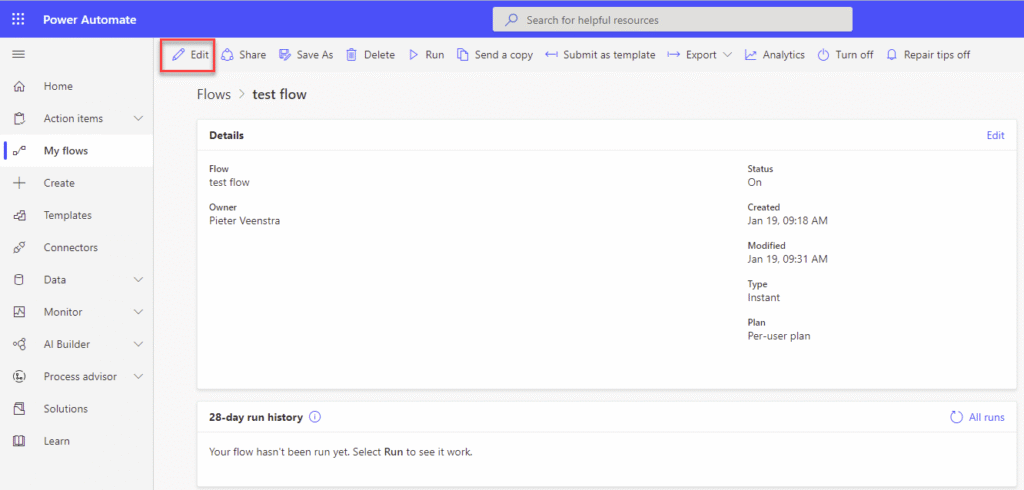
I’m going to open my flow and then using the Edit option I’m going to edit my flow. Notice i’m in my production environment where I deployed my managed solution.
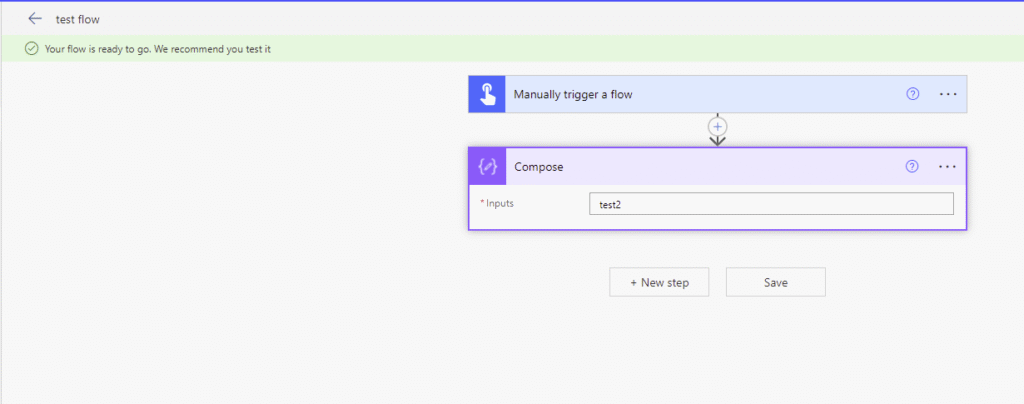
I can now make a change to my flow and my flow can be saved.
And when i look at the solution layers of my flow I will see quite quickly the start of future trouble.
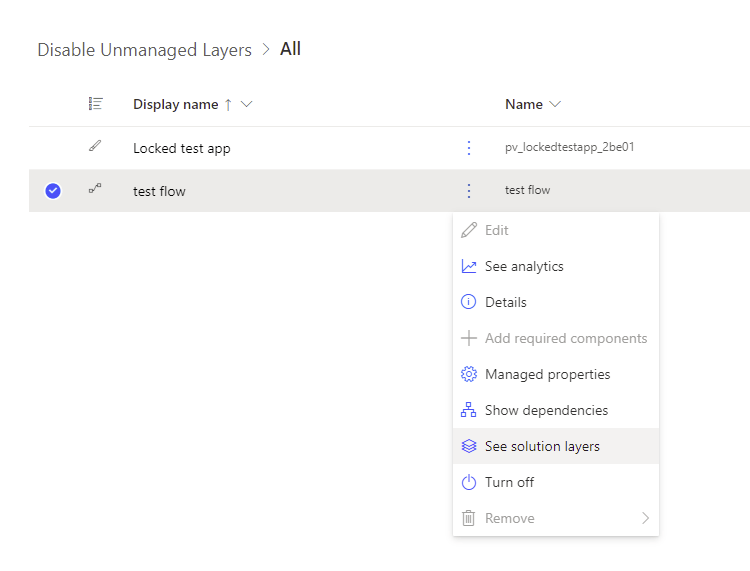
Within the Solutions layers we now have an unmanaged layer.
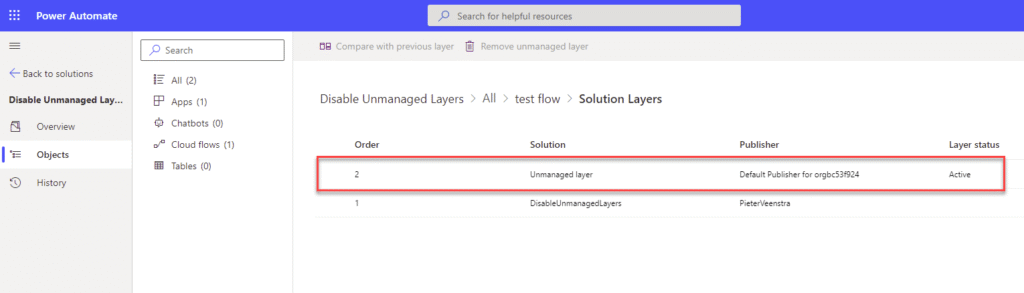
Unmanaged layers
Unmanaged layers are updates that are made as part of the default solution. When we open the default solution we will see that our test flow is included there.
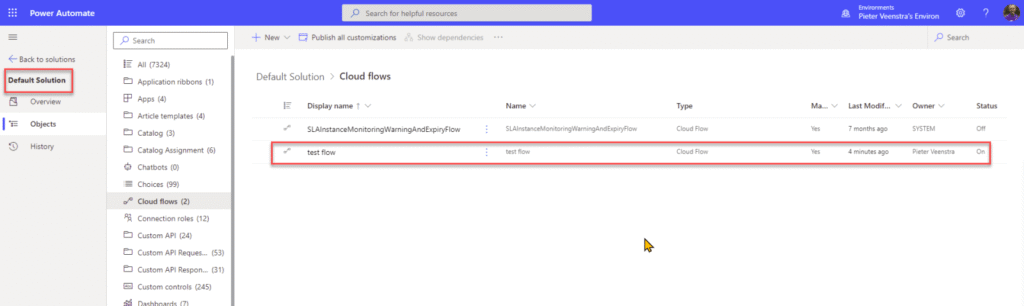
Another important thing to note is that when you update your flows through the next version of a managed solution the unmanaged layer will remain in place. leaving you with the feeling that the solution is failing to deploy.
So, how do we avoid these unmanaged layers and how do we disable editing of flows (and apps).
Disable Editing of flows and apps
We will have to go back to the unmanaged version of the solution in our development environment. Then find the flows and apps in the solution and select Managed properties.
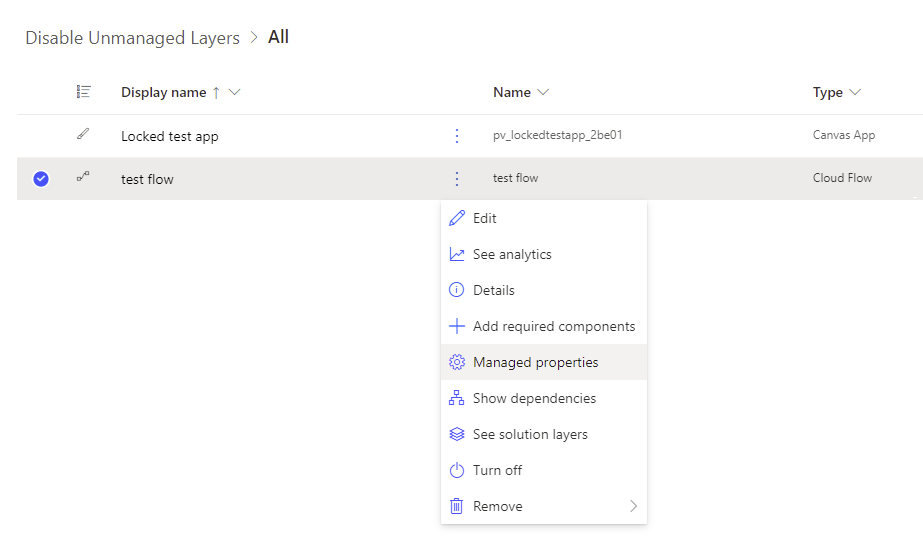
Then we will see a pane appear with all the managed properties available. The Allow customizations managed property is the one that you want to disable.
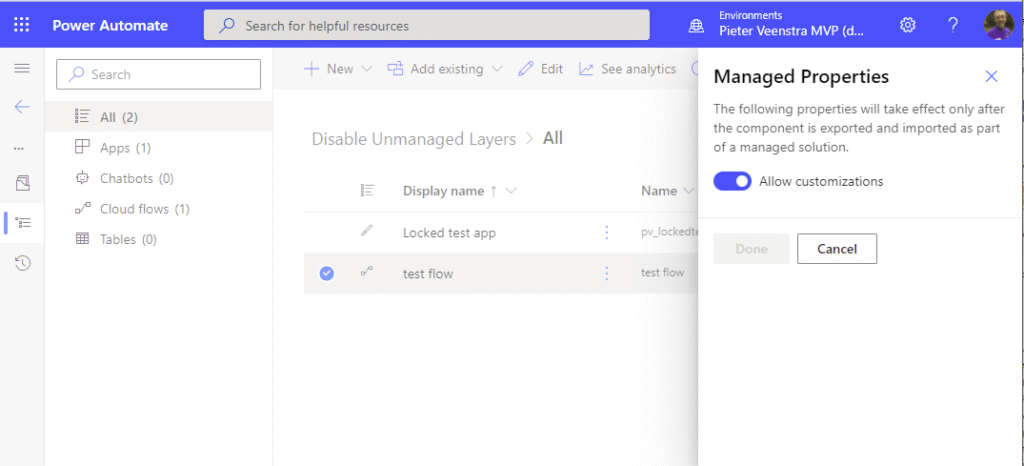
After customizations have been disabled and you export and import your solution again, you will find that you can edit your flow but you can’t save the flow. you will see the following message appear when you try to save your flow:
Flow process ‘e2a54582-4378-ec11-8d21-6045bd0f24d1’ cannot be updated because the managed properties of this solution component do not allow customizations.
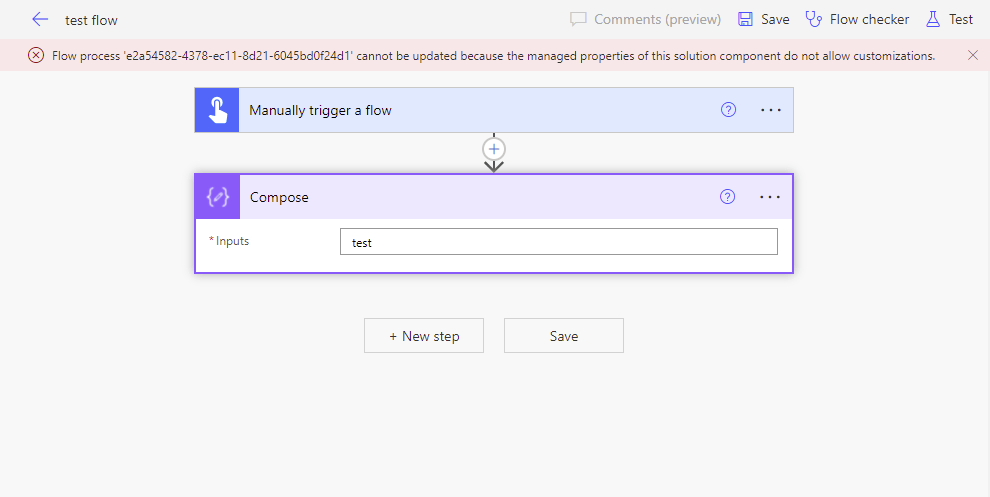
Now all there is left to do is remove that unmanaged layer that someone might have created and we have an healthy solution.
Avoid the need for editing flows and apps
So far we have seen that it is possible to disable editing of flows and apps, but very often I find people editing flows (less often for apps) to make them work in an environment. Especially flow makers whio are less focused on solutions based development.
Therefore I thought that it would be useful to give a few tips and tricks on how to make your flows working multiple environments without there being a need for editing them.
- Avoid any hard coded environment specifics
- Use Environment variables ( e.g. if you point towards a SharePoint site and list)
- Develop your flows with multiple environments in mind
- Deploy your solutions frequently so that any hard coded elements are identified early on.
Pieter Veenstra

Is your business still running on paper trails, sprawling Excel files, or ageing Access databases? There’s a better way — and I can show you exactly what it looks like. I’m the Technical Director of Vantage 365, a Microsoft solutions consultancy working with clients across the UK, the Netherlands, and worldwide. For over 30 years I’ve been turning messy, manual business processes into clean, automated systems that save time, reduce errors, and give teams the visibility they need to make better decisions. SharePains is not just any blog run by a Microsoft MVP. Have you ever used Try-Catch in Power Automate? The original post about Try-Catch in Power Automate can still be found on this site, https://staging.sharepains.com/2018/02/07/try-catch-finally-in-power-automate-flow/ Or have you ever used the Pieter’s method to avoid variables and speed up your flows? https://staging.sharepains.com/2020/03/11/pieters-method-for-advanced-in-flows/ You can contact me using contact@staging.sharepains.com


Leave a Reply
You must be logged in to post a comment.