Have you ever wanted to export and import solutions using a flow? In this post all you need to know to get started.
Perform an unbound action
First I want to have a look at two actions available in the Microsoft Dataverse connector.
- Perform a bound action
- Perform an unbound action
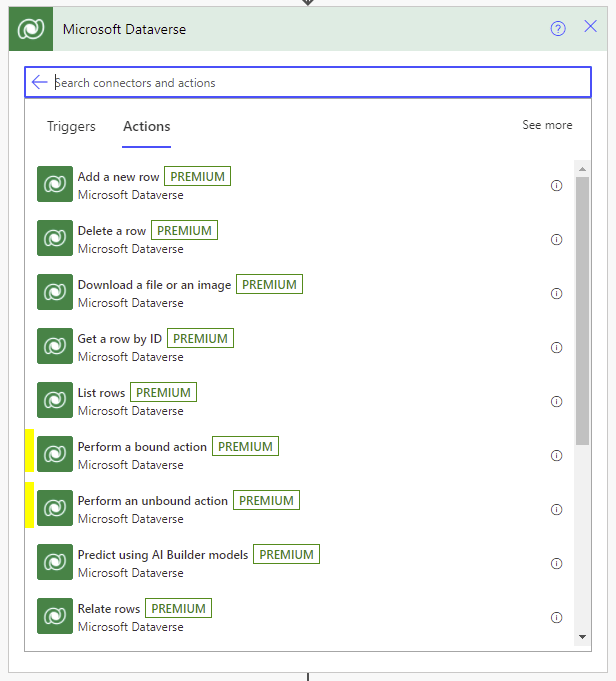
A bound action is connected to a table in Microsoft Dataverse
An unbound action is not related to a table in Microsoft Dataverse. .
Today it is the unbound actions that I’m going to need.
Perform an unbound action
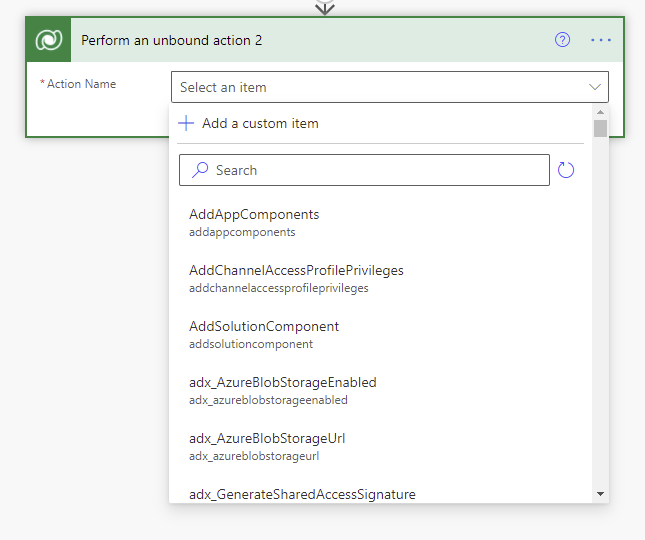
In the perform an unbound action you will find many options.
The documentation is less than helpful.
Export and import solutions
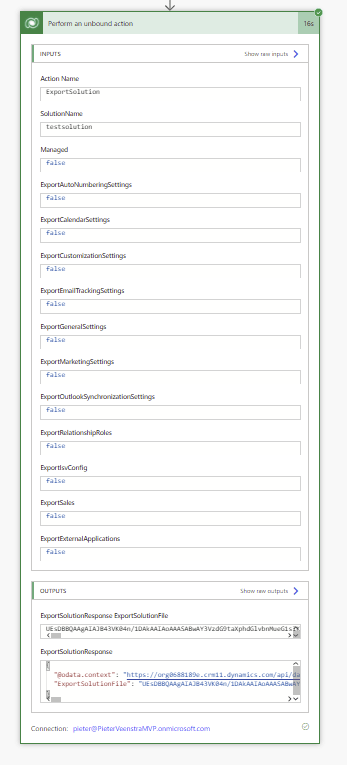
To export and import solutions you can select Export Solution from the Action name drop down and a scary form will appear.

Note that you might want to review the export settings, as you might want to export your solutions as managed solutions rather than unmanaged solutions.
And when we run this flow a solution file content is created. within 16 seconds. Have you seen an export happen within 16 seconds lately?
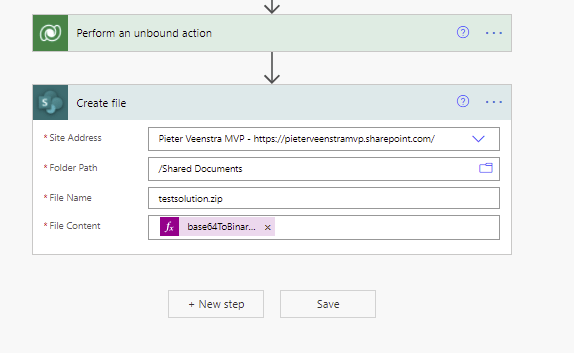
Now we can create a file using this exported content.
To get to the content the following expression is needed:
base64ToBinary( Body('Perform_an_unbound_action')?['ExportSolutionFile'])
This could for example create a file in SharePoint.
Just imagine for one moment, you could create a regular export of all your solutions and create a backup of them in SharePoint, or Devops or wherever you like.
Import a solution using a flow
Now that we have a valid export, we might want to import the solution.
You can now supply the File content directly from the import, however, you would be more likely to import the solution in a different environment, hence using SharePoint to store the expert file might make sense.

Do however remmeebr to supply the ImportjobID, otherwise you will get the following error:
An error occurred while validating input parameters: Microsoft.OData.ODataException: One or more parameters of the operation ‘ImportSolution’ are missing from the request payload. The missing parameters are: ImportJobId.
at Microsoft.OData.ODataParameterReaderCore.EnterScope(ODataParameterReaderState state, String name, Object value)
at Microsoft.OData.JsonLight.ODataJsonLightParameterDeserializer.ReadNextParameter(PropertyAndAnnotationCollector propertyAndAnnotationCollector)
at Microsoft.OData.ODataParameterReaderCore.ReadImplementation()
at Microsoft.OData.ODataParameterReaderCore.InterceptException[T](Func`1 action)
at Microsoft.Crm.Extensibility.ODataV4.CrmODataActionPayloadDeserializer.Read(ODataMessageReader messageReader, Type type, ODataDeserializerContext readContext)
at System.Web.OData.Formatter.ODataMediaTypeFormatter.ReadFromStream(Type type, Stream readStream, HttpContent content, IFormatterLogger formatterLogger)
The JobId has to be a UUID.
What is a UUID???
Well, all that is needed is a GUID. so we can use the guid() function to generate a unique id for our export and import of solutions
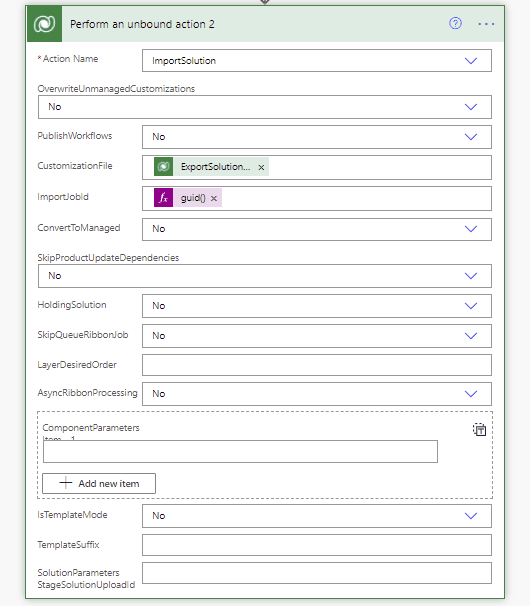
And when we review the installed solutions, we can see that our solution has been imported successfully. In only about 30 seconds.

So importing and exporting solutions using flows seems to be a lot faster than doing this manually. And it isn’t a bad idea to put a bit of a process ( approval etc) around our export and import solutions process anyway.
Pieter Veenstra

Is your business still running on paper trails, sprawling Excel files, or ageing Access databases? There’s a better way — and I can show you exactly what it looks like. I’m the Technical Director of Vantage 365, a Microsoft solutions consultancy working with clients across the UK, the Netherlands, and worldwide. For over 30 years I’ve been turning messy, manual business processes into clean, automated systems that save time, reduce errors, and give teams the visibility they need to make better decisions. SharePains is not just any blog run by a Microsoft MVP. Have you ever used Try-Catch in Power Automate? The original post about Try-Catch in Power Automate can still be found on this site, https://staging.sharepains.com/2018/02/07/try-catch-finally-in-power-automate-flow/ Or have you ever used the Pieter’s method to avoid variables and speed up your flows? https://staging.sharepains.com/2020/03/11/pieters-method-for-advanced-in-flows/ You can contact me using contact@staging.sharepains.com


Leave a Reply
You must be logged in to post a comment.