
Last week Shane Young asked me about calculating the Sum for a SharePoint column in Power Automate. In this post the super fast solution to calculating totals.
Background
When you process a lot of data you will find that flows can be slow. Typically the logical way to process data is to use apply to each steps. However Apply to each steps are slow. In this post I will look at using only 2 steps to calculate the Sum of a SharePoint column instead.
SharePoint list
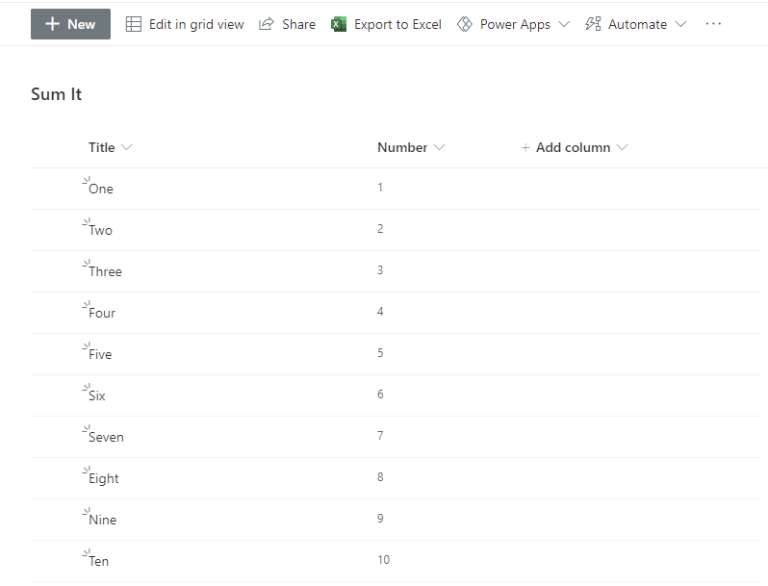
So I started by creating myself a list with a number column.
The first challenge is to read the list items. I will use the Get Items action do read my items. If your data lives in SQL, Dataverse, Excel or any other place the following steps should be quite similar to get the Sum for a single column of data. Once it has been read in Power Automate it is just going to be a json array.
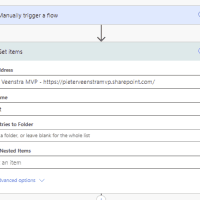
This Get Items action will give me an list of items coming from my SharePoint list. The list will contain mote a lot of information about the list items that I’m not interested in, but taking all the irrelevant information away, I should have something that looks like this:
[
  1,
  2,
  3,
  4,
  5,
  6,
  7,
  8,
  9,
  10
]
We now could use an apply to each step to process this data, but that is going to be slow. Instead I’m going for the fast option
To generate this list i will use the select action. Just feed this action with the output from the get items and then select Number in the mapping.
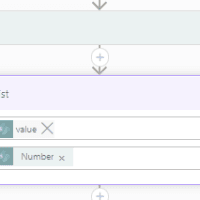
This will give us our list of numbers:
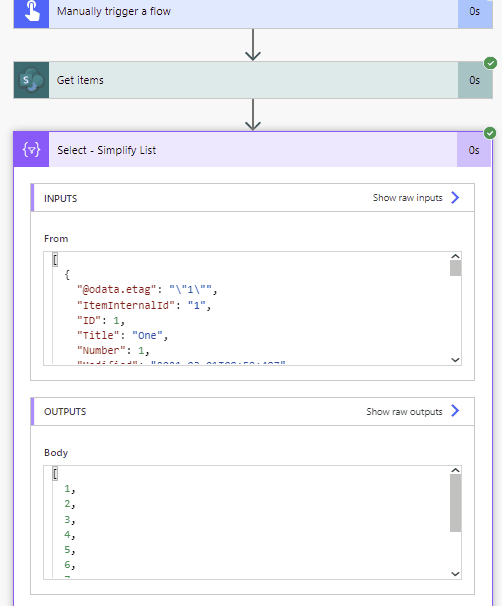
Calculating the Sum
I’m now going to update my flow slightly. By renaming the select action that I created earlier and I’m updating the expression to this
substring('012345678901234567890123456789012345678901234567890123456789012345678901234567890123456789012345678901234567890123456789012345678901234567890123456789012345678901234567890123456789012345678901234567890',0,int(item()?['Number']))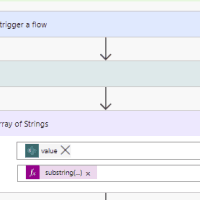
Ok, that expression needs a bit of an explanation. But first I’m going to show you the output from my flow run
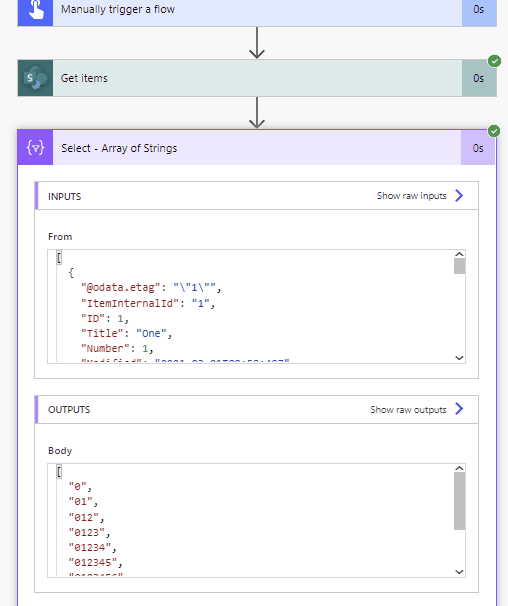
As you can see the number of characters in each string of the array matches the number that I had originally.
This means that the long number in the expression needs to have as many characters as my maximum number found in my SharePoint list.
Then the final part of the expression might also be unclear.
int(item()?['Number'])the number that I’m getting back from SharePoint is seen as a float rather than an integer number. To convert the number to an integer I’m using the int function. Without this the substring function will complain about the 3 parameter being a float.
Now we have done the hard bit.
now we just need a Compose action joining the strings together than taking the length.
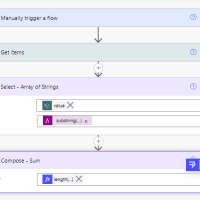
The expression for this is as follows
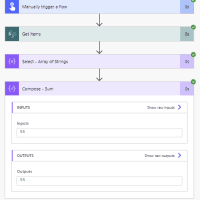
length(join(body('Select_-_Array_of_Strings'),''))Then when I run this flow
Pieter Veenstra

Is your business still running on paper trails, sprawling Excel files, or ageing Access databases? There’s a better way — and I can show you exactly what it looks like. I’m the Technical Director of Vantage 365, a Microsoft solutions consultancy working with clients across the UK, the Netherlands, and worldwide. For over 30 years I’ve been turning messy, manual business processes into clean, automated systems that save time, reduce errors, and give teams the visibility they need to make better decisions. SharePains is not just any blog run by a Microsoft MVP. Have you ever used Try-Catch in Power Automate? The original post about Try-Catch in Power Automate can still be found on this site, https://staging.sharepains.com/2018/02/07/try-catch-finally-in-power-automate-flow/ Or have you ever used the Pieter’s method to avoid variables and speed up your flows? https://staging.sharepains.com/2020/03/11/pieters-method-for-advanced-in-flows/ You can contact me using contact@staging.sharepains.com


Leave a Reply
You must be logged in to post a comment.