How often do you need to do something complicated in Power Apps and you use Flow to do this for you? Long running flows can cause problems.
What is a long running flow?
When this something takes longer than a minute you might run into issues. These long running flows called from Power Apps will time out after one minute. The Power Platform can handle long running flows, however when you call them from Power Apps you might have to do some additional work.
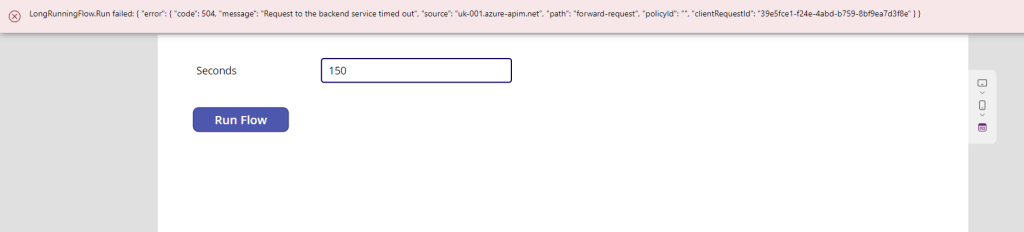
In my example app below, I can enter a number of seconds that a flow will run before responding to the app. The Request to the backend timed out message will appear after a while
On community sites, this is also a frequently asked question, but without any real good answers.
During one of my projects I recently ran into the issue where the flows would sometimes take longer than 2 minutes. Then as I tested the solution I also found that you get the same error when you close the app before the flow has finished.
Long running flows
As a test I created a flow that simply waits for 2 minutes and then I called it from a Button or a Timer in Power Apps and in both cases I received the following failure
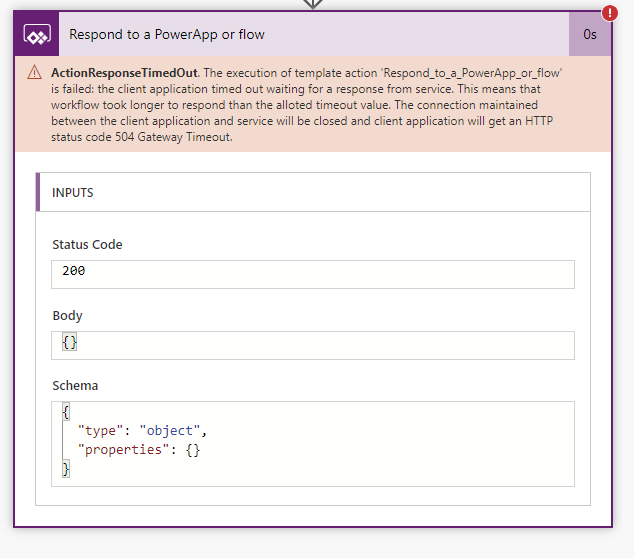
The execution of template action ‘Respond_to_a_PowerApp_or_flow’ is failed: the client application timed out waiting for a response from service. This means that workflow took longer to respond than the alloted timeout value. The connection maintained between the client application and service will be closed and client application will get an HTTP status code 504 Gateway Timeout.
In my case I was able to optimise the flow a bit and the problem went away. Of course it doesn’t stop the user from closing the Power App. So you might need to add some error handling on the Respond to a PowerApp or flow action.
How to optimize your flows?
There are a number of strategies that you can follow. First of all you could speed up a flow a bit
For more information see the following posts:
Create smaller flows
Quite often flows process data. Quite often it is possible to split the overall tasks into smaller tasks and make multiple calls to flows.
Another approach could be to get a flow to run through multiple stages where each stage is processed within a switch step in a flow. You then get multiple flow runs for a single flow. See also State driven flow.
In the below example there are 3 stages that the flow is going through.
- New
- In Progress
- Complete
Each of these stages take a certain part of the process.
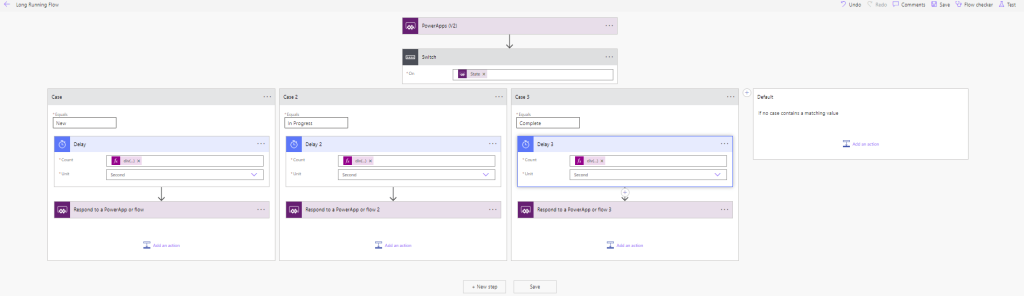
While the flow is
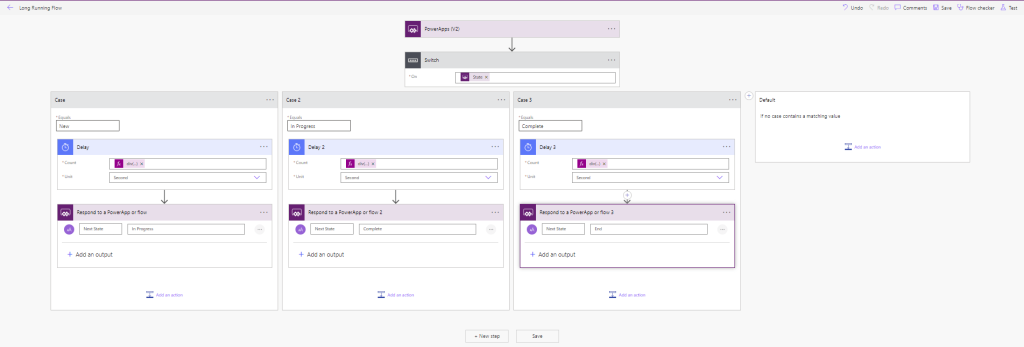
Now within the Power App, the following calls to our flow will need to be made:
Set(varNextStage, "New");
Set(varNextStage, LongRunningFlow.Run( Value(TextInput1.Text),varNextStage).next_state);
Set(varNextStage, LongRunningFlow.Run( Value(TextInput1.Text),varNextStage).next_state);
Set(varNextStage, LongRunningFlow.Run( Value(TextInput1.Text),varNextStage).next_state);
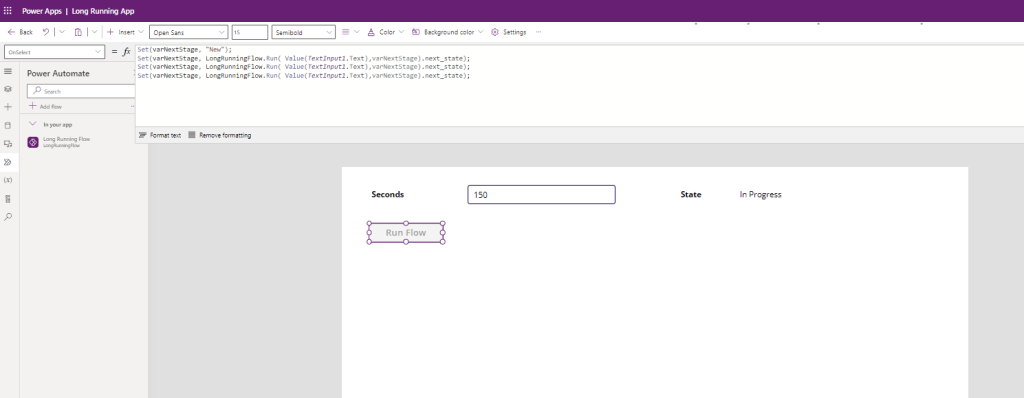
Unfortunately it isn’t possible to call flows from a ForAll loop. But this is already a lot more reliable than just having one long running flow that may or may not time out.
Now one alternative could still be to use a timer in the app. This timer can be started by the click of the button and will run the code. However timers run at a set interval, which may be difficult to manage if you can’t predict the time a flow runs.
Pieter Veenstra

Is your business still running on paper trails, sprawling Excel files, or ageing Access databases? There’s a better way — and I can show you exactly what it looks like. I’m the Technical Director of Vantage 365, a Microsoft solutions consultancy working with clients across the UK, the Netherlands, and worldwide. For over 30 years I’ve been turning messy, manual business processes into clean, automated systems that save time, reduce errors, and give teams the visibility they need to make better decisions. SharePains is not just any blog run by a Microsoft MVP. Have you ever used Try-Catch in Power Automate? The original post about Try-Catch in Power Automate can still be found on this site, https://staging.sharepains.com/2018/02/07/try-catch-finally-in-power-automate-flow/ Or have you ever used the Pieter’s method to avoid variables and speed up your flows? https://staging.sharepains.com/2020/03/11/pieters-method-for-advanced-in-flows/ You can contact me using contact@staging.sharepains.com


Leave a Reply
You must be logged in to post a comment.