Today I had a look at the option to use Markdown in Approval tasks. All the basic information can be found in the documentation, Use Markdown in Microsoft Flow approval requests.
I was trying to include links in my approval task.
MarkDown links
The simple syntax for this is something like this:
[Link Text](Link URL)
Approval Links
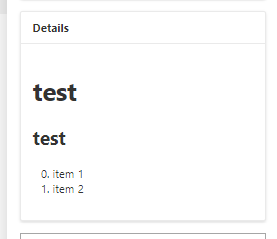
Can I user the above to create multiple links like this:
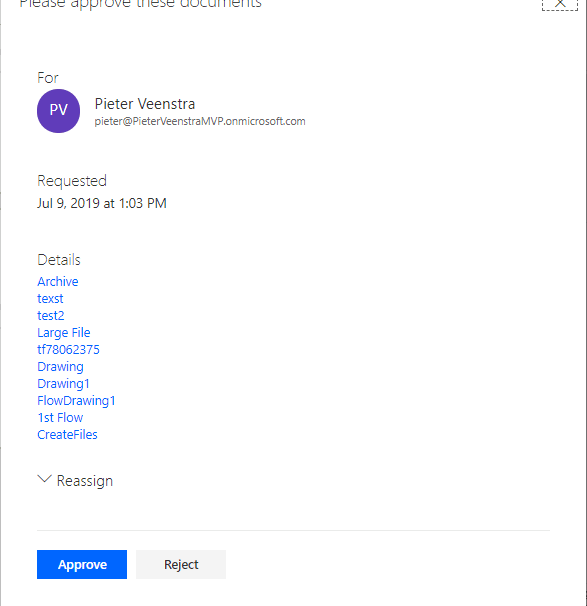
The Flow
In my flow I’m now getting all the files from a library using the get files action. Nothing complicated about that bit.
The next bit however is nicer. First we need to create a variable called Document Links. Then within an Apply to each step we add a link to the text variable.
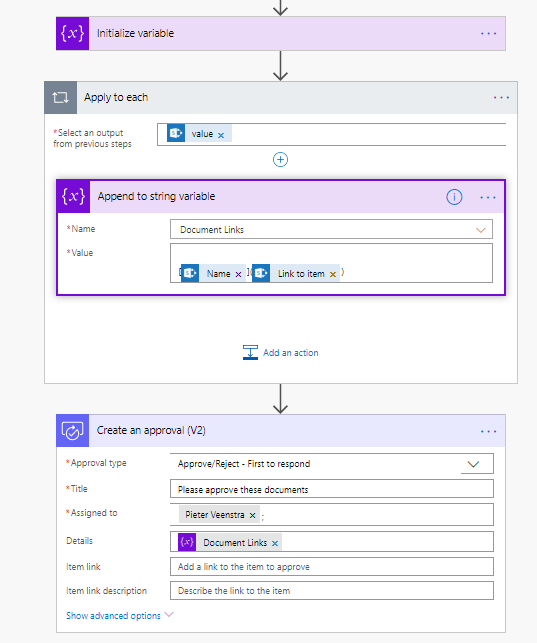
Then finally we can use the text variable to list all the documents in the approval action.
Pieter Veenstra

Is your business still running on paper trails, sprawling Excel files, or ageing Access databases? There’s a better way — and I can show you exactly what it looks like. I’m the Technical Director of Vantage 365, a Microsoft solutions consultancy working with clients across the UK, the Netherlands, and worldwide. For over 30 years I’ve been turning messy, manual business processes into clean, automated systems that save time, reduce errors, and give teams the visibility they need to make better decisions. SharePains is not just any blog run by a Microsoft MVP. Have you ever used Try-Catch in Power Automate? The original post about Try-Catch in Power Automate can still be found on this site, https://staging.sharepains.com/2018/02/07/try-catch-finally-in-power-automate-flow/ Or have you ever used the Pieter’s method to avoid variables and speed up your flows? https://staging.sharepains.com/2020/03/11/pieters-method-for-advanced-in-flows/ You can contact me using contact@staging.sharepains.com


Leave a Reply
You must be logged in to post a comment.