PowerApps – Add a Google search web part to your modern SharePoint page in 5 minutes

PowerApps - Add a Google search web part to your modern SharePoint page in 5 minutes

PowerApps – Add a Google search web part to your modern SharePoint page in 5 minutes

By:

Date:

For most organisations google is the most used site. As many organisations set the default browser home page to a SharePoint intranet many users may find that they are redirected to the site that they don’t want to get to. An easy solution would be to add a Google web part to a page.

Something as simple as the following JavaScript could do the job.

<br />
<script>
  function searchGoogle() {
    alert('click');
    var query =document.getElementById('querybox').value;
    window.open('https://www.google.com?q=' + query, '_blank');
}
</script>
<div><img src="https://www.google.com/images/branding/googlelogo/1x/googlelogo_color_272x92dp.png" />
<input id="querybox" name="query" type="text" />
<input type="button" value="Search" />
<div>

But, this doesn’t work on the modern pages as script tags are not allowed in the Embed web part. Of course you could create an SPFx web part but there is an easier solution
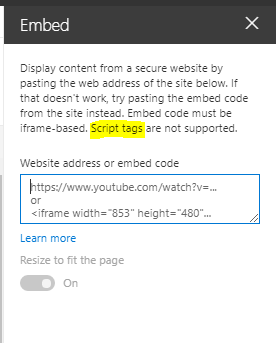
The Embed Webpart doesn't like Javascripts

Create a PowerApp

Start by creating a blank PowerApp and set the height and width to 450×90.
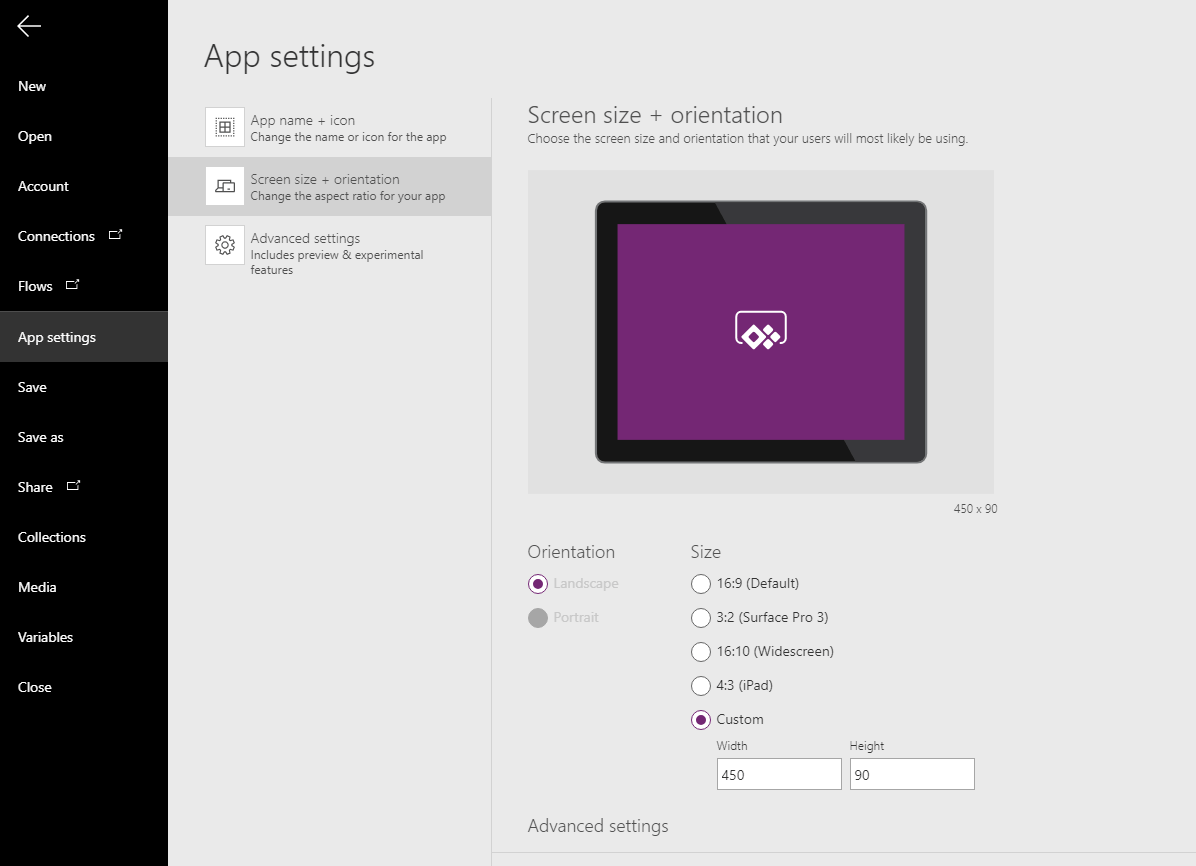
Create a new Power App

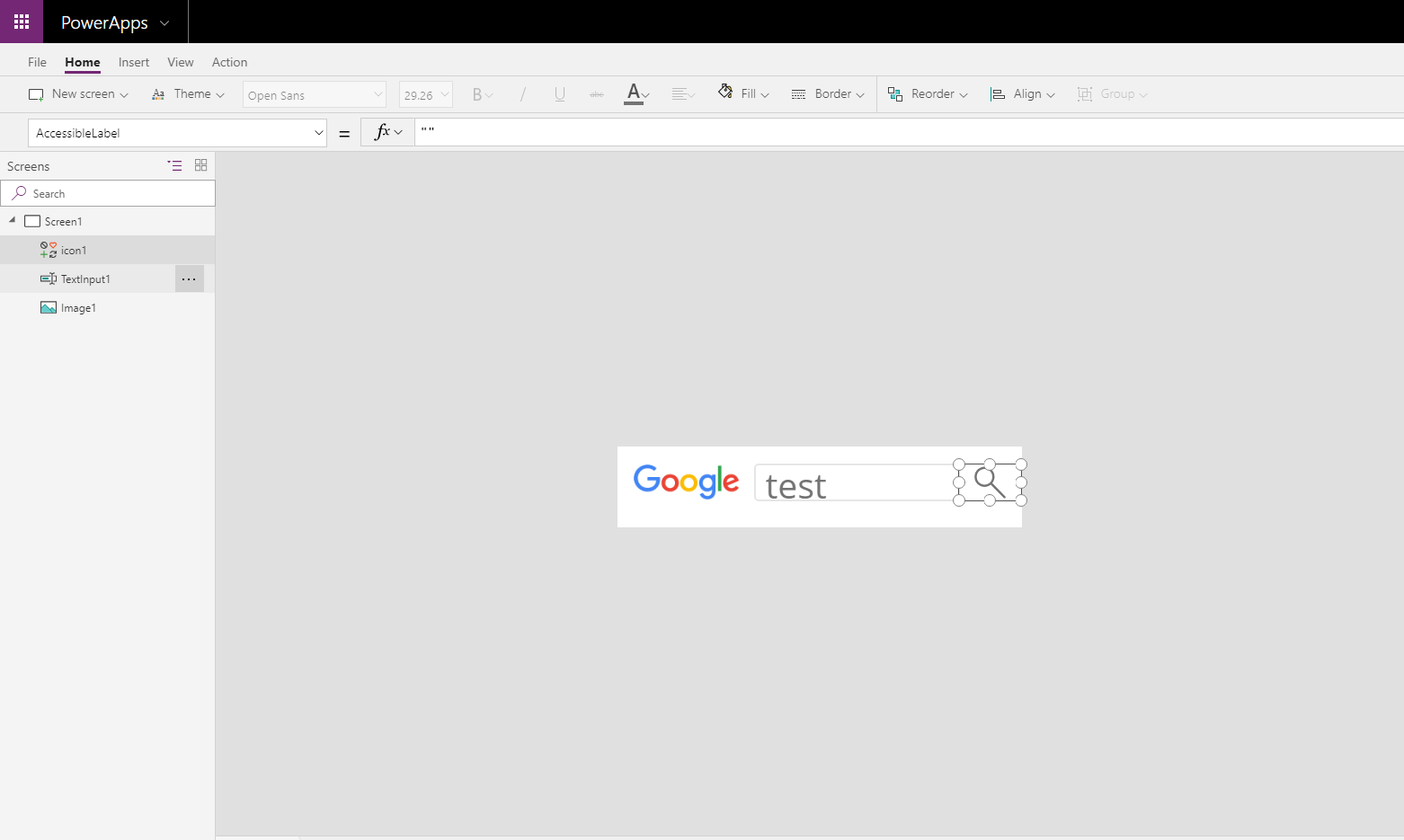
Then add 3 controls.

  • an Image and set the image to the google logo
  • a Text Input box
  • Search icon

Adding 3 controls to my Power App

Set the Onselect of the Search icon to

Launch("https://google.com/search?q=" & TextInput1.Text)

Then save and publish the app and add the web part to your page.


Is your business still running on paper trails, sprawling Excel files, or ageing Access databases? There’s a better way — and I can show you exactly what it looks like. I’m the Technical Director of Vantage 365, a Microsoft solutions consultancy working with clients across the UK, the Netherlands, and worldwide. For over 30 years I’ve been turning messy, manual business processes into clean, automated systems that save time, reduce errors, and give teams the visibility they need to make better decisions. SharePains is not just any blog run by a Microsoft MVP. Have you ever used Try-Catch in Power Automate? The original post about Try-Catch in Power Automate can still be found on this site, https://staging.sharepains.com/2018/02/07/try-catch-finally-in-power-automate-flow/ Or have you ever used the Pieter’s method to avoid variables and speed up your flows? https://staging.sharepains.com/2020/03/11/pieters-method-for-advanced-in-flows/ You can contact me using contact@staging.sharepains.com

12 responses to “PowerApps – Add a Google search web part to your modern SharePoint page in 5 minutes”

  1. DeeGee Avatar
    DeeGee

    That works great, but… how can I activate the search when the user hits the Enter key, instead of needing to click on the Search icon with the mouse?

    1. Pieter Veenstra Avatar

      You could use the OnChange of the Inputbox rather than the OnSelect of the icon. Simply copy the same code to the OnChange.

      1. DeeGee Avatar
        DeeGee

        Thanks again, perfect!

  2. Mil Avatar
    Mil

    Hi, when I enter text and hit enter, a blank google page shows up, is there a way to search the text that was entered?

    1. Pieter Veenstra Avatar

      What is the code that you are using inside the Launch?

      1. Mil Avatar
        Mil

        Hi Pieter,

        i’m using the code that was provided above:

        Launch(“https://google.com/search?q=” & TextInput1.Text)

  3. Sjoerd Avatar
    Sjoerd

    When a user connects towards SharePoint Online, they need to click on “Log On to PowerBI”. After that the searchbar becomes available. Is this standard or can we somehow we move the “Sign in to PowerBI” button?

    1. Pieter Veenstra Avatar

      If you have a Login to Power BI then most likely you have a Power BI Web parts on your page. Can you send me a screenshot of the page? The chat on this site will accept screenshots.

  4. jasmin kett Avatar
    jasmin kett

    Hi there,
    is it possible to open it in a new window?

    1. Pieter Veenstra Avatar

      yes just replace _blank with any name you want to give the new window. So newwindow would work as a name

  5. JK Avatar
    JK

    Thank you for your repsonse! Unfortunately I am not sure where to add the “_blank”. Could you pls help? 🙂
    Launch(“https://google.com/search?q=” & TextInput2.Text)

    1. Pieter Veenstra Avatar

      Try this:

      Launch(“https://google.com/search?q=” & TextInput2.Text, "_blank")

Leave a Reply

This site uses Akismet to reduce spam. Learn how your comment data is processed.