One of the connectors in Power Automate is the Excel connector.In this post I will take a look at the Add a Row action.
Flow Excel Connectors
Actually there are 3 connectors as I described in one of my past posts. I’ve seen many people complain that the connector doesn’t work for them and the Excel file becomes unusable or it is locked resulting in the flow failing.
I’m assuming that I have an empty Excel file. My flow therefore first needs to create a table so that I can add rows to my table. However I only want to create a table if the table doesn’t already exist.
Get WordPress stats
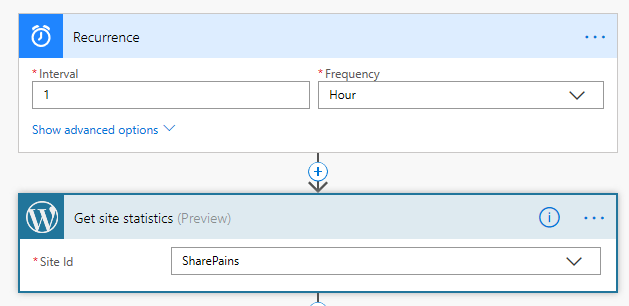
To make a bit more sense I tried to get the stats of my SharePains blog by getting my statistics on an hourly basis and then adding details to an excel table.
Add a row into a table
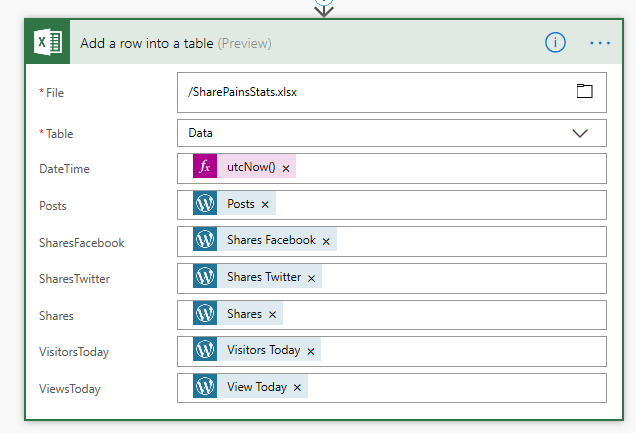
Then I will add the data to my table using the Add a row into a table action. This should look something like shown below.
That is all easy, but I still need to create the table.
Finding tables in Excel
If I only have one table in my excel file you could simply run a Get tables and if any tables are returned then get on with the row addition with the above mentioned action. But I might have multiple tables. So I’m going to do some additional checks.
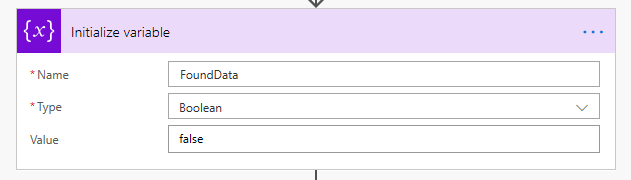
I will start by initializing a variable.
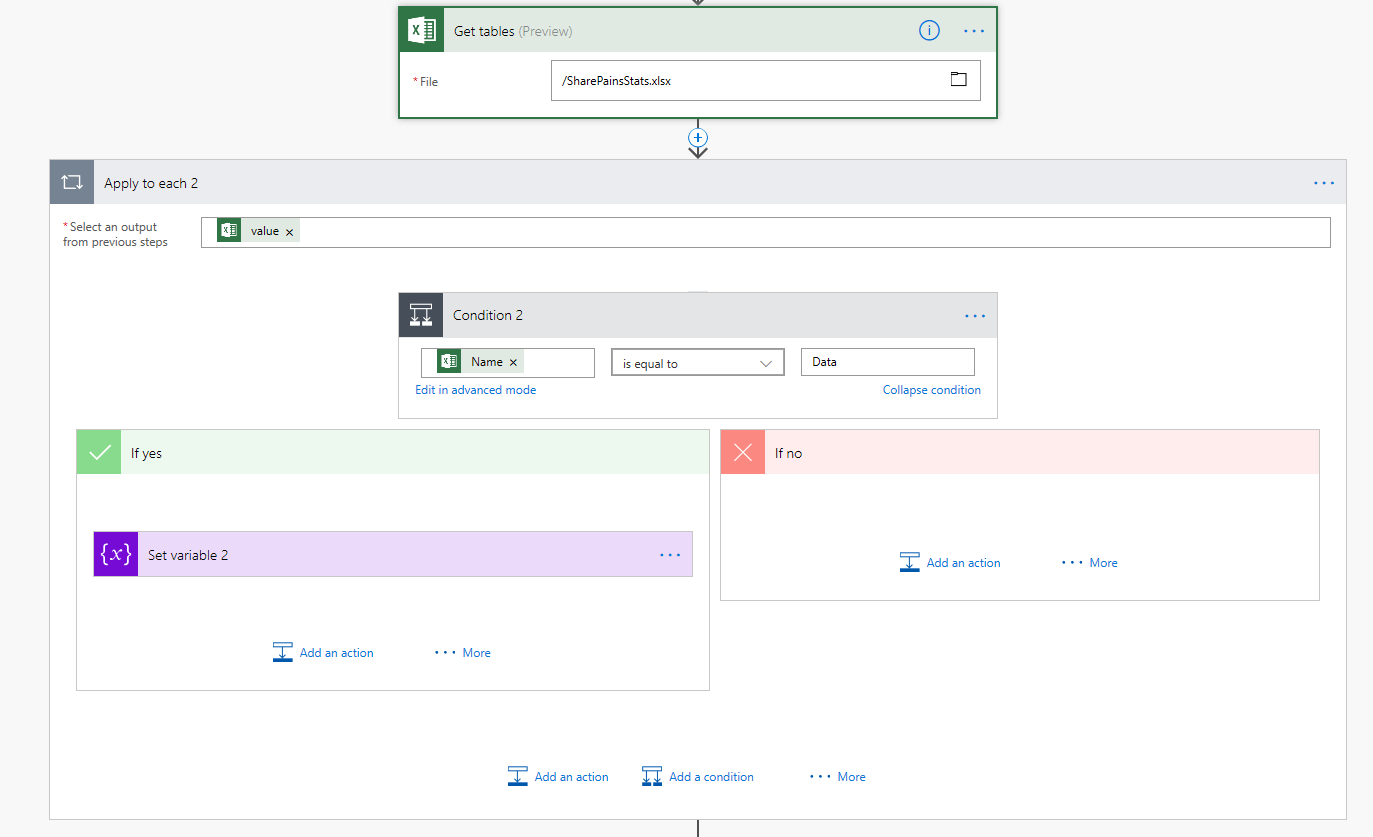
Then I will get all the tables in my excel file and when I find a table with the name Data then I’m setting the FoundData variable to true
Now that we now that the data is found or not we can create the table in the excel file with all the right columns only if the table doesn’t yet exist.
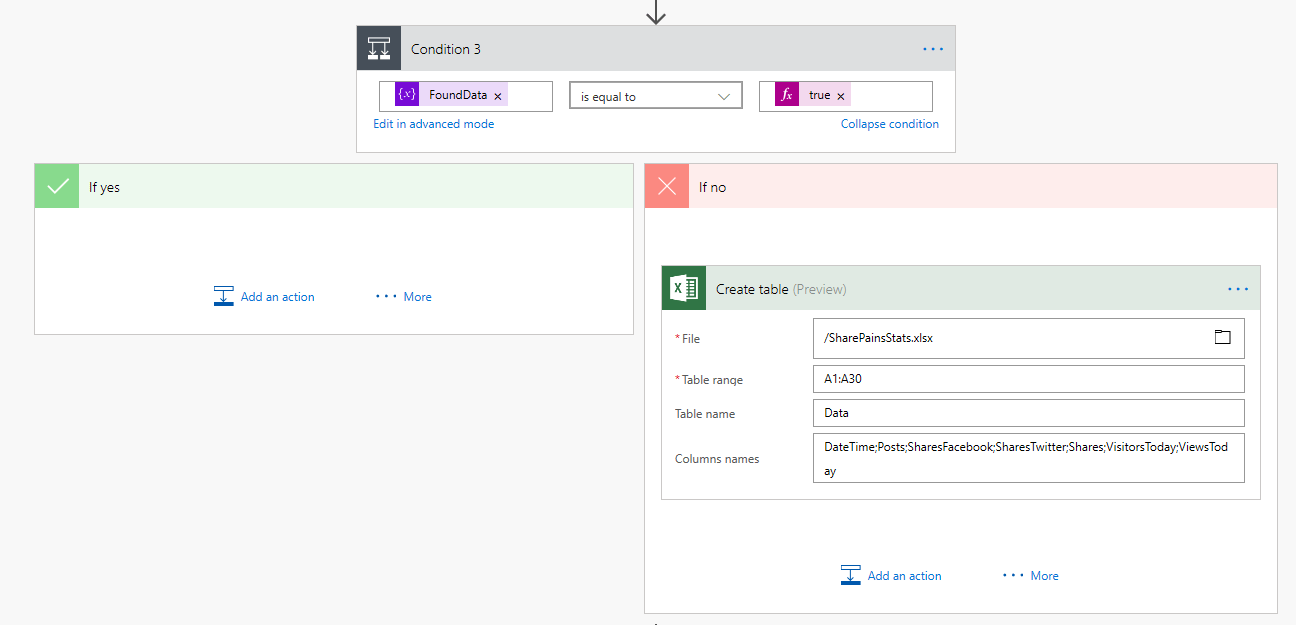
In the past I would simply use the run actions and accept that the Create table action would fail after the first run of my flow. By configuring the the run actions I would then ignore the failure and continue. This approach however resulted in locked files and problems with the stability of my flow. With the approach of only creating a table when it is needed, my flow has become a lot more stable.
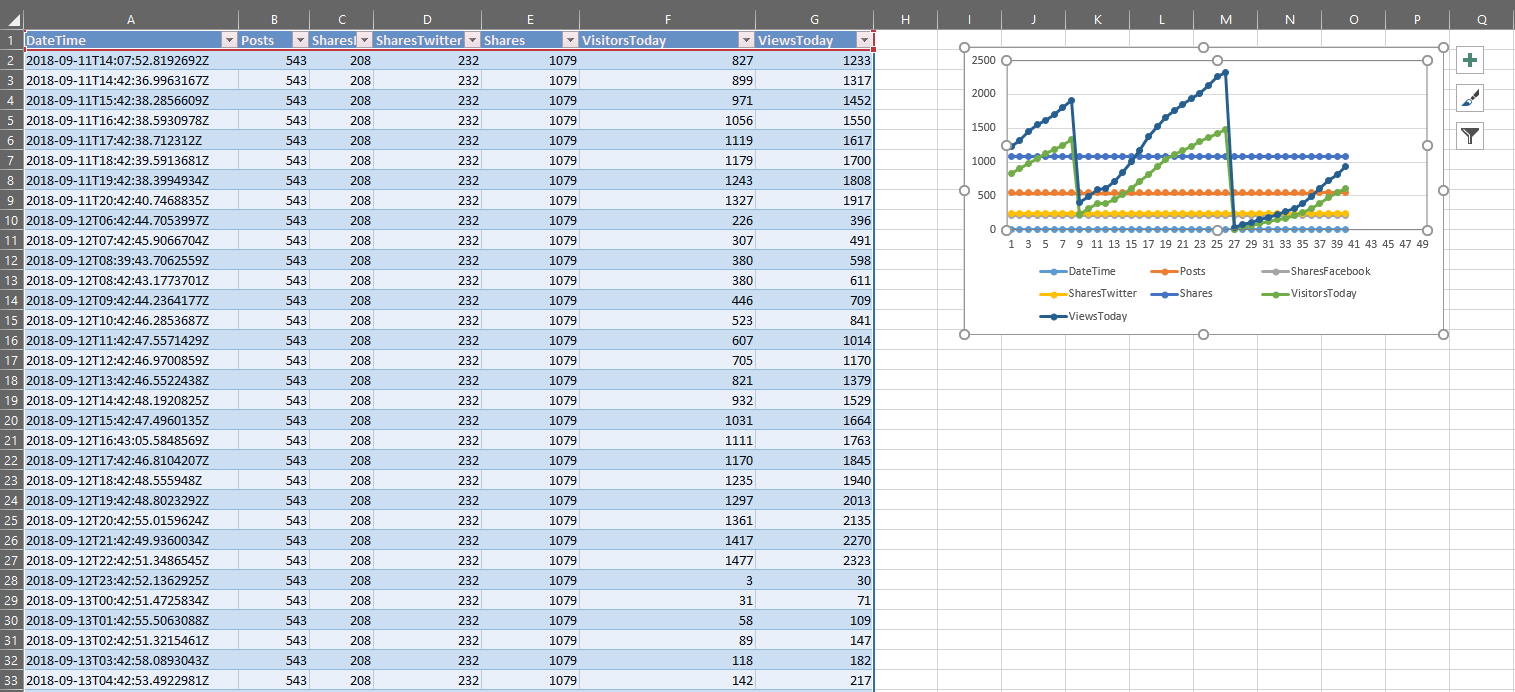
This has now resulted in an excel file giving me the website stats on an hourly basis:
Pieter Veenstra

Is your business still running on paper trails, sprawling Excel files, or ageing Access databases? There’s a better way — and I can show you exactly what it looks like. I’m the Technical Director of Vantage 365, a Microsoft solutions consultancy working with clients across the UK, the Netherlands, and worldwide. For over 30 years I’ve been turning messy, manual business processes into clean, automated systems that save time, reduce errors, and give teams the visibility they need to make better decisions. SharePains is not just any blog run by a Microsoft MVP. Have you ever used Try-Catch in Power Automate? The original post about Try-Catch in Power Automate can still be found on this site, https://staging.sharepains.com/2018/02/07/try-catch-finally-in-power-automate-flow/ Or have you ever used the Pieter’s method to avoid variables and speed up your flows? https://staging.sharepains.com/2020/03/11/pieters-method-for-advanced-in-flows/ You can contact me using contact@staging.sharepains.com


Leave a Reply
You must be logged in to post a comment.