Microsoft Flow – Create SharePoint list items using Xml

Microsoft Flow – Create SharePoint list items using Xml

By:

Date:

You have data stored in XML and you want to use this to create list items in SharePoint and you thing that Microsoft Flow might be able to help you. You couldn’t be more right. Flow can help you, but is it something that is easy to do? No! Although once you know how to do it it is quite easy.

My starting point

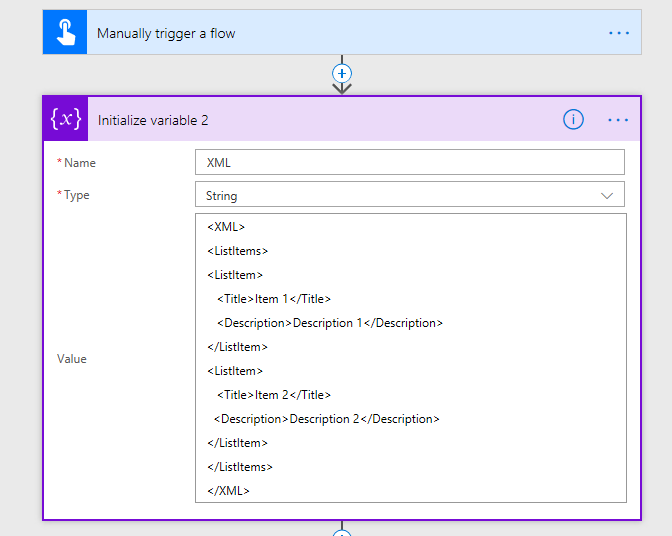
I am using the following XML to set a variable in my flow.
Microsoft Flow - Create SharePoint list items using Xml

Now I first want to collect an array of list items. I’m using xpath in a Compose step to do this.

xpath(xml(variables('XML')),'//XML/ListItems/ListItem')

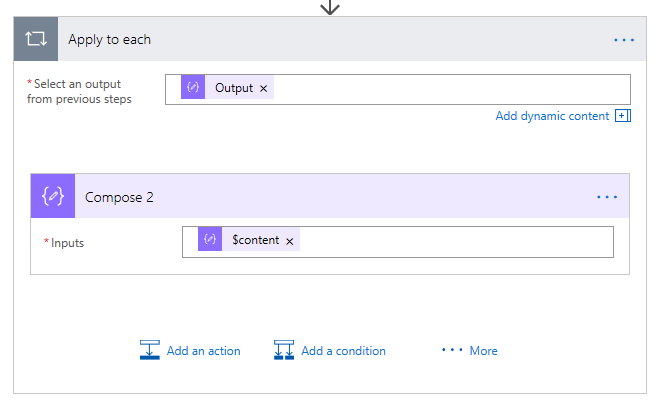
Then I take the output from the Compose action and walk through the array of list items.
Microsoft Flow - Create SharePoint list items using Xml

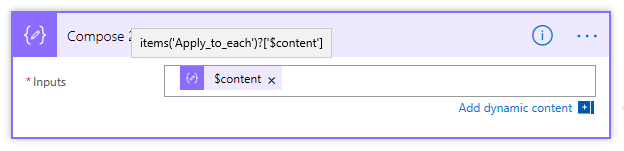
I hear you ask: “What is that $content?”. I’m simply taking each item in the Apply to Each and grab the $content.
Microsoft Flow - Create SharePoint list items using Xml

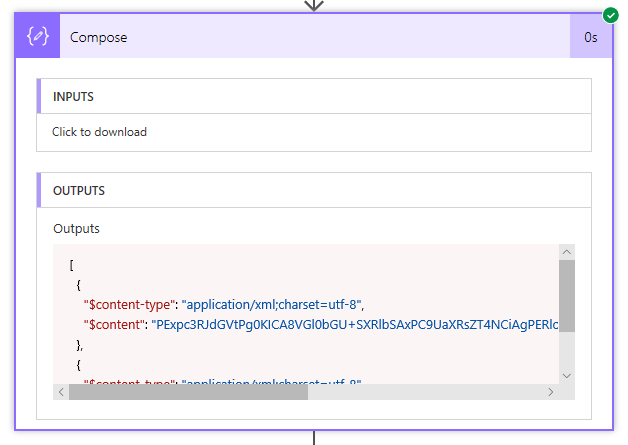
To really understand this you might want to look at the output from the first Compose actions.
Microsoft Flow - Create SharePoint list items using Xml

now you can see for each item we have a $content element in json. To get to this data we can set the expression on the Compose 2 action to the following

items('apply-to-each')?['$content']

but now we still have the unreadable text starting with “PE…”. to convert this into a readable XML, we will need to use the base64ToString() function.

base64ToString(items('apply-to-each')?['$content'])

Now we have the Xml for each list item:
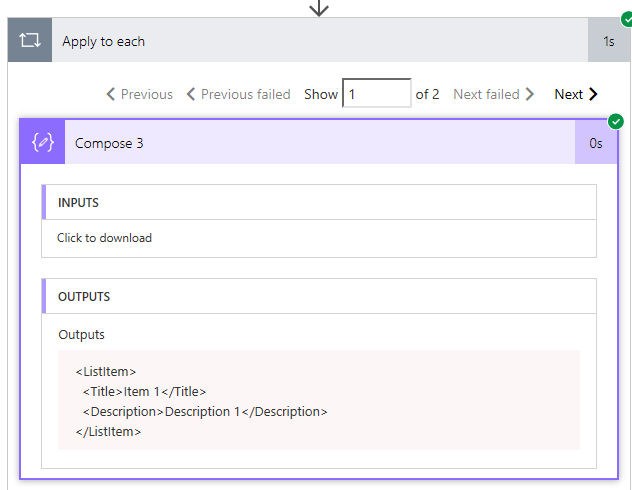
Microsoft Flow - Create SharePoint list items using Xml

Now all we need to do is repeat our selves inside the Apply to Each for each of the list items.

This time I’m avoiding the base64ToString function by using the text() function instead


xpath(Xml(outputs('Compose_3')),'//ListItem/*[self::Title or self::Description]/text()')

No when we look at the output from my final compose step we have an array of values that we can use to create our list items in SharePoint or any other place where you would like to use this data:
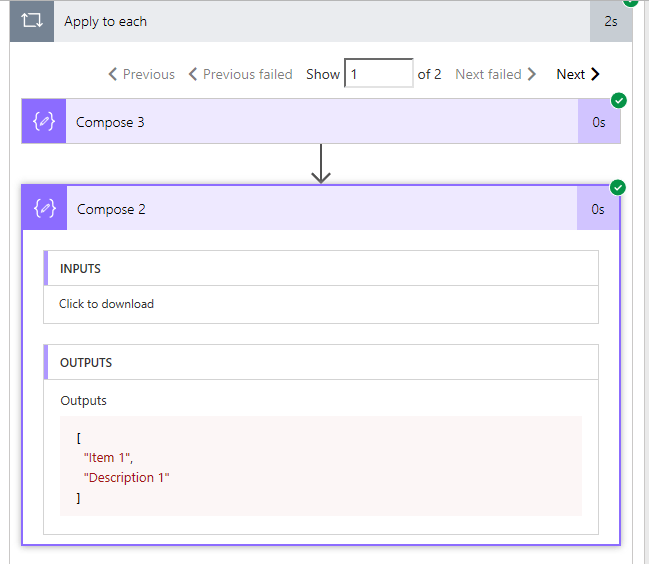
Microsoft Flow - Create SharePoint list items using Xml

If you still want to keep the field names form the original  Xml that we started with then you could adjust the expression and not use the text() function. However I thought from an educational point of view the showing the different options in this post would be more useful.


Is your business still running on paper trails, sprawling Excel files, or ageing Access databases? There’s a better way — and I can show you exactly what it looks like. I’m the Technical Director of Vantage 365, a Microsoft solutions consultancy working with clients across the UK, the Netherlands, and worldwide. For over 30 years I’ve been turning messy, manual business processes into clean, automated systems that save time, reduce errors, and give teams the visibility they need to make better decisions. SharePains is not just any blog run by a Microsoft MVP. Have you ever used Try-Catch in Power Automate? The original post about Try-Catch in Power Automate can still be found on this site, https://staging.sharepains.com/2018/02/07/try-catch-finally-in-power-automate-flow/ Or have you ever used the Pieter’s method to avoid variables and speed up your flows? https://staging.sharepains.com/2020/03/11/pieters-method-for-advanced-in-flows/ You can contact me using contact@staging.sharepains.com

14 responses to “Microsoft Flow – Create SharePoint list items using Xml”

  1. nigelpwordpress Avatar

    Hi Pieter
    This works fine for simple fields like you describe. However, there are issues with more complex fields like Lookup Fields.

    Regards

    Nigel

    1. Pieter Veenstra Avatar

      Hi Nigel, This will work for any field. On purpose I didn’t include the create/update list item yet. This is where you should handle the conversion of data. The Create List Item action takes values at the moment and you might have to put some logic in your flow to convert values to create valid SharePoint data

  2. Jakub Rainisch Avatar
    Jakub Rainisch

    Hello Pieter,
    that’s exactly what I need for my SharePoint solution, but unfortunately, I’m the beginner in MS Flow and I have lost on my way to try to implement your steps. Can you add here (or send me by e-mail) the ZIP file for import to my library of flows? And what will be the difference if I have URL for XML file which is dynamically changing (like RSS but doesn’t RSS syntax)?
    Thanks
    Jakub

    1. Pieter Veenstra Avatar

      Hi Jakub,

      All you would need to do is put the XML in a file in a library then use a get content step from the SharePoint connector. Then you’ve got your xml available which you can use to set the Compose actions.

      Then once you’ve got that the following steps will remain the same.

      1. Jakub Rainisch Avatar
        Jakub Rainisch

        OK, and what about the ZIP file?

  3. Pieter Veenstra Avatar

    Hi Jakub,

    I can’t really create a zip file for you to import. I wouldn’t have all the field name exactly the same as you may have on your list.

  4. Leah Avatar
    Leah

    Oh my goodness, thank you so much for this! I was having such a time trying to figure out the base64 issue and your post cleared it right up.

  5. Richard Avatar
    Richard

    Hello Pieter
    Thank you for this,
    Question can you give me some advice to convert the outputs to map with some fields in a new business central record ?
    Thanks in advance

    1. Pieter Veenstra Avatar

      Hi Richard,

      Of course no problem.

      At the end of my post I’ve got some json. I would probably push this through the the Parse JSON action. This then will give you Dynamic content that you can play with.

      You could also use the select action so that each field can get a name. One example of the select can be found at the following link:
      https://veenstra.me.uk/2018/10/15/microsoft-flow-improve-your-flows-performance-in-a-few-easy-steps/

      The alternative option is to use the outputs function.

      In the example of this post
      outputs('Compose_2')[0]
      will give the “Item 1” text

      1. Richard Ludwig Avatar
        Richard Ludwig

        Thanks Pieter
        I made a succesfull record in business central

        Met vriendelijk groet,

        Richard Ludwig

  6. Jennie Avatar
    Jennie

    How can I stop the flow once all items in the excel list have been created in the sharepoint list? Currently, its creating the items but multiple times.

    1. Pieter Veenstra Avatar

      That must mean that you have some incorrect apply to each steps configured. Have a look at the flow run and see where the incorrect apply to each step is.

  7. sasrsc Avatar

    Hi Peter, I am a cit-dev and have a select action in power automate that returns a $content-type and $content.
    addProperty(item(),’Comments’,xpath(outputs(‘XMLComments’),concat(‘//Array[ProjectId/text()=”‘, item()[‘ID’],’”]’)))
    If what I understand from your blog is so, then I need to specifically extract only the $content and convert that to base64ToString
    If it possible to do that by modifying my select statement to convert that in one go?

    1. Pieter Veenstra Avatar

      Yes, you can do that within the select. Using the item function you can get to the $content. Then using the base64 functions you can convert base64 content.

Leave a Reply

This site uses Akismet to reduce spam. Learn how your comment data is processed.