Over the last year or so I’ve only really looked at the bleeding edge technology released by Microsoft. Microsoft Teams, Microsoft Forms, SharePoint Online, PowerApps and Microsoft Flow and anything related have been very interesting.
Just before the 2017 year ends however I’m now working on a SharePoint 2016 project and it’s quite a challenge to go back to technology like SharePoint Designer workflows. Today one of those small problems that can be a bit of a challenge is to get the value of a Managed Metadata column.
I first went down the root of simply setting a variable to my column
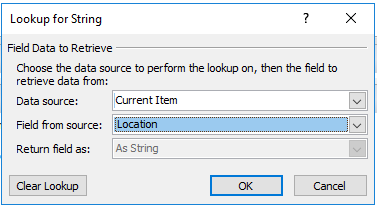
But I bumped quite quickly into the following error as I was setting a string variable to the value of the Managed Metadata column:
Details: An unhandled exception occurred during the execution of the workflow instance. Exception details: System.InvalidCastException: The value ‘d/results(0)/Location’ cannot be read as type ‘String’. at Microsoft.Activities.GetDynamicValueProperty`1.CheckedRead(String propertyName, DynamicItem value) at Microsoft.Activities.GetDynamicValueProperty`1.Execute(CodeActivityContext context) at System.Activities.CodeActivity`1.InternalExecute(ActivityInstance instance, ActivityExecutor executor, BookmarkManager bookmarkManager) at System.Activities.Runtime.ActivityExecutor.ExecuteActivityWorkItem.ExecuteBody(ActivityExecutor executor, BookmarkManager bookmarkManager, Location resultLocation)
Quite quickly I now found:
https://sharepoint.stackexchange.com/questions/156579/get-metadata-column-value-in-spd-workflow
So I went throguh these steps:
-
Choose action – set
variabletovalue -
In the value section (popup when you click
value)- choose thedata sourceas the list which you are fetching the column from – -
In the
field from source– choose the managed metadata column internal name -
In the
find in the list item section– choose thefieldtp beIDand value to beCurrentItem -> ID(should look likeCurrentItem.ID) -
Click on OK. This should get you value of the managed metadata column.
-
If you want, you can use the action
Log item to the history listto check the value.
So I change my set variable step into something like this: where I selected my Location column again:
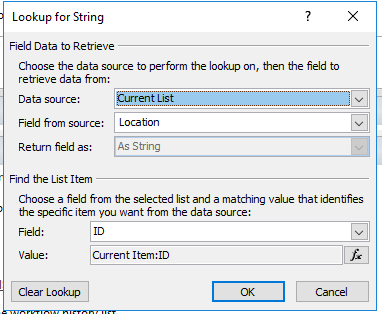
But still no luck. Then I tried the Location_0 column, Huh what is this. My internal name of the column is definitely Location and not Location_0
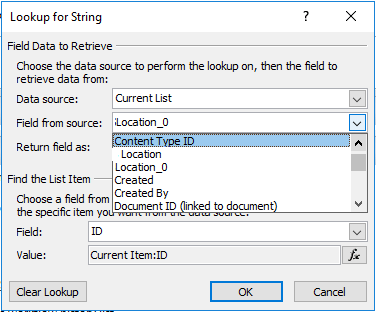
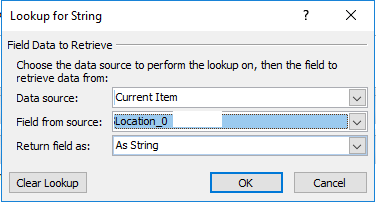
Then I simplified my step again and the Location_0 column did the trick again.
SharePoint 2016 – Aaah, SharePoint Designer workflows!
Pieter Veenstra

Is your business still running on paper trails, sprawling Excel files, or ageing Access databases? There’s a better way — and I can show you exactly what it looks like. I’m the Technical Director of Vantage 365, a Microsoft solutions consultancy working with clients across the UK, the Netherlands, and worldwide. For over 30 years I’ve been turning messy, manual business processes into clean, automated systems that save time, reduce errors, and give teams the visibility they need to make better decisions. SharePains is not just any blog run by a Microsoft MVP. Have you ever used Try-Catch in Power Automate? The original post about Try-Catch in Power Automate can still be found on this site, https://staging.sharepains.com/2018/02/07/try-catch-finally-in-power-automate-flow/ Or have you ever used the Pieter’s method to avoid variables and speed up your flows? https://staging.sharepains.com/2020/03/11/pieters-method-for-advanced-in-flows/ You can contact me using contact@staging.sharepains.com
Leave a Reply
You must be logged in to post a comment.