In the past couple of weeks I’ve been using PowerApps, and the overall experience has been great! SharePoint Designer and InfoPath have been replaced by a browser based application that is a lot easier to work with. Of course it is still all very new but the general experience is very good.
Today, I will be looking at Flow. A Flow can be triggered by a lot of things , but for now I will look at a flow that is triggered by a PowerApp.
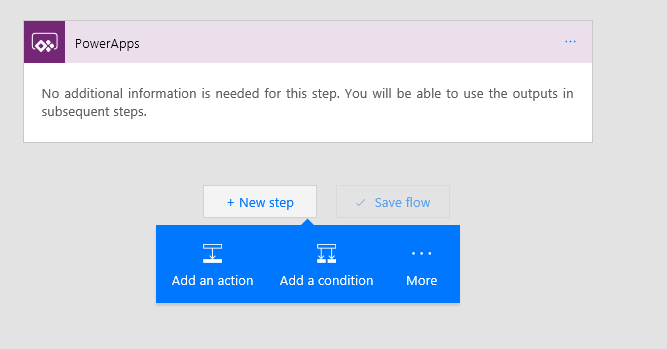 In the past I wrote Workflow articles about Nintex Workflow and how to setup the workflows. I have always liked the state machine workflows and I was wondering if I could setup my Flows in a similar way.
So If we start with the basics. Adding some tasks. Within Flow there are a lot of tasks available and for Flows related to PowerApps that use SQL Server as their data source I could imagine that there may be a lot of Update row actions in my flows. Flow supports both on-premises and Azure based SQL installations as the “Connect via on-premise (hic) data gateway” indicates.
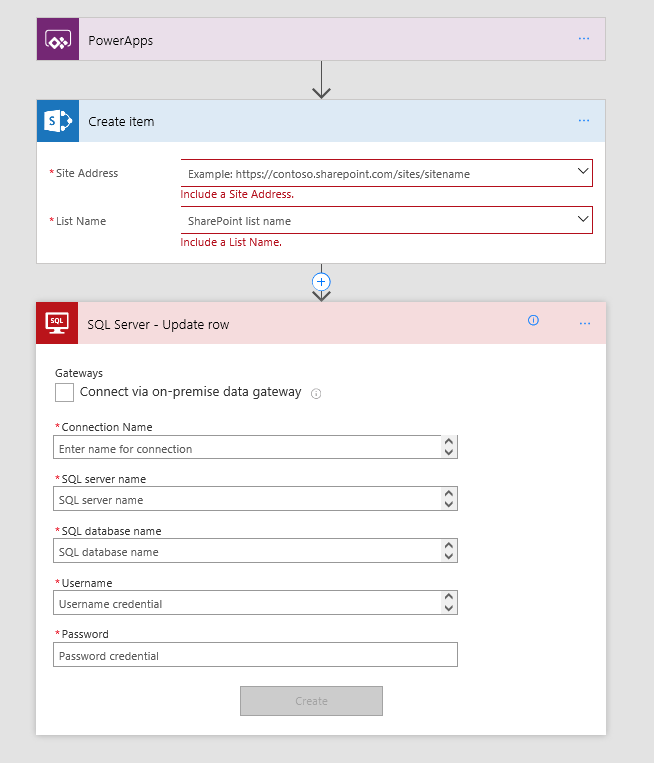 For small flows it will be quite easy to just stick action after action. But once a few additional actions are added it might be useful to organize the no-code a bit.
Comments
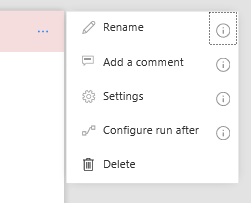
As with Nintex, Microsoft has now introduced comments for each step
This makes the workflows already a lot easier to understand and compared to SharePoint Designer workflows this is already a massive improvement.
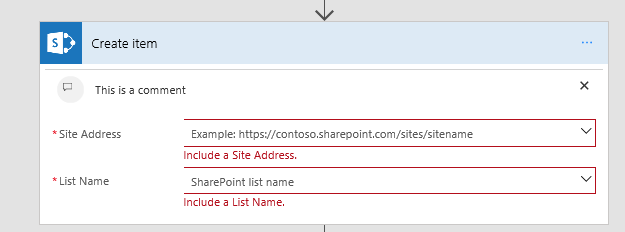
Renaming actions
Next to adding comments it might also help to rename all the actions within a flow. This helps documenting t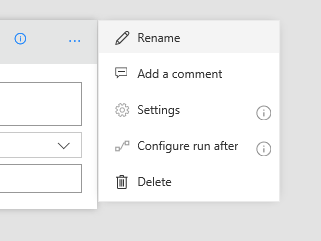 he Flow without the real need for additional documentation outside the Flow.
Variables
Within Flow it is possible to create variables. So I’m adding a Variables – Initialize variable action to my flow.
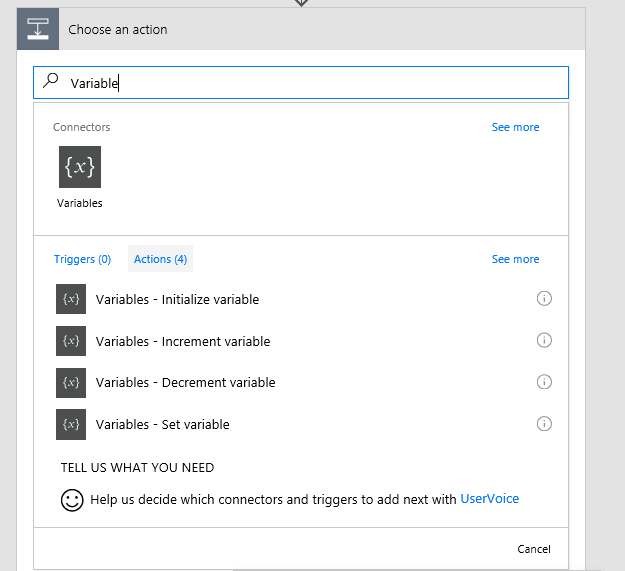
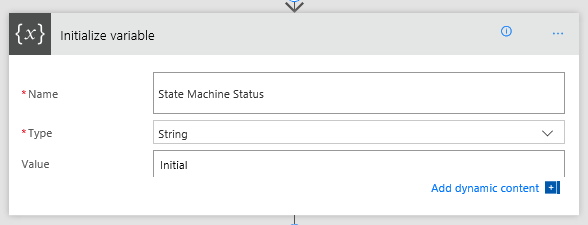
Within this action I’m creating a variable State Machine Status
Then I’m adding a Do Until Action
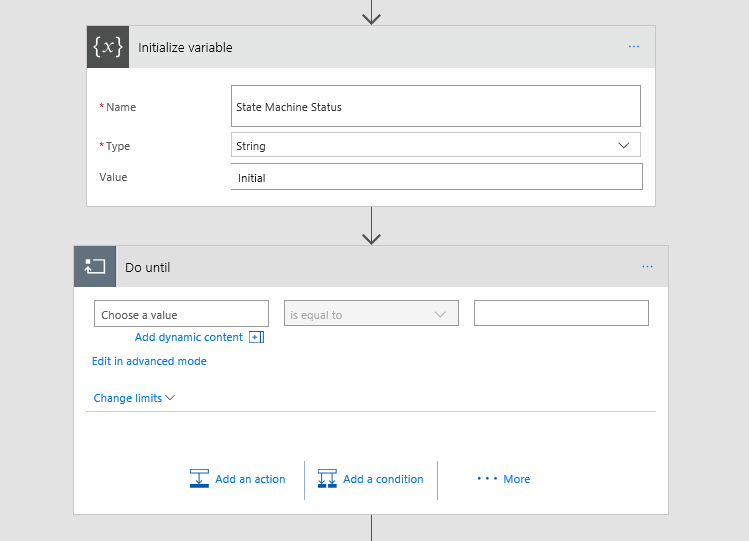
The Do Until action I’m configuring to run until my status variable has been set to Complete.
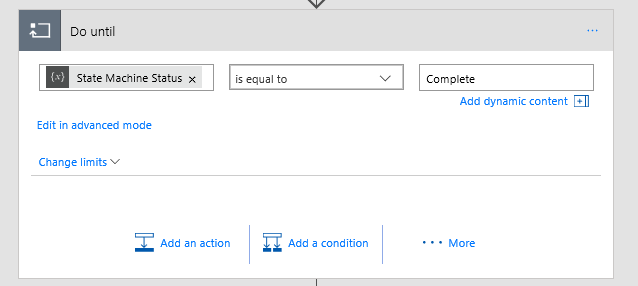
Then Inside my Do until I create a Switch, which can be found in the … More.
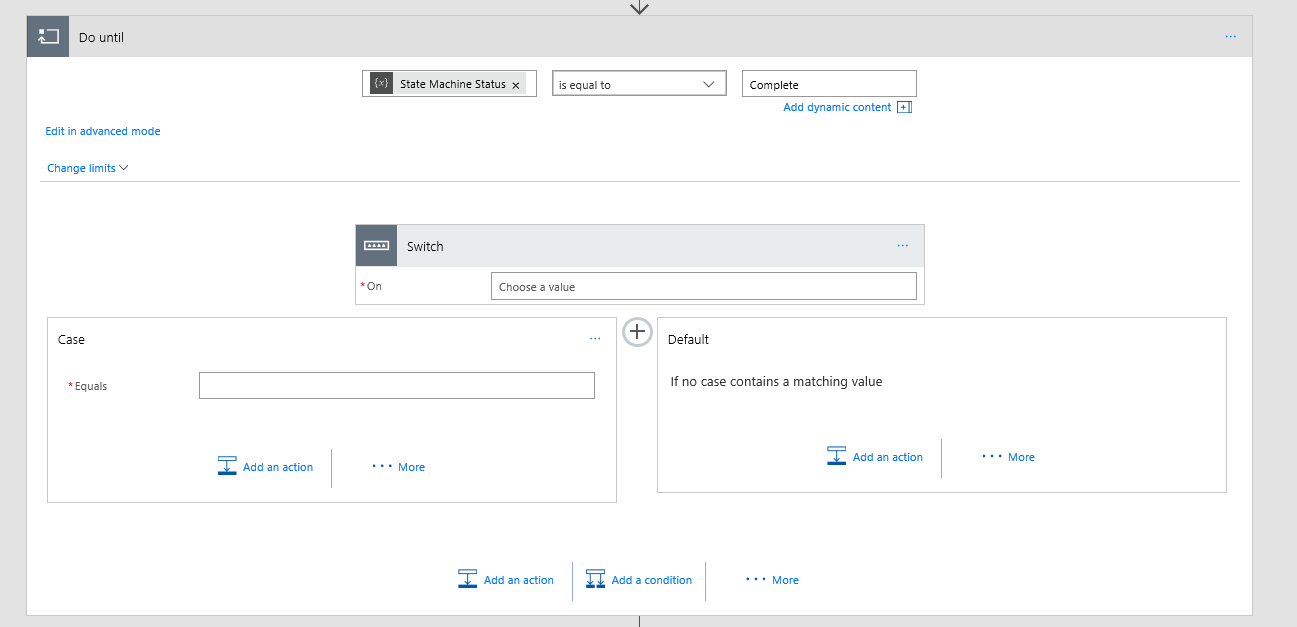
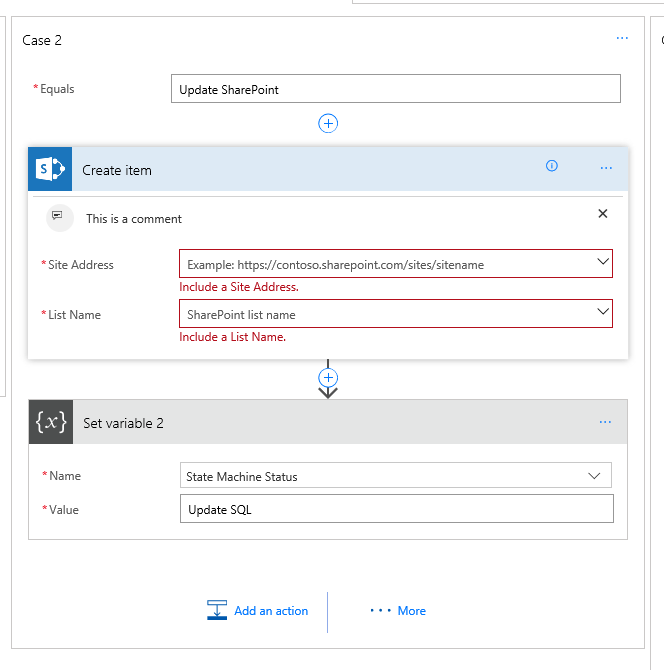
Then by clicking on the + between Case and Default I add all the different states that I want to go through.
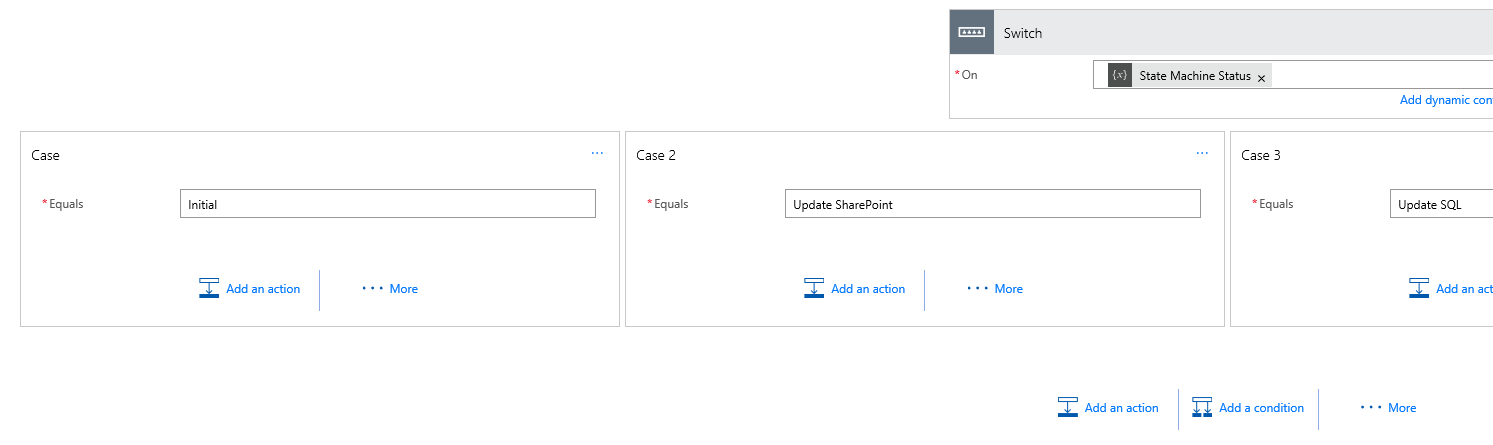
Then for each state I’m added a state change:
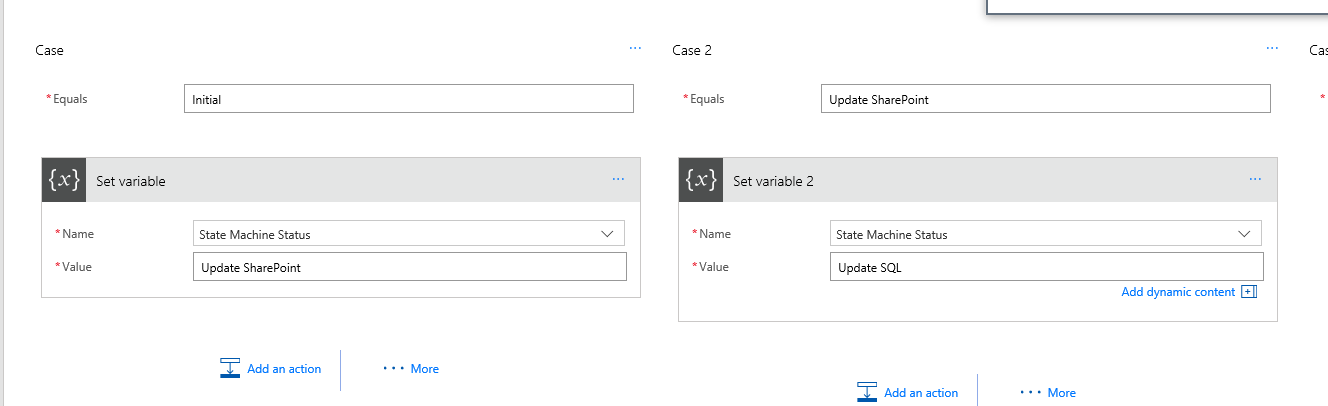
Time to add the real work into my Flows and my state machine workflow is ready.
[polldaddy poll=9783164]
Pieter Veenstra

Is your business still running on paper trails, sprawling Excel files, or ageing Access databases? There’s a better way — and I can show you exactly what it looks like. I’m the Technical Director of Vantage 365, a Microsoft solutions consultancy working with clients across the UK, the Netherlands, and worldwide. For over 30 years I’ve been turning messy, manual business processes into clean, automated systems that save time, reduce errors, and give teams the visibility they need to make better decisions. SharePains is not just any blog run by a Microsoft MVP. Have you ever used Try-Catch in Power Automate? The original post about Try-Catch in Power Automate can still be found on this site, https://staging.sharepains.com/2018/02/07/try-catch-finally-in-power-automate-flow/ Or have you ever used the Pieter’s method to avoid variables and speed up your flows? https://staging.sharepains.com/2020/03/11/pieters-method-for-advanced-in-flows/ You can contact me using contact@staging.sharepains.com


Leave a Reply
You must be logged in to post a comment.