
Recently Microsoft added the option to use Co-Authoring as an experimental feature to Power Apps.
What is Co-Authoring?
You might already be familiar with Co-Authoring in Microsoft Teams. Co-Authoring in teams lets you edit a document while another person is editing the same document.
With Power apps it is just the same. You can edit one app with multiple people at the same time.
Be aware though that enabling Co-authoring is more than just enabling a feature. When multiple people edit the same app, it is very important that you use the same standards and that you are aware of which parts each person is working on.
Saving your work on a regular basis, and collecting other people’s changes regularly might be a good idea.
Enabling the Show the Git version control setting feature
I will start this post by creating a new app. But you can do the same for any of your existing apps as well of course.
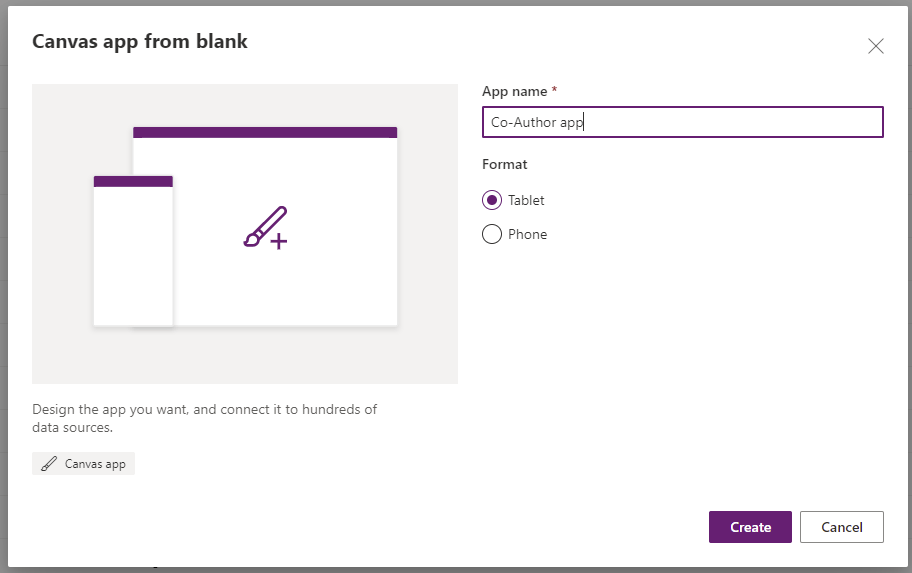
When you are looking for a Co-Authoring settings then you will not find it. Personally I find it a real shame that this feature is called the way it is. Hopefully it will be renamed to Enabled Co-Authoring soon.

Once you have enabled the above feature there will be an additional settings option where you can supply the git repository, the Branch and the Directory name
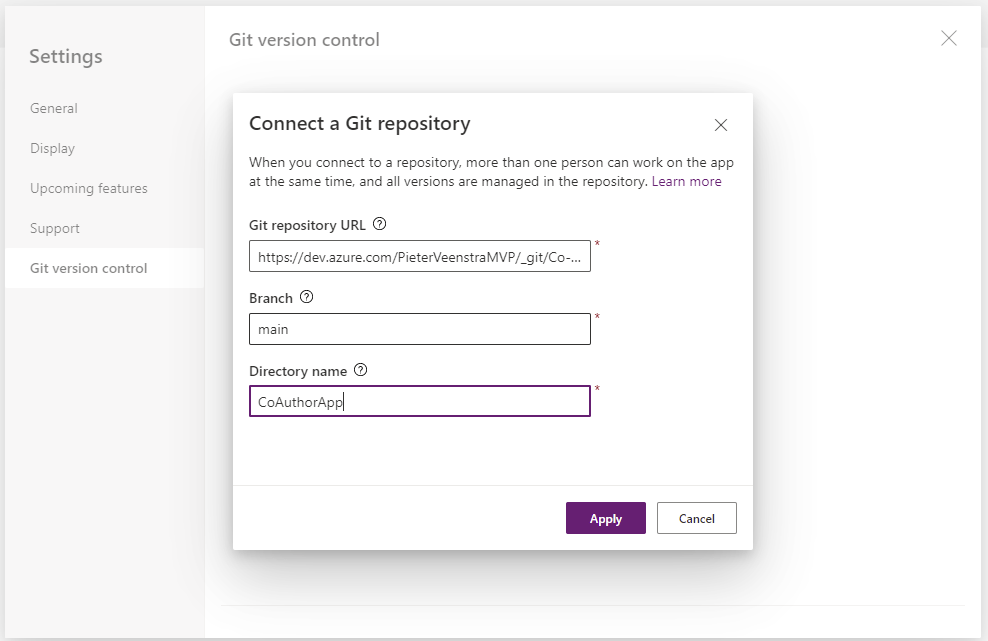
The Directory name should be specific to your app, so that you can handle multiple apps. Make sure that you don’t create this folder manually in your repository as Power apps will do all the work for you.
If you try to be helpful and create an empty folder then you will see the following error:
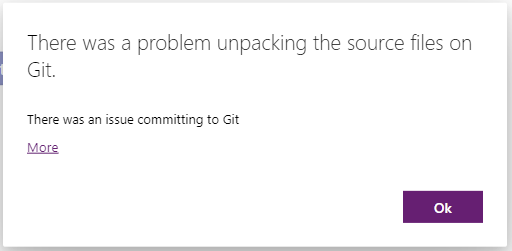
When you supply a non existing folder however you should be asked if you want to create the folder. Just click yes and all will be put in place.

Once you have supplied the repository details, you will be asked for a username and password.
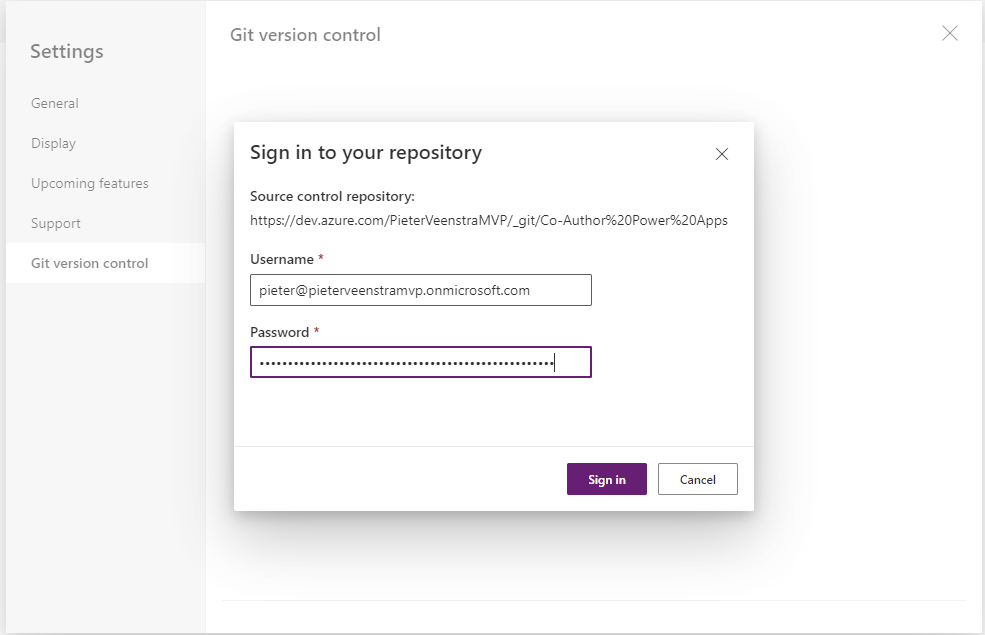
Note that this password is not your password!!!
This is where you need to supply your Personal Access Token, aka PAT. You can create and collect a PAT from the DevOps interface as shown below.
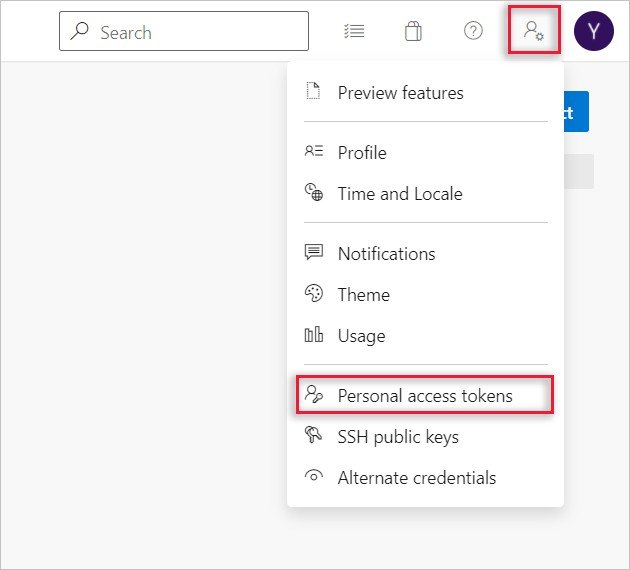
Now we can save and publish the app and share the app with a colleague. But before I look at the actual Co-Authoring I will first have a look at my Repo.
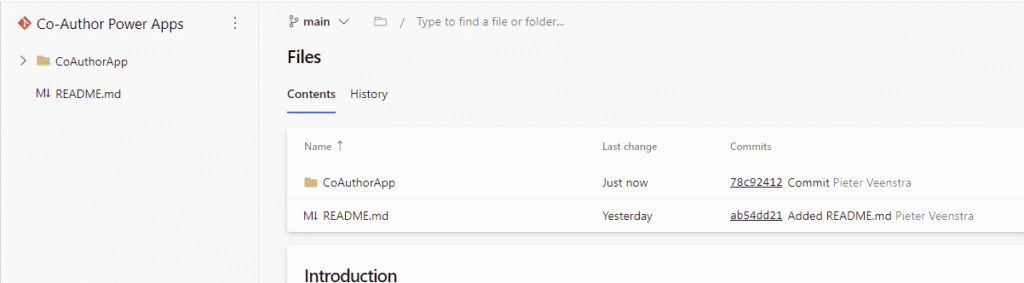
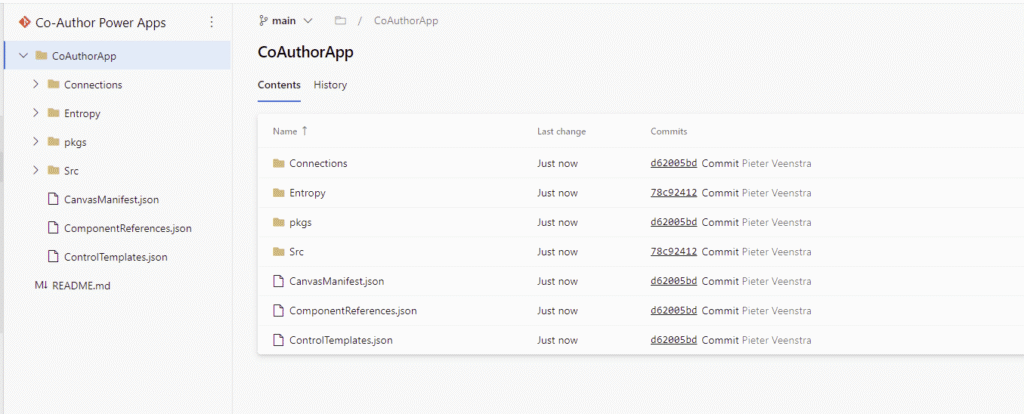
But not just a folder was created. The whole export of the app is now in my repo:
Share the Co-Author app
So now I’m going to share the app just the same way as I did before when Co-authoring didn’t exist.

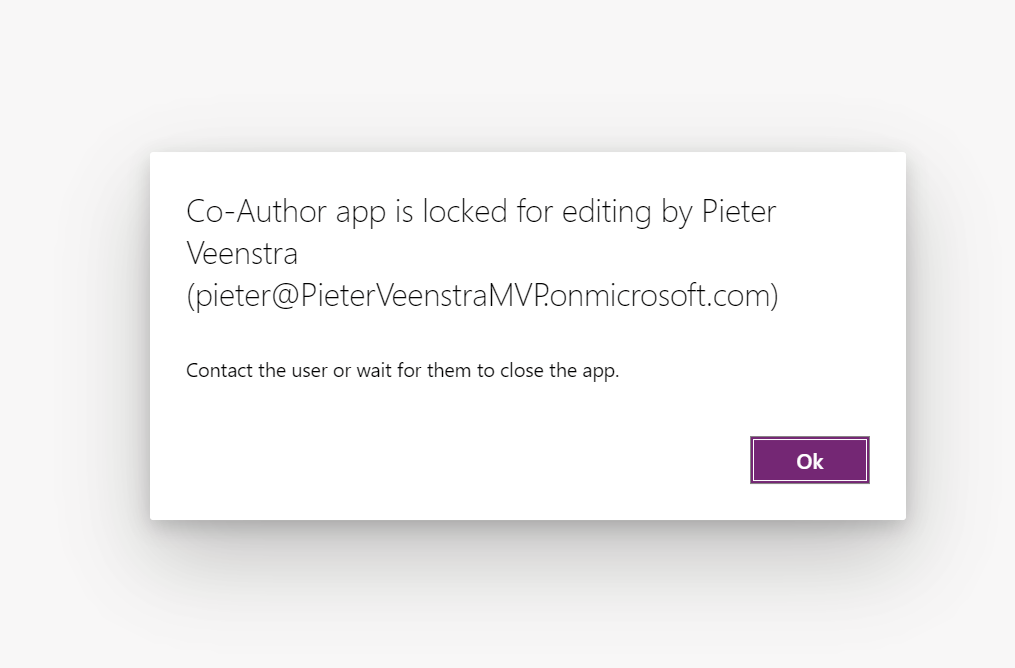
Where in the past you would get a message app is locked for editing by user like this:
The colleague will now see a dialog asking for a username and password.
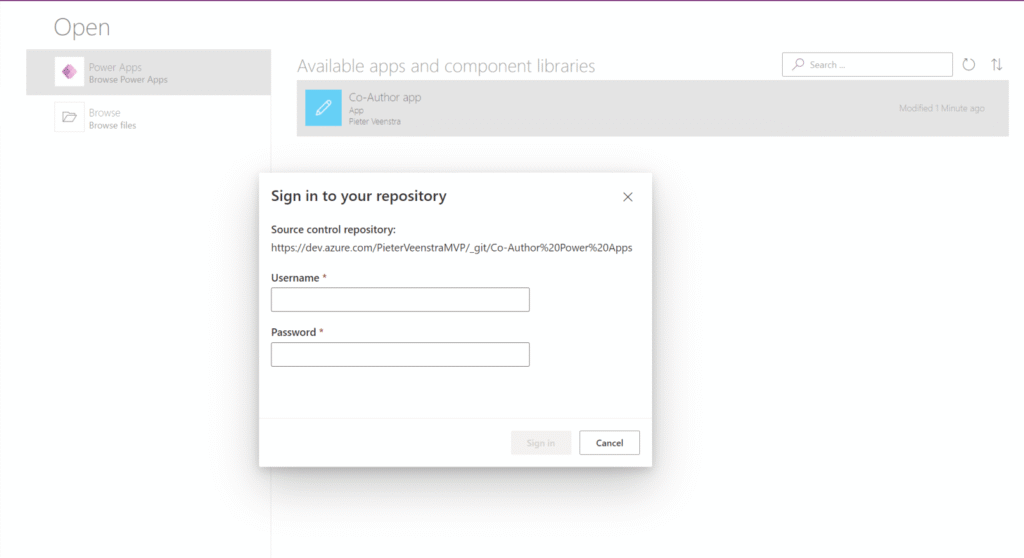
This is another point where things potentially could go wrong. It is important that the users have been given the right permissions on the repository. In general I would recommend checking in DevOps as the user in question if they can see the repo or not.

Co-Authoring the app
Once the PAT has ben supplied, the second author can now edit the app.

And as the first author makes an update (for example change the colour of a button)
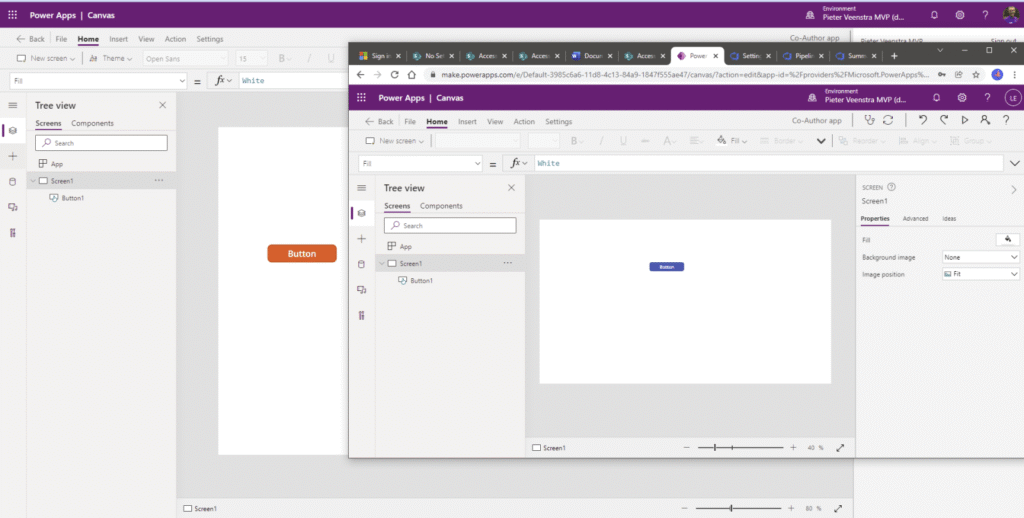
So how does the second author get the changes made by the first author?
You might already have noticed the little refresh icon at the top. Directly next to the app checker.
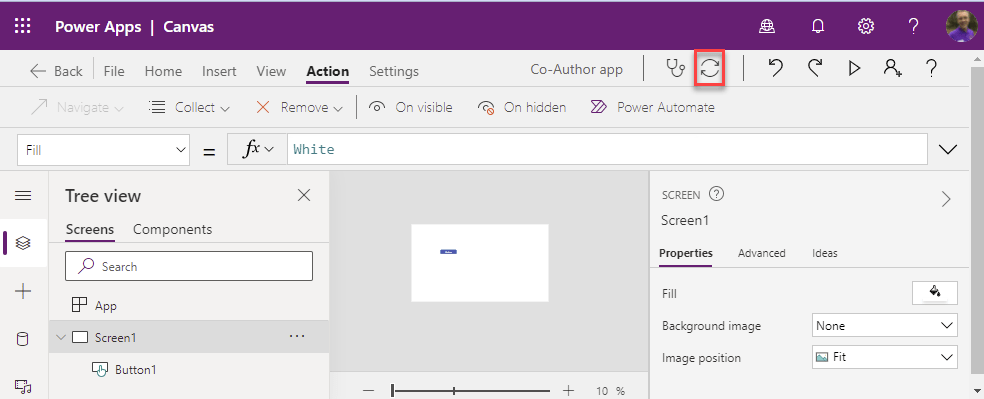
Once that is pressed the changes will come through immediately.

After my second author has clicked on the refresh I’m going to have another look at the Repo. As you can see a SmartMerge has taken place.

Pieter Veenstra

Is your business still running on paper trails, sprawling Excel files, or ageing Access databases? There’s a better way — and I can show you exactly what it looks like. I’m the Technical Director of Vantage 365, a Microsoft solutions consultancy working with clients across the UK, the Netherlands, and worldwide. For over 30 years I’ve been turning messy, manual business processes into clean, automated systems that save time, reduce errors, and give teams the visibility they need to make better decisions. SharePains is not just any blog run by a Microsoft MVP. Have you ever used Try-Catch in Power Automate? The original post about Try-Catch in Power Automate can still be found on this site, https://staging.sharepains.com/2018/02/07/try-catch-finally-in-power-automate-flow/ Or have you ever used the Pieter’s method to avoid variables and speed up your flows? https://staging.sharepains.com/2020/03/11/pieters-method-for-advanced-in-flows/ You can contact me using contact@staging.sharepains.com


Leave a Reply
You must be logged in to post a comment.