In the last week I’ve been asked 3 times how to handle commas in csv files.
Please note that you now now also use the Run a prompt action to make your job a lot easier.
Reading CSV files
A while back I wrote a post about how to read CSV Files in Power Automate. Although this post handles some of the issues around reading CSV, It didn’t cover handling commas your csv.
Example CSV
In this post I will use the following example CSV
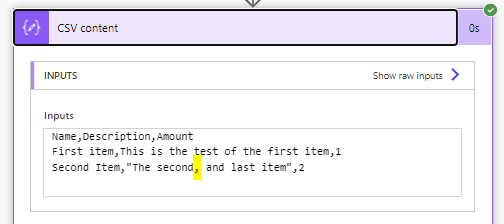
Name,Description,Amount
First item,This is the test of the first item,1
Second Item,"The second, and last item",2
So I’ve got one header line. Then I’ve got a simple line with some data followed by a more complicated line where my description contains a comma.
Note that the csv will have a double quote around the data with a comma. If only every field could have double quotes around all data then that would be great.
In my case i want to replace the commas that separate the fields with 3 hashes (###). But I don’t want to replace the comma in my data.
Creating a flow
As so often I’m going to create a manually started flow. in this flow I will initialize 3 variables. In general I try to avoid variables as much as possible and use compose steps instead, but there will be too loops and conditions for that to work this time.
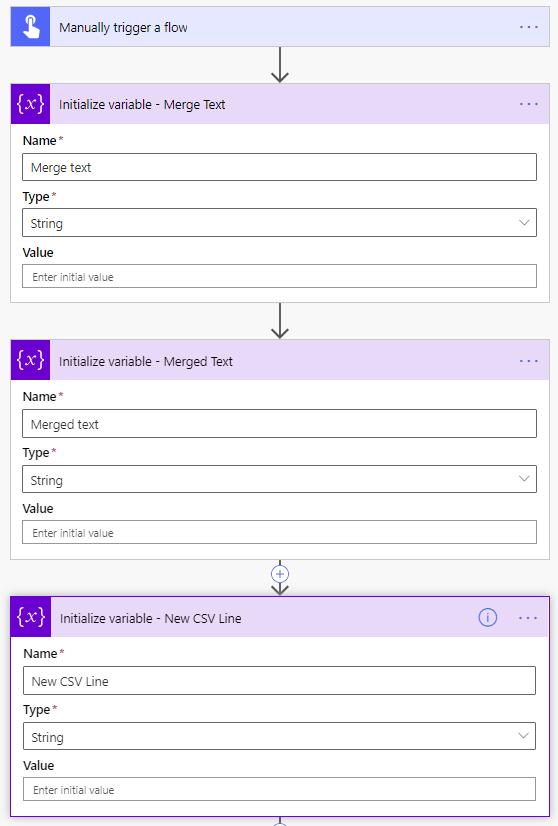
With these 3 variables I will control the manipulation of the csv file.
Reading the CSV data
Now I’ve got 3 steps to get my CSV data and turning it into an array of lines.
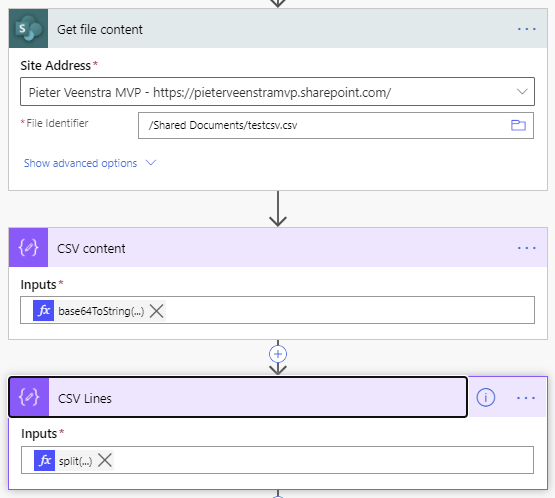
For the CSV content compose action i’m using the following expression:
base64ToString(
                body('Get_file_content')?['$content']
              )
for the CSV Lines split, I’m using the following expression to split by the new lines.
split(outputs('CSV_content'),'
')
Note that I added a new line in the middle of my expression!
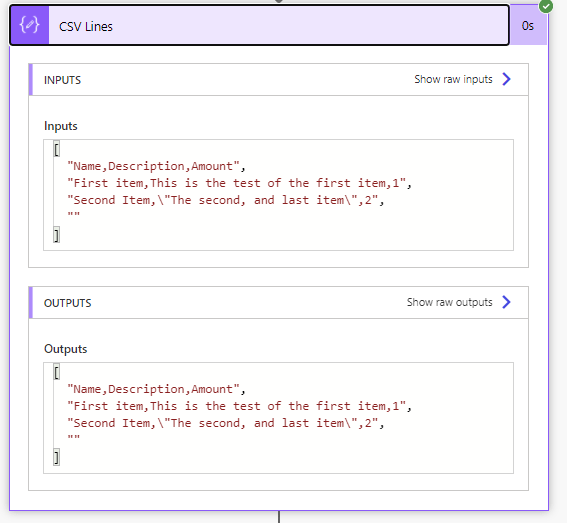
When I run this flow I’ve now got the following array of CSV lines.
Constructing new CSV lines
In the next step I will process the CSV lines in an Apply to each step. this Apply to each will take the output from the earlier CSV Lines compose action and take it as its input.
Then for each line we want to split the data.
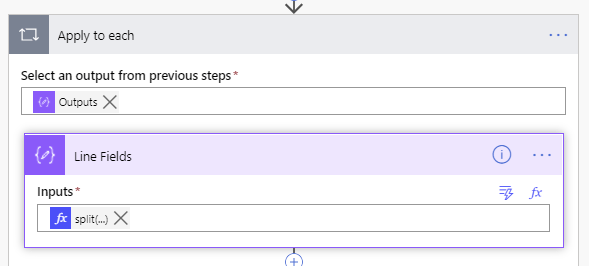
The expression used to split the fields is
split(items('Apply_to_each'),',')All quite simple so far. But what does the result look like? Especially that second item in our CSV will now not look right.
[
  "Second Item",
  "\"The second",
  " and last item\"",
  "2"
]
there are a couple of different approaches, but in my approach in this post I will go for standard flow options available. I could have called and Azure Function to do all the work, but I want to stick to standard Power Automate actions today.
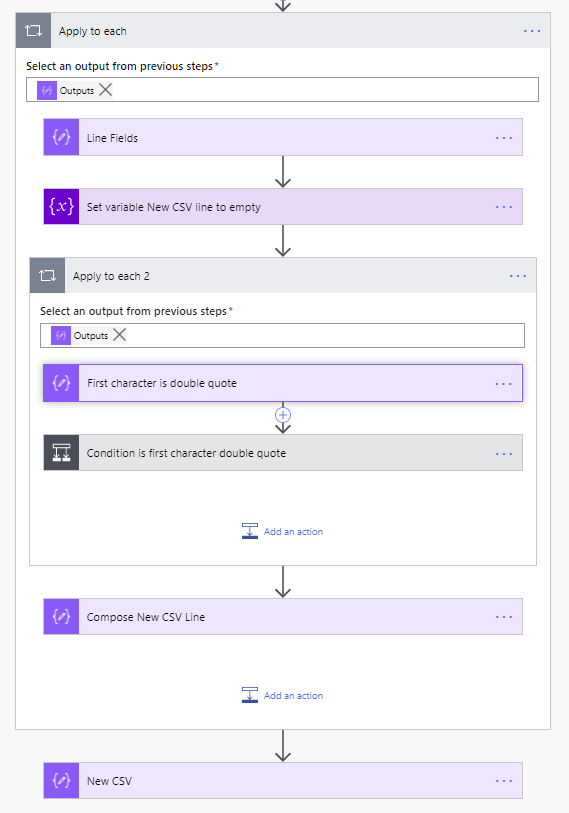
The general process is shown below.
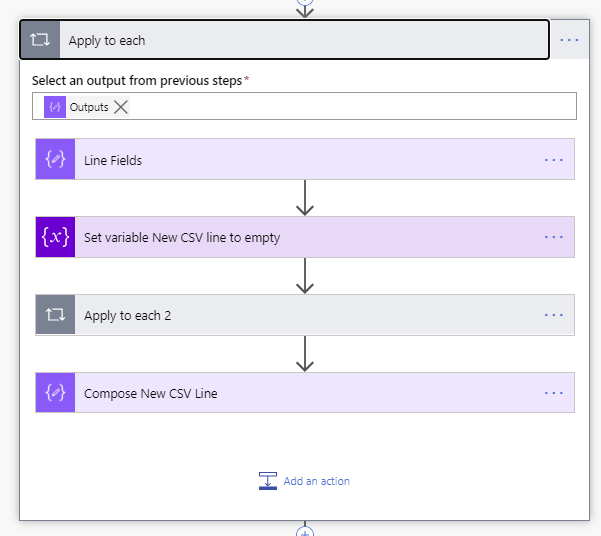
The New CSV line is set to an empty value using the concat function ( concat(”) will do this).
Then Inside the Apply to each 2 will will set the New CSV line to the required ### separated text like this:
Second Item,"The second, and last item",2Then we will use a compose action to get each of the lines. So that we can use the Pieter’s method to merge all of the lines.
Inside the Apply to each 2
Inside the Apply to each 2 we will need to check if a field of data starsts with a double quote (“). If it does then we have found data that has commas and my csv editor (e.g. Excel) decided that the double quotes were needed.
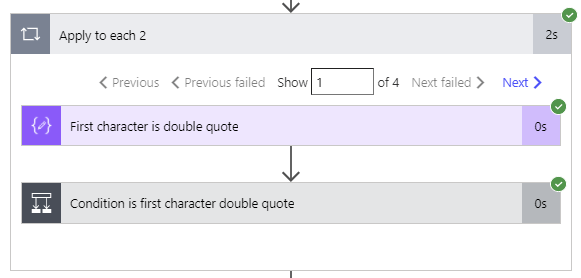
First I created a compose action which gets the first character
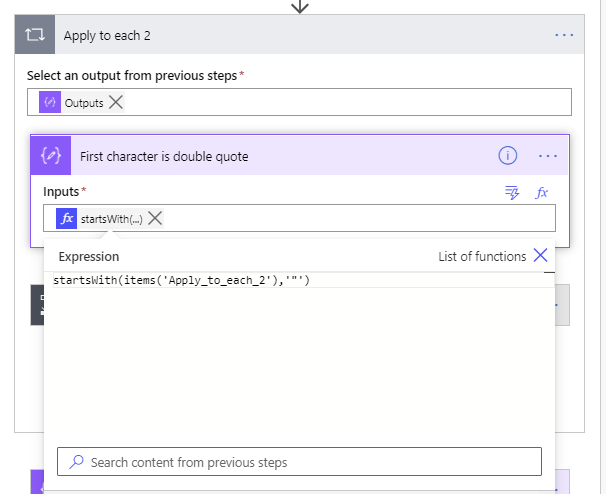
We can now use this in a condition step. when the data starts with a double quote we will simply store the text in the merge Text variable. Nothing to complicated.
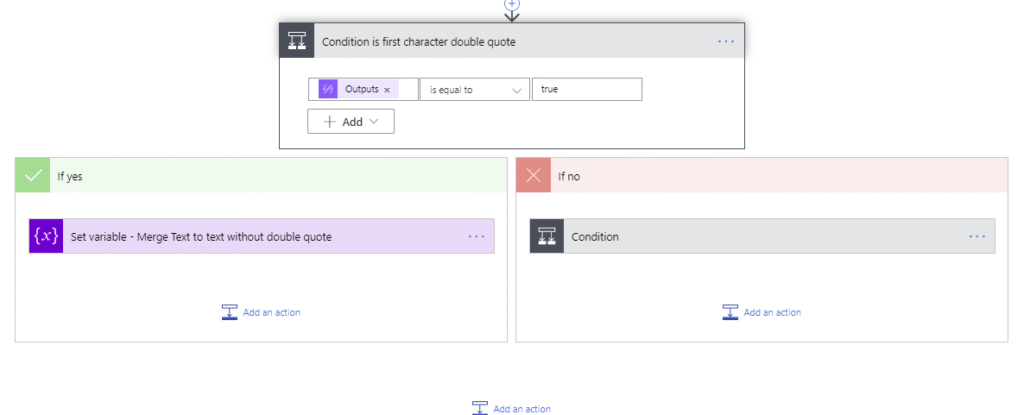
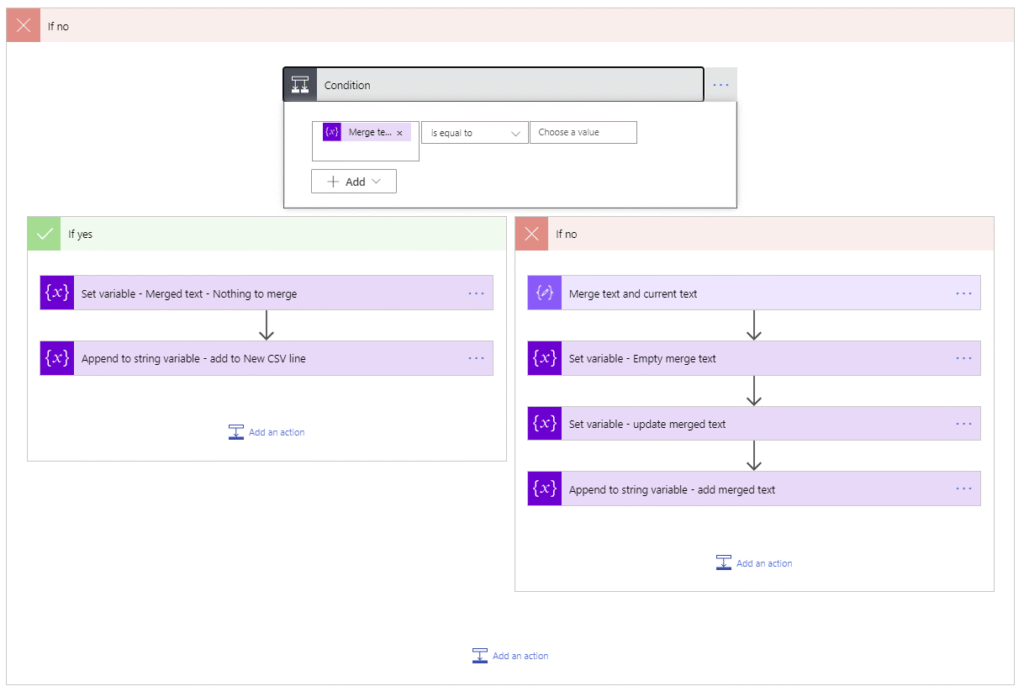
If we find data without a double quote then there are two options. Either we have found data to merge before or we haven’t.
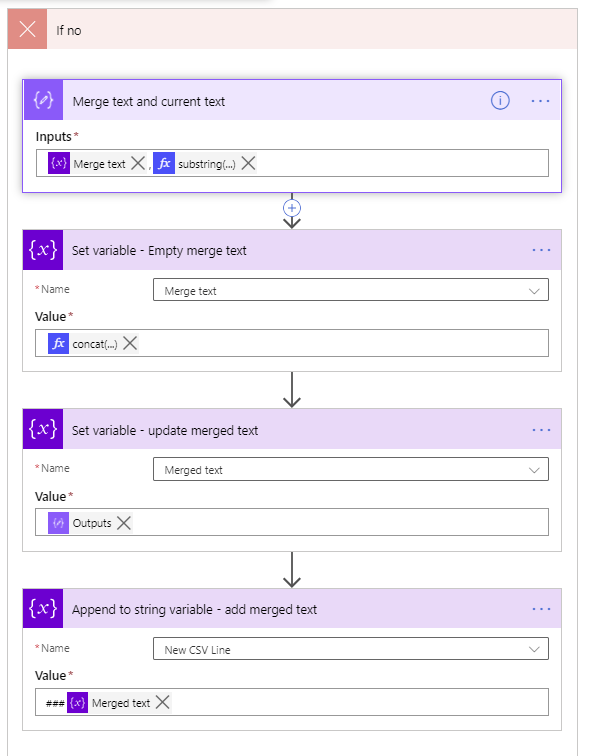
If we have found a field starting with a quotes before then we set the merged text variable to merge the values found. If we haven’t found quotes before then we simply set the merged text to the value of the field.
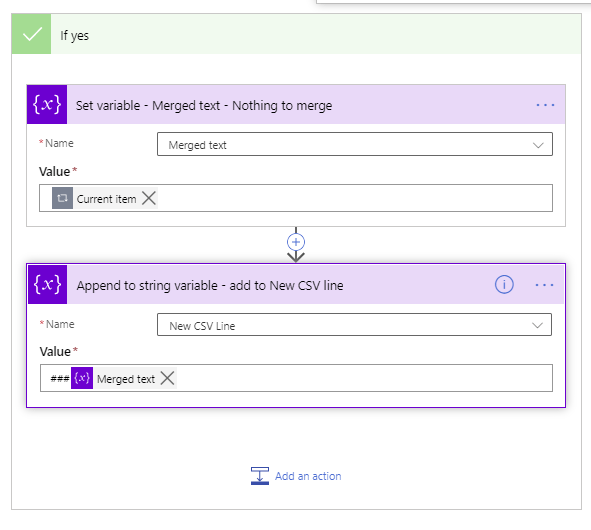
The code for the nothing to merge is as follows:
When I need to merge two texts together I use the following 4 steps:
So now we have a New CSV Line that looks like the has separated lines that I mentioned before.
The only thing left to do is now to set the compose with the content of the variable so t that a second compose can collect all the lines.
This final Compose will now hold the following data:
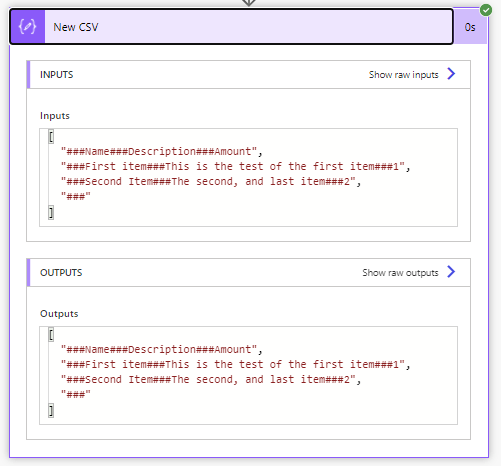
This solves my problem.
I could still remove the initial 3 hashes, but that would clutter the post rather than anything else. They aren’t sitting in my way for now.
Other Power Automate posts?
Have a look at the Power Automate User Guide with many other posts.
Pieter Veenstra

Is your business still running on paper trails, sprawling Excel files, or ageing Access databases? There’s a better way — and I can show you exactly what it looks like. I’m the Technical Director of Vantage 365, a Microsoft solutions consultancy working with clients across the UK, the Netherlands, and worldwide. For over 30 years I’ve been turning messy, manual business processes into clean, automated systems that save time, reduce errors, and give teams the visibility they need to make better decisions. SharePains is not just any blog run by a Microsoft MVP. Have you ever used Try-Catch in Power Automate? The original post about Try-Catch in Power Automate can still be found on this site, https://staging.sharepains.com/2018/02/07/try-catch-finally-in-power-automate-flow/ Or have you ever used the Pieter’s method to avoid variables and speed up your flows? https://staging.sharepains.com/2020/03/11/pieters-method-for-advanced-in-flows/ You can contact me using contact@staging.sharepains.com


Leave a Reply
You must be logged in to post a comment.