Are you creating backups of your Power Apps? just in case someone damages the app or accidentally deletes the app? Do you export each app and keep the files somewhere secure?
Create Backups
In Power Apps you can also use the backup option to keep a copy of all your apps in an Environment.
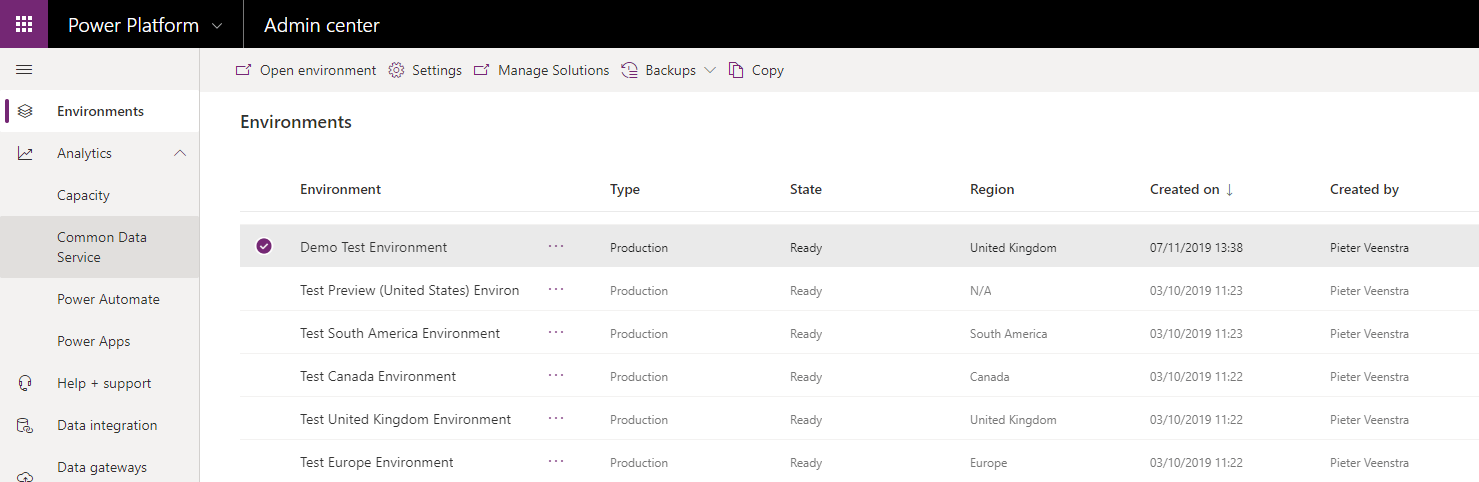
The option only exists when you have created a Common Data Service database.
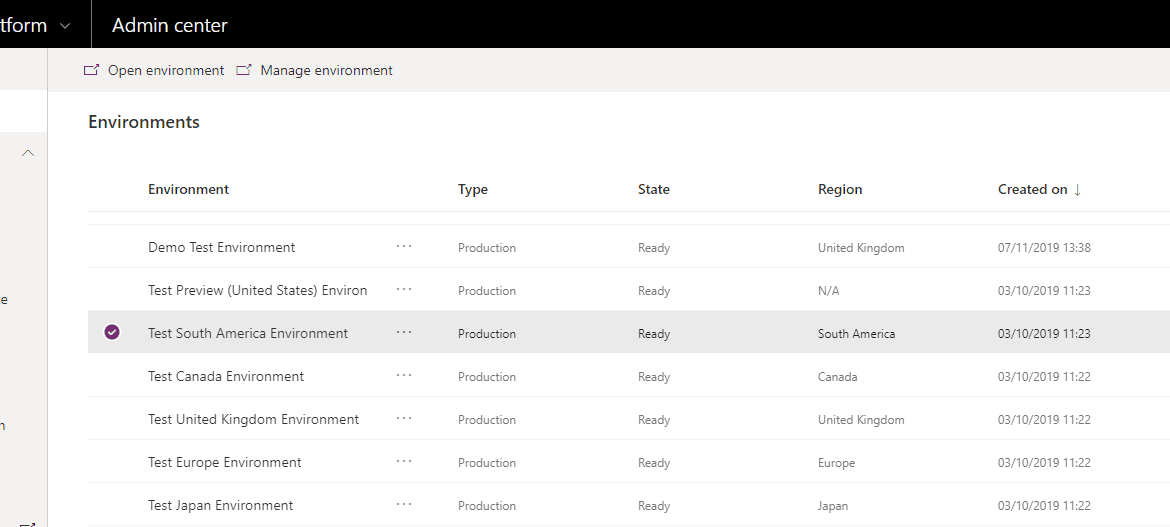
It is also important to note that the the default environment doesn’t have the backup option available. You might have to create yourself a new environment for this.
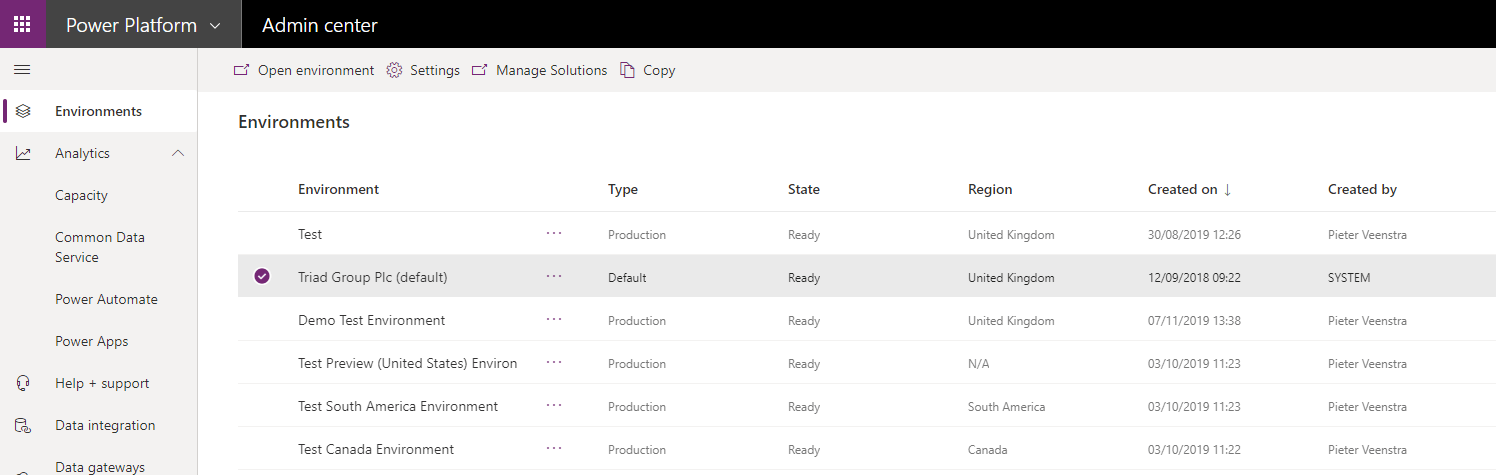
This might be another good reason not to develop your apps in the default environment. So far I’ve seen almost everybody start with just the default environment.
To create the backup simply select the environment and then go for create. This will start the backup creation process for you.
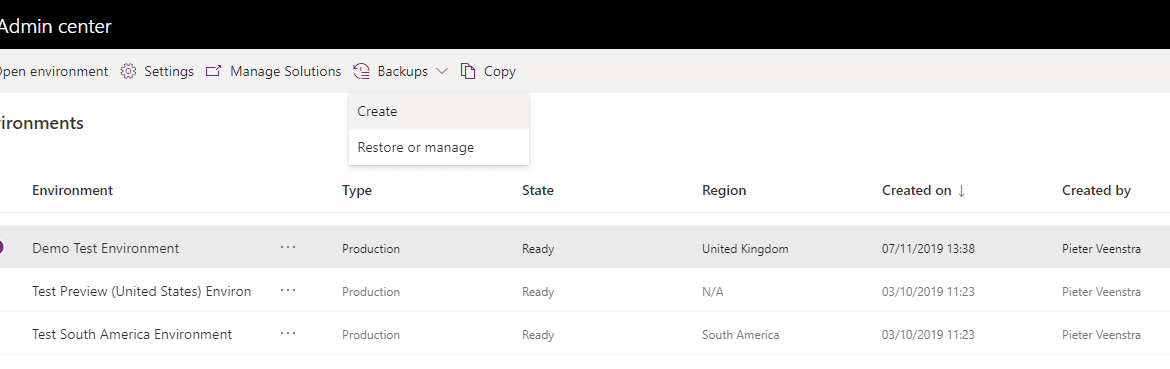
All you have to do is give your backup a name. Make sure that this name is something sensible so that you can recognise your backups later as well.
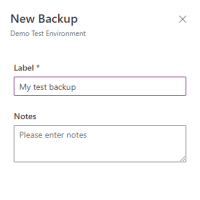
And your backup will be created. When this is done successfully you will get a green bar confirming the success.
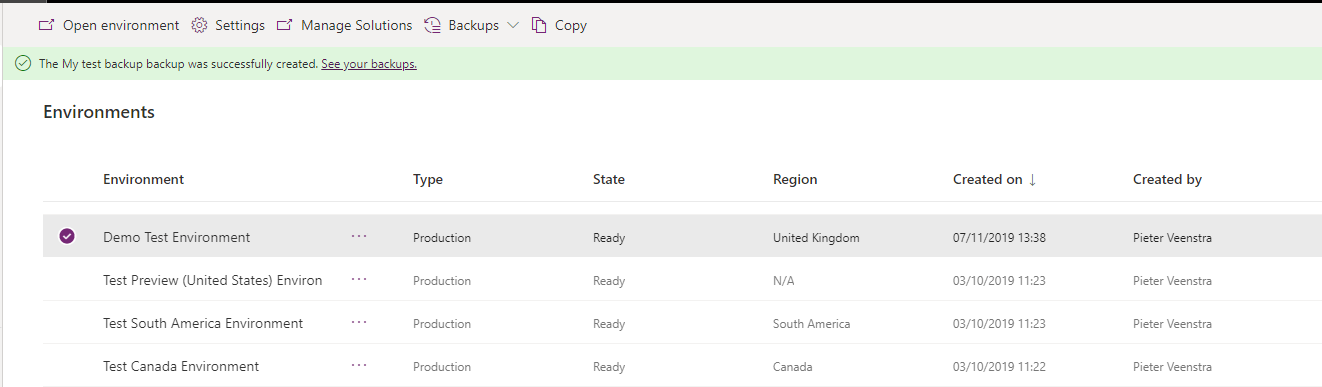
Restore your Power Apps backups
When you click on the see your backups or on the Restore link in the menu you will get to your overview of the backup that you have created so far.
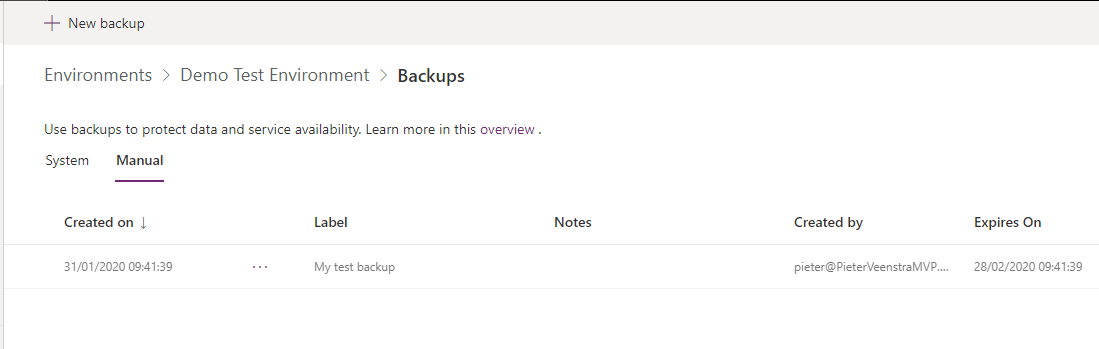
Using the restore option you can now restore your apps to your environment. Of course you will need to be careful with this. It is quite easy to overwrite an app.
Although, …

Ok, this is good.
But now the troubles started for me. Or maybe I should say, this is where Power Apps protects itself quite nicely.
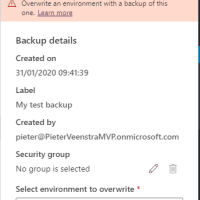
It is important to understand that backups are only there to restore your apps when disaster strikes. The backups aren’t really an option for you as develop to use to deploy apps from one environment to another.
Ok, so I can create a backup, but I can’t restore it. The link in the pink message actually gave me the clue.
Can I restore to a production environment? In order to prevent accidental overwrites, we don’t allow users to directly restore to a production environment. To restore to a production environment, first switch it to a sandbox environment. See Switch an environment. Note that changing an environment type to sandbox will immediately reduce backup retention to 7 days. If you do not need backups (restore points) older than 7 days, then you can safely switch the type. If you think you may need restore points older than 7 days, we strongly recommend that you keep the environment as production and consider restoring to a different environment of type sandbox.This of course is a nice safety blanket. You can now not create an accidental overwrite of your production apps, while you can restore your apps to a sandbox environment so that you can restore the apps. Then export them from the temporary environment and then import them where you want.
Have you considered having a sandbox environment readily available for you to restore production apps to? You might want to consider doing this. Just in case the creation of new environments is not working while you need one.
You will have to create a Sandbox environment first (if you haven’t got one)
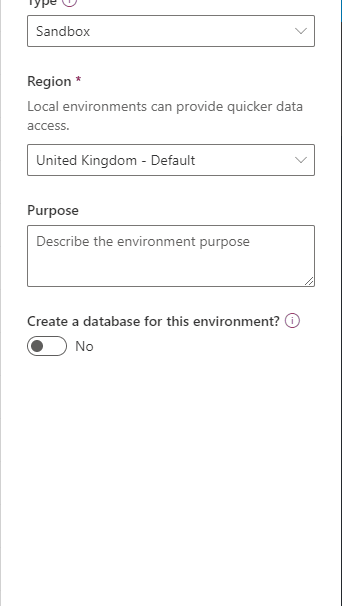
When I completed the form

Once you have created your sandbox environment you can restore your environment and recover your apps.
After thoughts
Like already mentioned in the comments below, you might think that you will need a CDS in your environment. Well that is indeed right.
Have you noticed that when you create your first Approval flow that a CDS is created automatically?
So all you would need to do is create one approval flow and your backup option is available. You can of course also just simply create a CDS database manually.
Pieter Veenstra

Is your business still running on paper trails, sprawling Excel files, or ageing Access databases? There’s a better way — and I can show you exactly what it looks like. I’m the Technical Director of Vantage 365, a Microsoft solutions consultancy working with clients across the UK, the Netherlands, and worldwide. For over 30 years I’ve been turning messy, manual business processes into clean, automated systems that save time, reduce errors, and give teams the visibility they need to make better decisions. SharePains is not just any blog run by a Microsoft MVP. Have you ever used Try-Catch in Power Automate? The original post about Try-Catch in Power Automate can still be found on this site, https://staging.sharepains.com/2018/02/07/try-catch-finally-in-power-automate-flow/ Or have you ever used the Pieter’s method to avoid variables and speed up your flows? https://staging.sharepains.com/2020/03/11/pieters-method-for-advanced-in-flows/ You can contact me using contact@staging.sharepains.com


Leave a Reply
You must be logged in to post a comment.