Generate a date in your Flow
Recently quite a few citizen developer asked me how to format dates in a flow in Power Automate.
Quite often people want to send dates in an email, however formatting these dates doesn’t seem to be that easy. In this post I will look at formatDateTime to format dates in Power Automate.
An example without formatting the date
In my example I’m just going to take the current date and send it out by email:

This now gives me the following email:
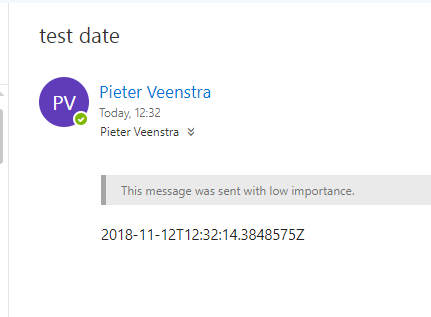
OK, that is ugly!
To get a proper date you might be happy with the first part. Or maybe you want to include the time as well but I still have to find the first person who would be happy with that T and Z in the date and time.
formatDateTime flow function in Power Automate
Now I add Flow’s formatDateTime function and a format string ‘dd-MM-yyyy’.

Using this format and I will see that my date will appear in the European format of day-month-year.
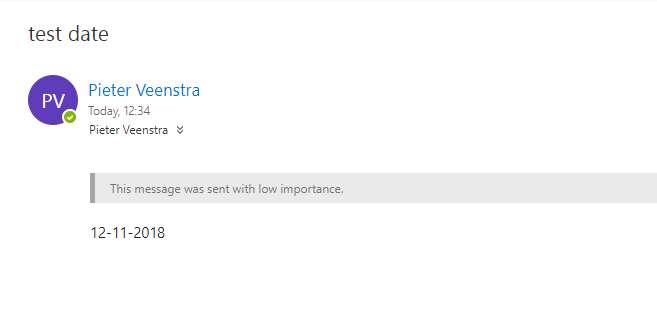
For the full overview of the format strings please have a look at the formatDateTime function documentation
The formatting options for formatDateTime, that you can use here are listed in the following table. Any of the format specifiers can be used in any kind of combination.
| Format specifier | Description | Examples |
|---|---|---|
| “d” | The day of the month, from 1 through 31. More information: The “d” Custom Format Specifier. | 2009-06-01T13:45:30 -> 1 2009-06-15T13:45:30 -> 15 |
| “dd” | The day of the month, from 01 through 31. More information: The “dd” Custom Format Specifier. | 2009-06-01T13:45:30 -> 01 2009-06-15T13:45:30 -> 15 |
| “ddd” | The abbreviated name of the day of the week. More information: The “ddd” Custom Format Specifier. | 2009-06-15T13:45:30 -> Mon (en-US) 2009-06-15T13:45:30 -> ?? (ru-RU) 2009-06-15T13:45:30 -> lun. (fr-FR) |
| “dddd” | The full name of the day of the week. More information: The “dddd” Custom Format Specifier. | 2009-06-15T13:45:30 -> Monday (en-US) 2009-06-15T13:45:30 -> ??????????? (ru-RU) 2009-06-15T13:45:30 -> lundi (fr-FR) |
| “f” | The tenths of a second in a date and time value. More information: The “f” Custom Format Specifier. | 2009-06-15T13:45:30.6170000 -> 6 2009-06-15T13:45:30.05 -> 0 |
| “ff” | The hundredths of a second in a date and time value. More information: The “ff” Custom Format Specifier. | 2009-06-15T13:45:30.6170000 -> 61 2009-06-15T13:45:30.0050000 -> 00 |
| “fff” | The milliseconds in a date and time value. More information: The “fff” Custom Format Specifier. | 6/15/2009 13:45:30.617 -> 617 6/15/2009 13:45:30.0005 -> 000 |
| “ffff” | The ten thousandths of a second in a date and time value. More information: The “ffff” Custom Format Specifier. | 2009-06-15T13:45:30.6175000 -> 6175 2009-06-15T13:45:30.0000500 -> 0000 |
| “fffff” | The hundred thousandths of a second in a date and time value. More information: The “fffff” Custom Format Specifier. | 2009-06-15T13:45:30.6175400 -> 61754 6/15/2009 13:45:30.000005 -> 00000 |
| “ffffff” | The millionths of a second in a date and time value. More information: The “ffffff” Custom Format Specifier. | 2009-06-15T13:45:30.6175420 -> 617542 2009-06-15T13:45:30.0000005 -> 000000 |
| “fffffff” | The ten millionths of a second in a date and time value. More information: The “fffffff” Custom Format Specifier. | 2009-06-15T13:45:30.6175425 -> 6175425 2009-06-15T13:45:30.0001150 -> 0001150 |
| “F” | If non-zero, the tenths of a second in a date and time value. More information: The “F” Custom Format Specifier. | 2009-06-15T13:45:30.6170000 -> 6 2009-06-15T13:45:30.0500000 -> (no output) |
| “FF” | If non-zero, the hundredths of a second in a date and time value. More information: The “FF” Custom Format Specifier. | 2009-06-15T13:45:30.6170000 -> 61 2009-06-15T13:45:30.0050000 -> (no output) |
| “FFF” | If non-zero, the milliseconds in a date and time value. More information: The “FFF” Custom Format Specifier. | 2009-06-15T13:45:30.6170000 -> 617 2009-06-15T13:45:30.0005000 -> (no output) |
| “FFFF” | If non-zero, the ten thousandths of a second in a date and time value. More information: The “FFFF” Custom Format Specifier. | 2009-06-15T13:45:30.5275000 -> 5275 2009-06-15T13:45:30.0000500 -> (no output) |
| “FFFFF” | If non-zero, the hundred thousandths of a second in a date and time value. More information: The “FFFFF” Custom Format Specifier. | 2009-06-15T13:45:30.6175400 -> 61754 2009-06-15T13:45:30.0000050 -> (no output) |
| “FFFFFF” | If non-zero, the millionths of a second in a date and time value. More information: The “FFFFFF” Custom Format Specifier. | 2009-06-15T13:45:30.6175420 -> 617542 2009-06-15T13:45:30.0000005 -> (no output) |
| “FFFFFFF” | If non-zero, the ten millionths of a second in a date and time value. More information: The “FFFFFFF” Custom Format Specifier. | 2009-06-15T13:45:30.6175425 -> 6175425 2009-06-15T13:45:30.0001150 -> 000115 |
| “g”, “gg” | The period or era. More information: The “g” or “gg” Custom Format Specifier. | 2009-06-15T13:45:30.6170000 -> A.D. |
| “h” | The hour, using a 12-hour clock from 1 to 12. More information: The “h” Custom Format Specifier. | 2009-06-15T01:45:30 -> 1 2009-06-15T13:45:30 -> 1 |
| “hh” | The hour, using a 12-hour clock from 01 to 12. More information: The “hh” Custom Format Specifier. | 2009-06-15T01:45:30 -> 01 2009-06-15T13:45:30 -> 01 |
| “H” | The hour, using a 24-hour clock from 0 to 23. More information: The “H” Custom Format Specifier. | 2009-06-15T01:45:30 -> 1 2009-06-15T13:45:30 -> 13 |
| “HH” | The hour, using a 24-hour clock from 00 to 23. More information: The “HH” Custom Format Specifier. | 2009-06-15T01:45:30 -> 01 2009-06-15T13:45:30 -> 13 |
| “K” | Time zone information. More information: The “K” Custom Format Specifier. | With DateTime values: 2009-06-15T13:45:30, Kind Unspecified -> 2009-06-15T13:45:30, Kind Utc -> Z 2009-06-15T13:45:30, Kind Local -> -07:00 (depends on local computer settings) With DateTimeOffset values: 2009-06-15T01:45:30-07:00 –> -07:00 2009-06-15T08:45:30+00:00 –> +00:00 |
| “m” | The minute, from 0 through 59. More information: The “m” Custom Format Specifier. | 2009-06-15T01:09:30 -> 9 2009-06-15T13:29:30 -> 29 |
| “mm” | The minute, from 00 through 59. More information: The “mm” Custom Format Specifier. | 2009-06-15T01:09:30 -> 09 2009-06-15T01:45:30 -> 45 |
| “M” | The month, from 1 through 12. More information: The “M” Custom Format Specifier. | 2009-06-15T13:45:30 -> 6 |
| “MM” | The month, from 01 through 12. More information: The “MM” Custom Format Specifier. | 2009-06-15T13:45:30 -> 06 |
| “MMM” | The abbreviated name of the month. More information: The “MMM” Custom Format Specifier. | 2009-06-15T13:45:30 -> Jun (en-US) 2009-06-15T13:45:30 -> juin (fr-FR) 2009-06-15T13:45:30 -> Jun (zu-ZA) |
| “MMMM” | The full name of the month. More information: The “MMMM” Custom Format Specifier. | 2009-06-15T13:45:30 -> June (en-US) 2009-06-15T13:45:30 -> juni (da-DK) 2009-06-15T13:45:30 -> uJuni (zu-ZA) |
| “s” | The second, from 0 through 59. More information: The “s” Custom Format Specifier. | 2009-06-15T13:45:09 -> 9 |
| “ss” | The second, from 00 through 59. More information: The “ss” Custom Format Specifier. | 2009-06-15T13:45:09 -> 09 |
| “t” | The first character of the AM/PM designator. More information: The “t” Custom Format Specifier. | 2009-06-15T13:45:30 -> P (en-US) 2009-06-15T13:45:30 -> ? (ja-JP) 2009-06-15T13:45:30 -> (fr-FR) |
| “tt” | The AM/PM designator. More information: The “tt” Custom Format Specifier. | 2009-06-15T13:45:30 -> PM (en-US) 2009-06-15T13:45:30 -> ?? (ja-JP) 2009-06-15T13:45:30 -> (fr-FR) |
| “y” | The year, from 0 to 99. More information: The “y” Custom Format Specifier. | 0001-01-01T00:00:00 -> 1 0900-01-01T00:00:00 -> 0 1900-01-01T00:00:00 -> 0 2009-06-15T13:45:30 -> 9 2019-06-15T13:45:30 -> 19 |
| “yy” | The year, from 00 to 99. More information: The “yy” Custom Format Specifier. | 0001-01-01T00:00:00 -> 01 0900-01-01T00:00:00 -> 00 1900-01-01T00:00:00 -> 00 2019-06-15T13:45:30 -> 19 |
| “yyy” | The year, with a minimum of three digits. More information: The “yyy” Custom Format Specifier. | 0001-01-01T00:00:00 -> 001 0900-01-01T00:00:00 -> 900 1900-01-01T00:00:00 -> 1900 2009-06-15T13:45:30 -> 2009 |
| “yyyy” | The year as a four-digit number. More information: The “yyyy” Custom Format Specifier. | 0001-01-01T00:00:00 -> 0001 0900-01-01T00:00:00 -> 0900 1900-01-01T00:00:00 -> 1900 2009-06-15T13:45:30 -> 2009 |
| “yyyyy” | The year as a five-digit number. More information: The “yyyyy” Custom Format Specifier. | 0001-01-01T00:00:00 -> 00001 2009-06-15T13:45:30 -> 02009 |
| “z” | Hours offset from UTC, with no leading zeros. More information: The “z” Custom Format Specifier. | 2009-06-15T13:45:30-07:00 -> -7 |
| “zz” | Hours offset from UTC, with a leading zero for a single-digit value. More information: The “zz” Custom Format Specifier. | 2009-06-15T13:45:30-07:00 -> -07 |
| “zzz” | Hours and minutes offset from UTC. More information: The “zzz” Custom Format Specifier. | 2009-06-15T13:45:30-07:00 -> -07:00 |
| “:” | The time separator. More information: The “:” Custom Format Specifier. | 2009-06-15T13:45:30 -> : (en-US) 2009-06-15T13:45:30 -> . (it-IT) 2009-06-15T13:45:30 -> : (ja-JP) |
| “/” | The date separator. More Information: The “/” Custom Format Specifier. | 2009-06-15T13:45:30 -> / (en-US) 2009-06-15T13:45:30 -> – (ar-DZ) 2009-06-15T13:45:30 -> . (tr-TR) |
| “string“ ‘string‘ | Literal string delimiter. More information: Character literals. | 2009-06-15T13:45:30 (“arr:” h:m t) -> arr: 1:45 P 2009-06-15T13:45:30 (‘arr:’ h:m t) -> arr: 1:45 P |
| % | Defines the following character as a custom format specifier. More information:Using Single Custom Format Specifiers. | 2009-06-15T13:45:30 (%h) -> 1 |
| \ | The escape character. More information: Character literals and Using the Escape Character. | 2009-06-15T13:45:30 (h \h) -> 1 h |
| Any other character | The character is copied to the result string unchanged. More information: Character literals. | 2009-06-15T01:45:30 (arr hh:mm t) -> arr 01:45 A |
Other options for formatDatetime
There are more options for the formatDateTime formatting. this is called the short date pattern. Just by using a single letter you can format dates.
As an example, the following code gives a nicely formatted long date
formatDateTime(utcnow(),'D')
|
Format specifier |
Description |
Examples |
|
“d” |
Short date pattern. |
2009-06-15T13:45:30 -> 6/15/2009 (en-US) |
|
“D” |
Long date pattern. |
2009-06-15T13:45:30 -> Monday, June 15, 2009 (en-US) |
|
“f” |
Full date/time pattern (short time). |
2009-06-15T13:45:30 -> Monday, June 15, 2009 1:45 PM (en-US) |
|
“F” |
Full date/time pattern (long time). |
2009-06-15T13:45:30 -> Monday, June 15, 2009 1:45:30 PM (en-US) |
|
“g” |
General date/time pattern (short time). |
2009-06-15T13:45:30 -> 6/15/2009 1:45 PM (en-US) |
|
“G” |
General date/time pattern (long time). |
2009-06-15T13:45:30 -> 6/15/2009 1:45:30 PM (en-US) |
|
“M”, “m” |
Month/day pattern. |
2009-06-15T13:45:30 -> June 15 (en-US) |
|
“O”, “o” |
Round-trip date/time pattern. |
DateTime values: |
|
“R”, “r” |
RFC1123 pattern. |
2009-06-15T13:45:30 -> Mon, 15 Jun 2009 20:45:30 GMT |
|
“s” |
Sortable date/time pattern. |
2009-06-15T13:45:30 (DateTimeKind.Local) -> 2009-06-15T13:45:30 |
|
“t” |
Short time pattern. |
2009-06-15T13:45:30 -> 1:45 PM (en-US) |
|
“T” |
Long time pattern. |
2009-06-15T13:45:30 -> 1:45:30 PM (en-US) |
|
“u” |
Universal sortable date/time pattern. |
With a DateTime value: 2009-06-15T13:45:30 -> 2009-06-15 13:45:30Z |
|
“U” |
Universal full date/time pattern. |
2009-06-15T13:45:30 -> Monday, June 15, 2009 8:45:30 PM (en-US) |
|
“Y”, “y” |
Year month pattern. |
2009-06-15T13:45:30 -> June 2009 (en-US) |
|
Any other single character |
Unknown specifier. |
Throws a run-time FormatException. |
Other uses for the formatDataTime flow function
You can use the formatDateTime flow function to format dates and that is the most common use.
When you want to get for example just the day of the month or if you just want to get the hour of the time you could use the formatDateTime flow function as well.
Other date formatting Power Automate posts
Format your dates in PowerApps
Convert your time faster in Power Apps to all time zones using Power Automate
Pieter Veenstra

Is your business still running on paper trails, sprawling Excel files, or ageing Access databases? There’s a better way — and I can show you exactly what it looks like. I’m the Technical Director of Vantage 365, a Microsoft solutions consultancy working with clients across the UK, the Netherlands, and worldwide. For over 30 years I’ve been turning messy, manual business processes into clean, automated systems that save time, reduce errors, and give teams the visibility they need to make better decisions. SharePains is not just any blog run by a Microsoft MVP. Have you ever used Try-Catch in Power Automate? The original post about Try-Catch in Power Automate can still be found on this site, https://staging.sharepains.com/2018/02/07/try-catch-finally-in-power-automate-flow/ Or have you ever used the Pieter’s method to avoid variables and speed up your flows? https://staging.sharepains.com/2020/03/11/pieters-method-for-advanced-in-flows/ You can contact me using contact@staging.sharepains.com


Leave a Reply
You must be logged in to post a comment.